Add Users to Group
Purpose
Add users to a group so they receive access wherever the group is used.
Note: This action may require administrator privileges.
Prerequisites
- You are signed in as a user administrator or system administrator.
- You can open Admin Tools > Groups.
- The target group already exists.
- The target group allows membership editing.
Before You Begin
Adding a user to a group can affect access across departments, folders, documents, and other areas where the group is assigned. Confirm that the group represents the access the user should receive.
If the group contains subgroups, direct users and subgroup users both contribute to the group's effective membership.
Add Users
- Open Admin Tools > Groups.
- Open the target group.
- Select the Users tab.
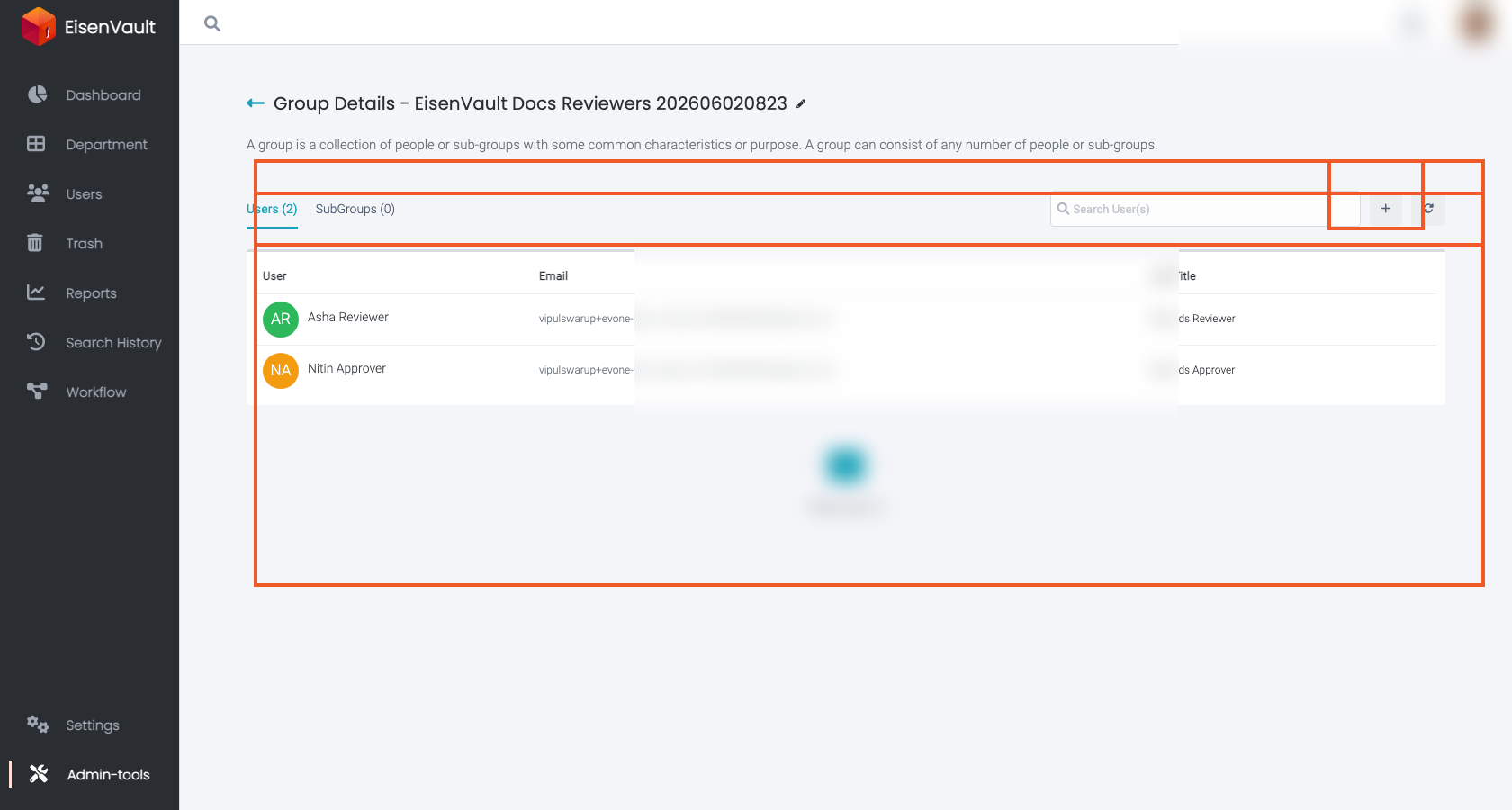
- Click the plus button in the toolbar.
- In the Select Users window, click + beside each user you want.
- Click Add Selected to Group.
Example Walkthrough
-
Open the group's Users tab and click the plus button to add members.
-
Confirm the selected users appear in the group.
Expected Result
- The selected users appear in the group's Users list.
- The users receive access granted through the group.
- Access changes apply anywhere the group is used for permissions.