Main Profile
Purpose
View your EisenVault One account profile and update personal information such as your name, email address, job title, contact numbers, and avatar.
Prerequisites
- You are signed in to EisenVault One.
- You can open your account settings from the top-right account menu.
Before You Begin
Your main profile is split into a read-only Profile view and an editable Profile form.
On the read-only view, EisenVault One shows your personal information, contact details, locale and date settings, email notification subscriptions, account timestamps, and signature status. Locale, time zone, date format, and email notification settings are managed on the separate Preferences page rather than on the main profile edit form.
When you edit your own profile, you can change your avatar, email address, name, job title, and phone numbers. You cannot change your own active status or system roles from this page. Administrators who edit another user's profile can also manage that user's active status and roles.
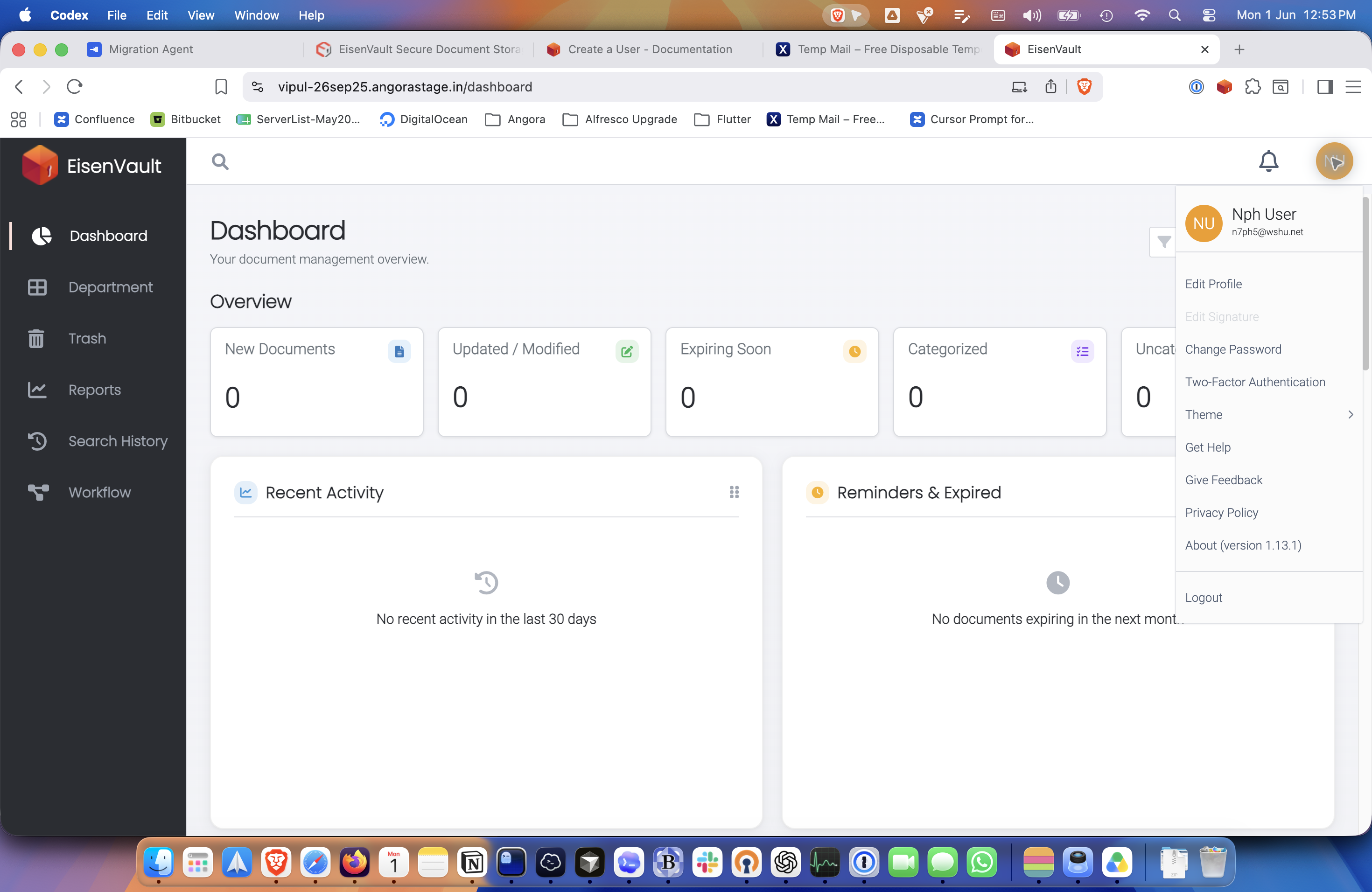
Edit Signature is shown in the account menu but is not yet available.
View Your Profile
- While signed in, open links to your profile from elsewhere in EisenVault One, such as a user name in the Users table or a profile link in audit trails and reports.
- Alternatively, open the account area and click your avatar in the left sidebar to open the read-only profile view.
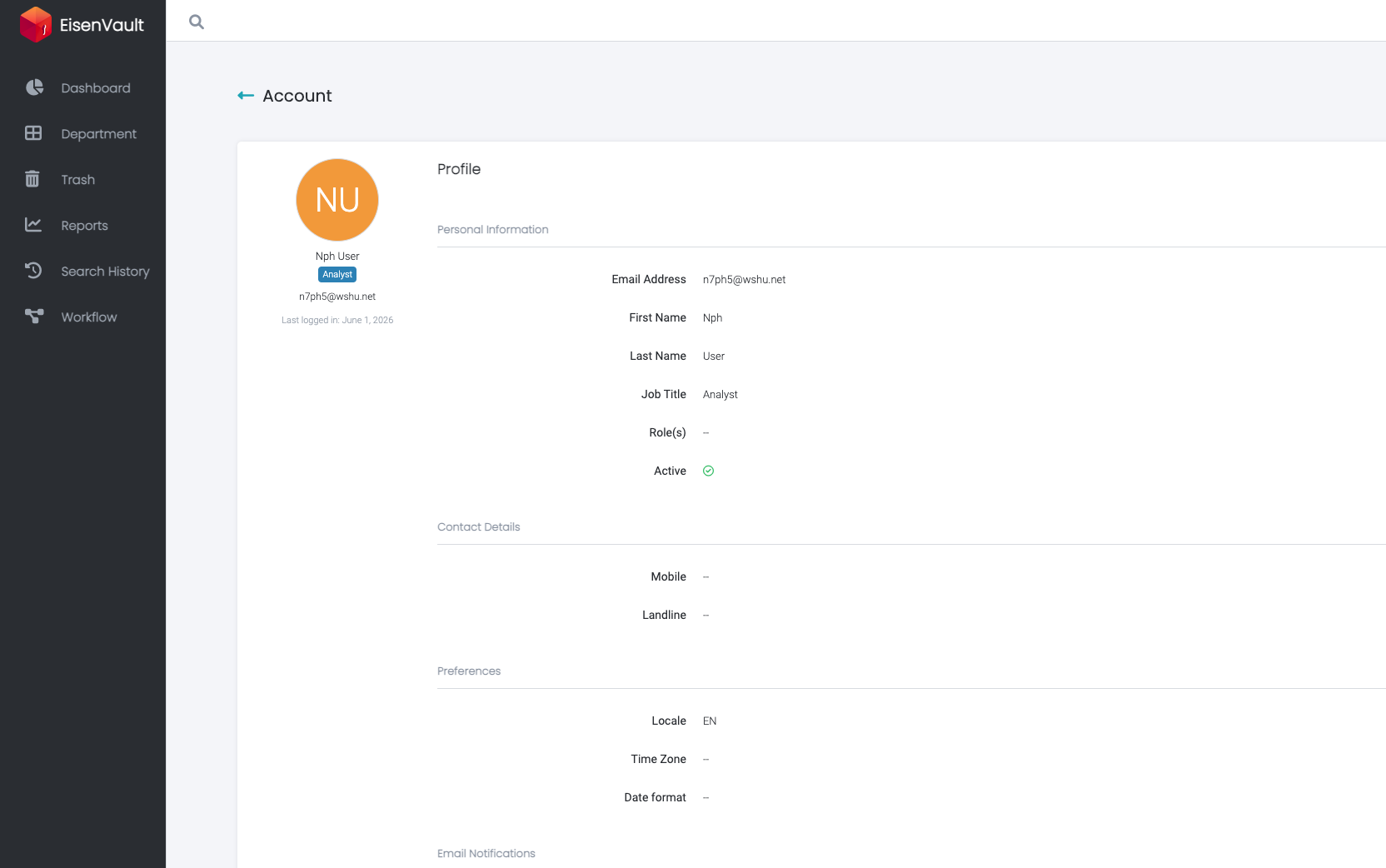
- Review the sections on the page:
- Personal Information — email, name, job title, roles, and active status
- Contact Details — mobile and landline numbers
- Preferences — locale, time zone, and date format
- Email Notifications — subscription status for app, task, comment, and document notifications
- Timestamps — when the account was created and last updated
- Signature — whether a signature image is on file
Edit Your Profile
- Click your account avatar in the top-right corner.
- In the account menu, click Edit Profile.
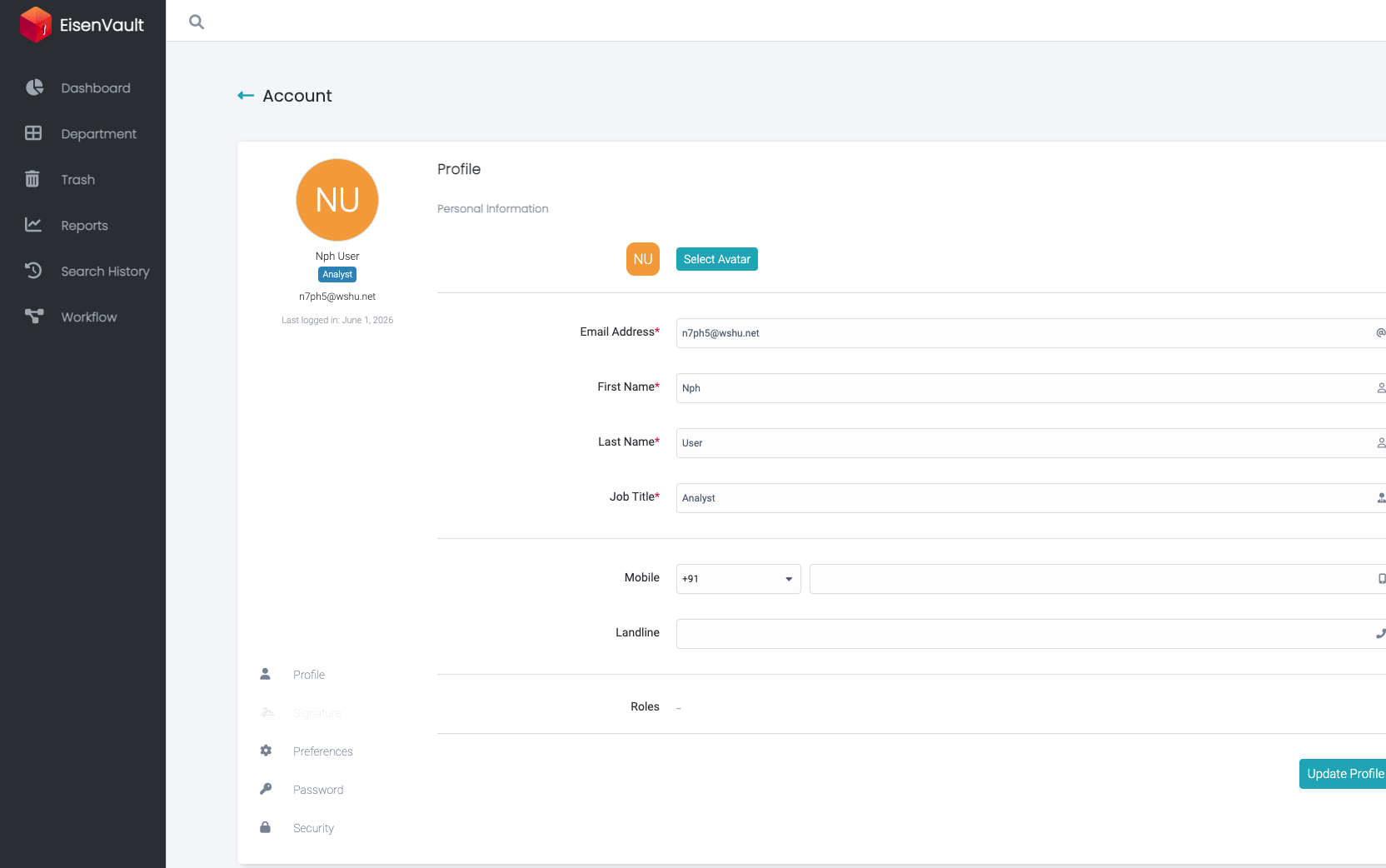
- On the Profile page, review or change your details:
- Click Select Avatar to upload and crop a profile photo.
- Email Address
- First Name
- Last Name
- Job Title
- Mobile — choose a country dial code, then enter the number
- Landline
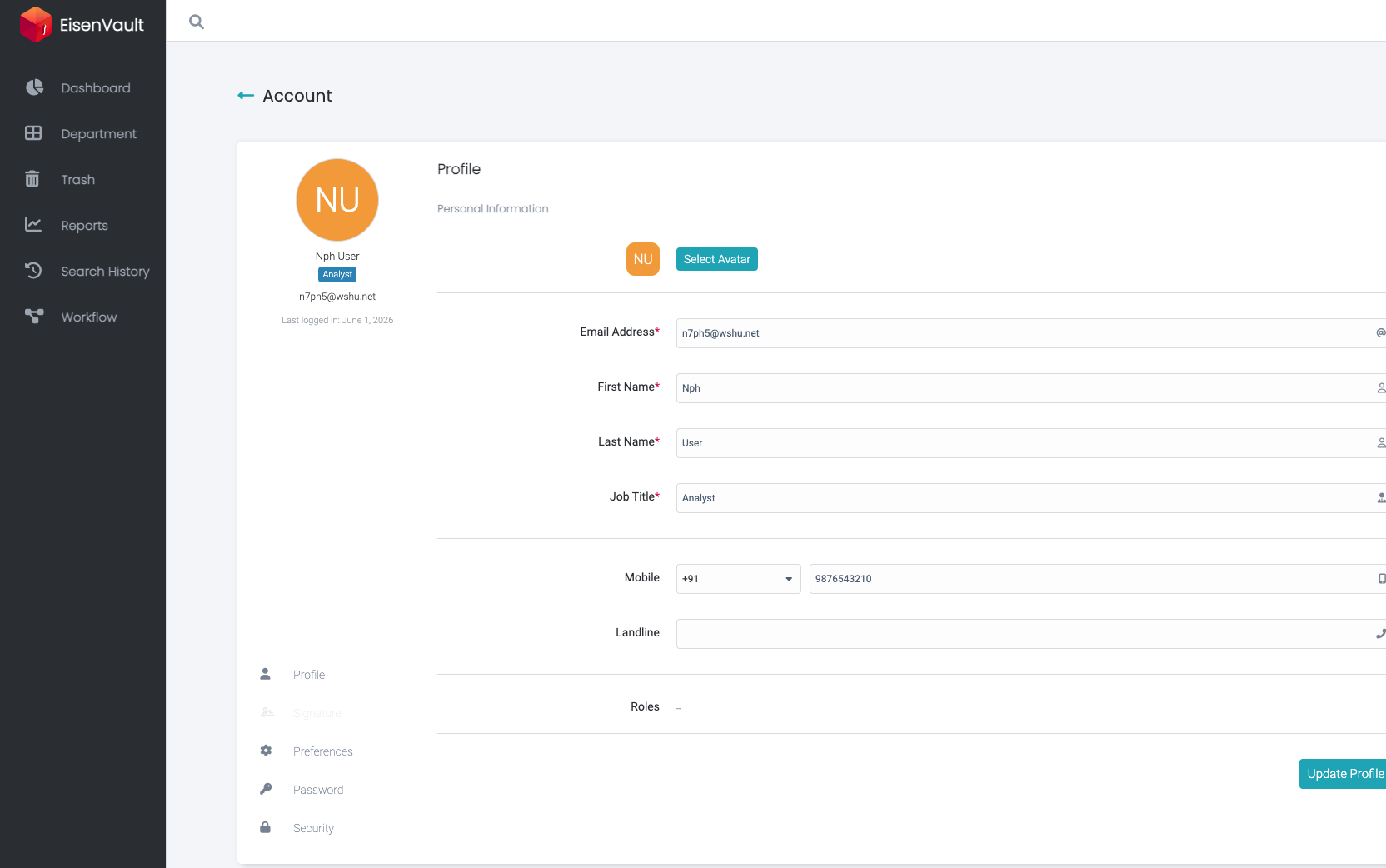
- Click Update Profile.
Use the account sidebar on the left to move between Profile, Preferences, Password, and Security without returning to the main menu.
Example Walkthrough
The screenshots below show the profile view and edit flow for the user n7ph5@wshu.net.
-
Open the account menu from the avatar in the top-right corner.
-
Click Edit Profile, or open your read-only profile from a profile link elsewhere in EisenVault One. The profile view shows your account details grouped into sections.
-
To make changes, open the Profile edit page from Edit Profile in the account menu or from Profile in the account sidebar. Update the fields you need.
-
Enter your changes and click Update Profile. In this example, a mobile number was added before saving.
Expected Result
- The read-only profile view shows your current account details.
- After you click Update Profile, EisenVault One saves your changes.
- Your updated name, email, job title, contact numbers, and avatar appear on the profile view and in the account sidebar.