Rename Folder
Purpose
Change a folder's name without moving the folder or changing the content inside it.
Prerequisites
- You are signed in to EisenVault One.
- You can open the department or parent folder that contains the folder.
- You have permission to rename the folder.
Before You Begin
Renaming a folder changes the folder name shown in the Explorer and breadcrumb path. Documents and subfolders inside the folder remain in place.
Choose a name that follows your organization's naming rules. Avoid duplicate or unclear names in the same parent folder.
Rename a Folder
- Click Department in the left navigation and select a department.
- Navigate to the department or parent folder that contains the folder.
- Find the folder in the document library or folder tree.
- Open the folder's options menu.
- Click Rename.
- Enter the new folder name.
- Click Save, Rename, or the equivalent confirmation button.
Example Walkthrough
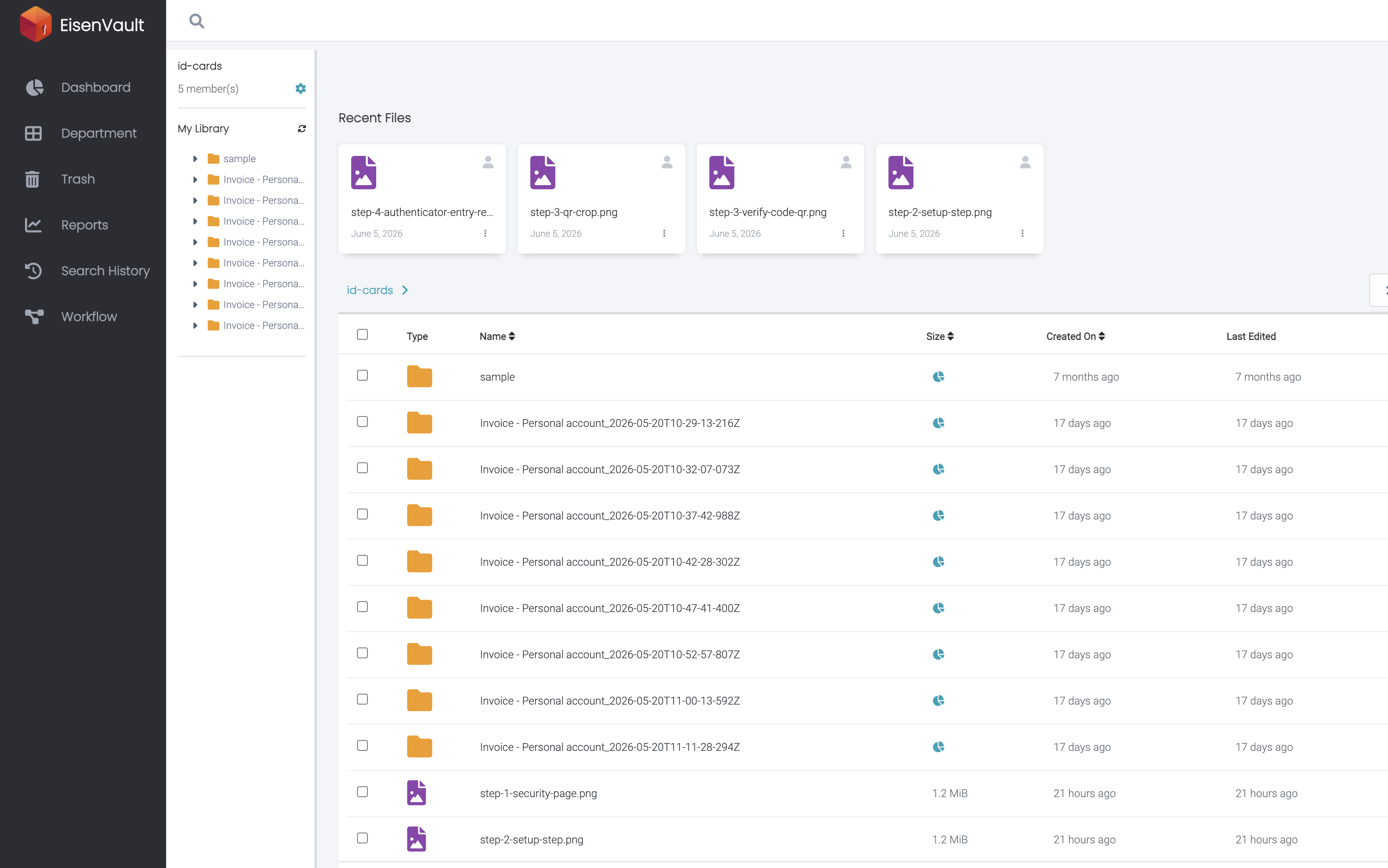
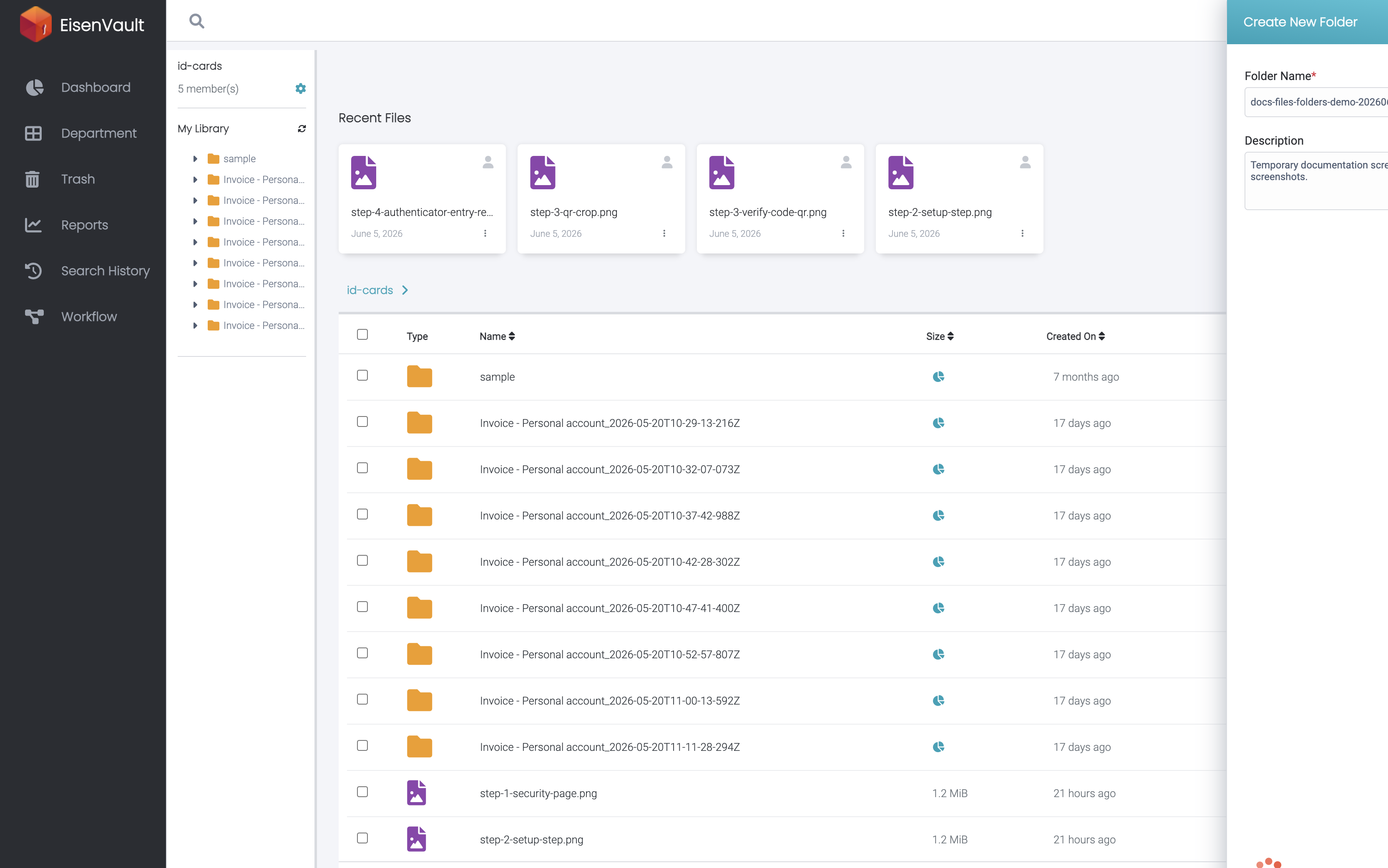
The screenshots below show folder actions in the id-cards department, including the scratch folder docs-files-folders-demo-20260606.
-
Locate the folder in the document library or folder tree.
-
Open the folder's options menu and click Rename Folder. Enter the new name, then confirm.
Expected Result
- The folder appears with the new name.
- Files and subfolders inside it remain unchanged.
- Existing permissions, metadata, subscriptions, and audit history remain associated with the folder.