Add or Remove Fields
Purpose
Add, configure, reorder, or remove metadata fields on a custom category using the form builder. These fields appear when users update metadata for a document or folder assigned to that category.
Note: This action may require administrator privileges.
Prerequisites
- You are signed in as an administrator.
- You can open Admin Tools > Document Categories.
- The category is not a locked system category.
Before You Begin
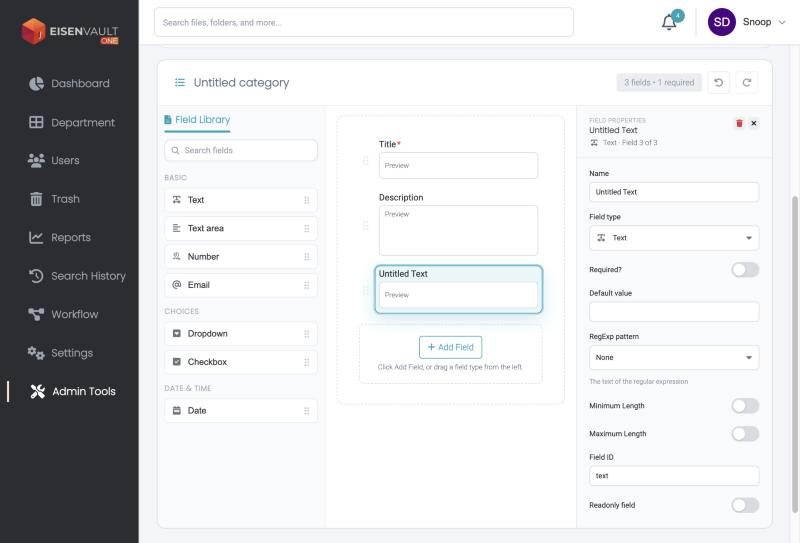
The form builder sits below the name fields on the category page. It has three areas:
- Field Library on the left, with a Search fields box.
- A canvas in the middle that previews the form users will see.
- Field Properties on the right for the selected field.
These field types are available:
| Group | Field type | Use it for |
|---|---|---|
| Basic | Text | A short one-line value. |
| Basic | Text area | A longer, multi-line value. |
| Basic | Number | Whole or decimal numbers. |
| Basic | A value in email format. | |
| Choices | Dropdown | One value from a fixed list. |
| Choices | Checkbox | True or false, or several allowed values. |
| Date & Time | Date | A single date. |
Every category starts with the system fields Title and Description. System fields cannot be edited or deleted, but you can change their order.
Inherited fields appear automatically on child categories. Avoid deleting fields that documents already use; EisenVault One may block the deletion and show the dependencies.
Add a Field
- Open the category.
-
In the Field Library, click a field type, drag it onto the canvas, or click Add Field on the canvas.
-
In Field Properties, set Name. Each name must be unique and cannot match a system field name.
- Set the options for the field:
- Required? makes the field mandatory on the metadata form.
- Default value. For Number fields, only numbers are accepted.
- For Text fields: RegExp pattern, Minimum Length, and Maximum Length.
- For Dropdown fields: click Add option for each allowed value.
- Readonly field stops users editing the value.
- Field ID is generated from the field type.
- Drag the grip handle at the left of a field to reorder it.
- Click Create Document Category, or Save when editing.
Remove a Field
- Click the field on the canvas.
- Click the red trash icon at the top of Field Properties.
- Click Save.
If the field is associated with documents, remove or migrate those metadata values first.
Undo Changes
Use the undo and redo arrows beside the field count at the top of the form builder to step back through your edits before saving.
Expected Result
- The field appears on the category metadata form.
- Users see the field when they select the category on a document or folder.
- Search and reports can use the field value after metadata is saved and indexed.