Bell Icon
Purpose
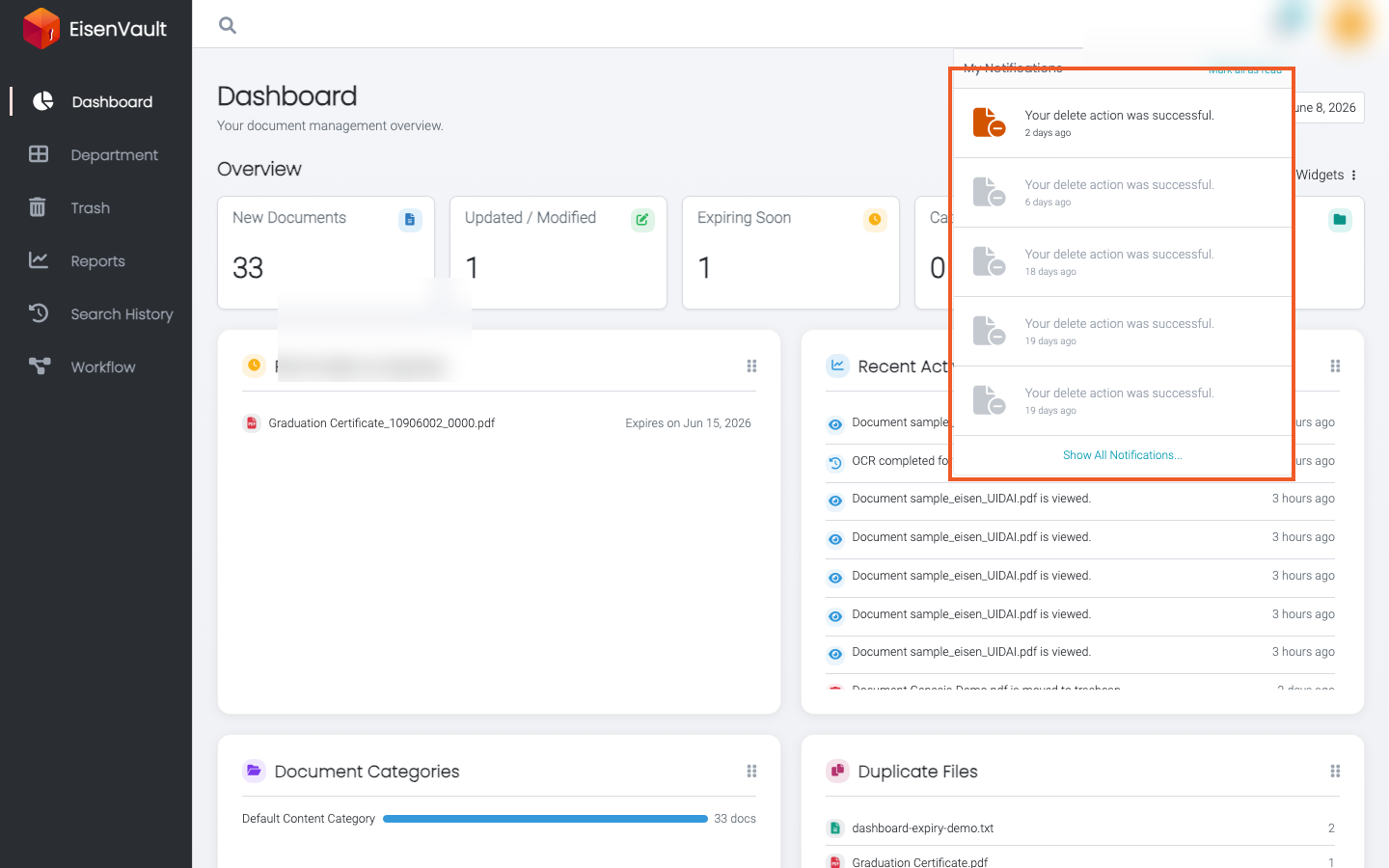
Review recent in-app notifications from the bell icon in the EisenVault One header.
Prerequisites
- You are signed in to EisenVault One.
Before You Begin
The bell icon appears in the top header beside your account menu.
When you have unread notifications, a badge shows the unread count (capped at 99+).
The dropdown title is My Notifications. From the menu you can:
- Read the five most recent notifications.
- Click Mark all as read when notifications are present.
- Click Show All Notifications... to open Notification History.
If there are no notifications, the menu shows No Notifications to show.
Open the Notification Menu
- Sign in to EisenVault One.
- Click the bell icon in the top header.
- Review the notification list in the My Notifications panel.
- Optional: click a notification to open the linked item.
- Optional: click Mark all as read to clear unread status for all listed items.
- Optional: click Show All Notifications... to open the full history page.
Example Walkthrough
-
Click the bell icon to open My Notifications.
-
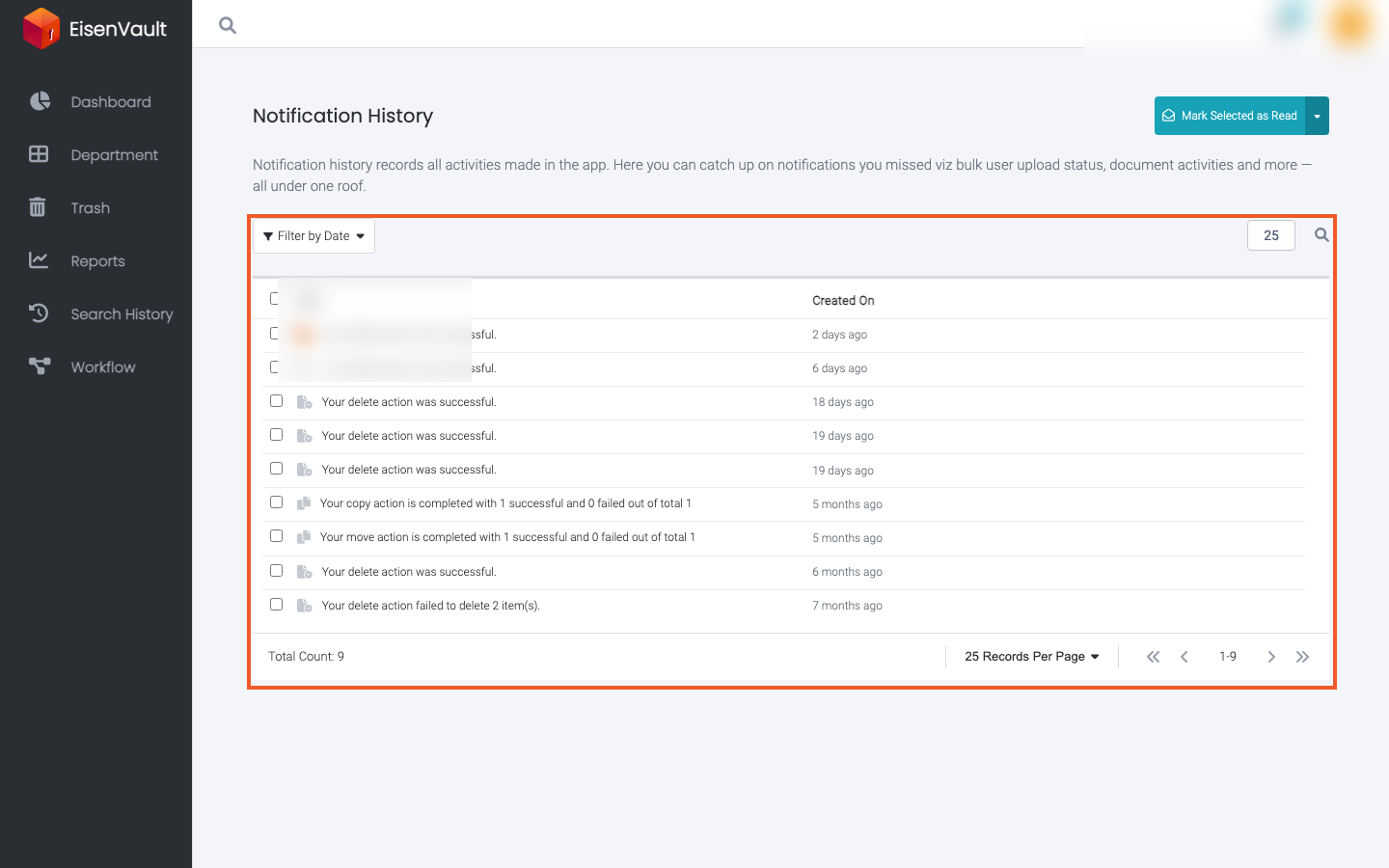
Open Notification History for the full list with date filters and bulk actions.
Notification History Actions
On Notification History you can:
- Read each notification's Type, Status, time, and date alongside its text.
- Use Filter by Date and choose All, Today, Yesterday, Last Week, Current Month, or Last Month.
- Type in Search by content to find a notification by its text.
- Tick one or more rows and click Mark Selected as Read. The button is disabled until you select a row. Use the arrow beside it for Mark All Read.
- Change how many rows appear per page with the records-per-page control.
Expected Result
- Unread notifications appear in the bell menu and on Notification History.
- Marking notifications as read removes them from the unread badge count.
- Clicking a notification opens the related page when a link is available.