Create a User
Purpose
Create a new user account in EisenVault One so the person can sign in and be assigned access to departments and folders.
Prerequisites
- You are signed in with an administrator account.
- You have permission to manage users.
- You know the new user's name and email address.
Before You Begin
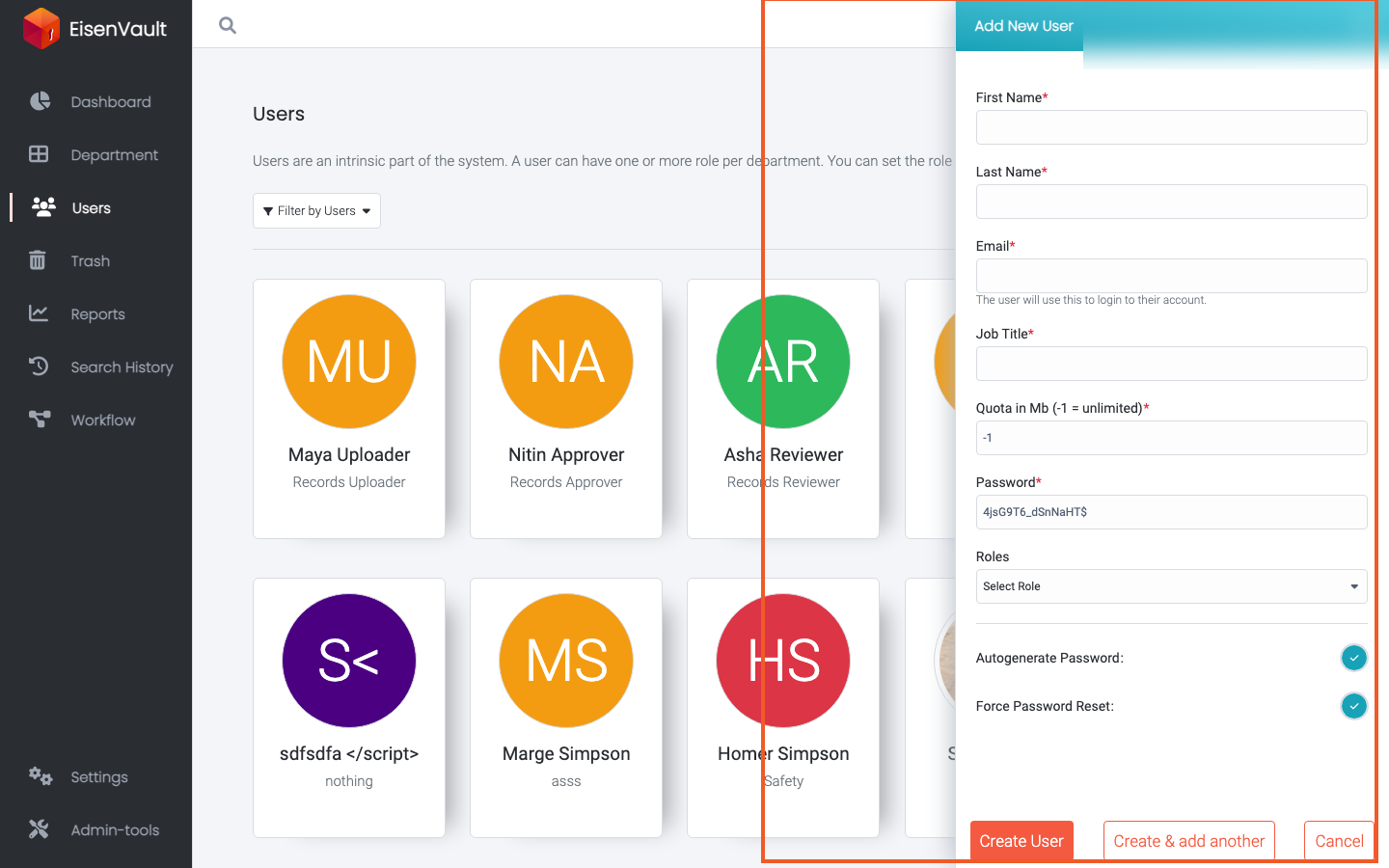
Users are created from the Users page in the admin area. The Roles field in the create form is for system-level roles such as System Administrator and User Administrator. If the new person should be a regular user, you can create the account without selecting a system role and assign department-level access separately.
If Autogenerate Password and Force Password Reset are enabled, EisenVault One creates a password automatically and prompts the user to change it at first login.
Create a User
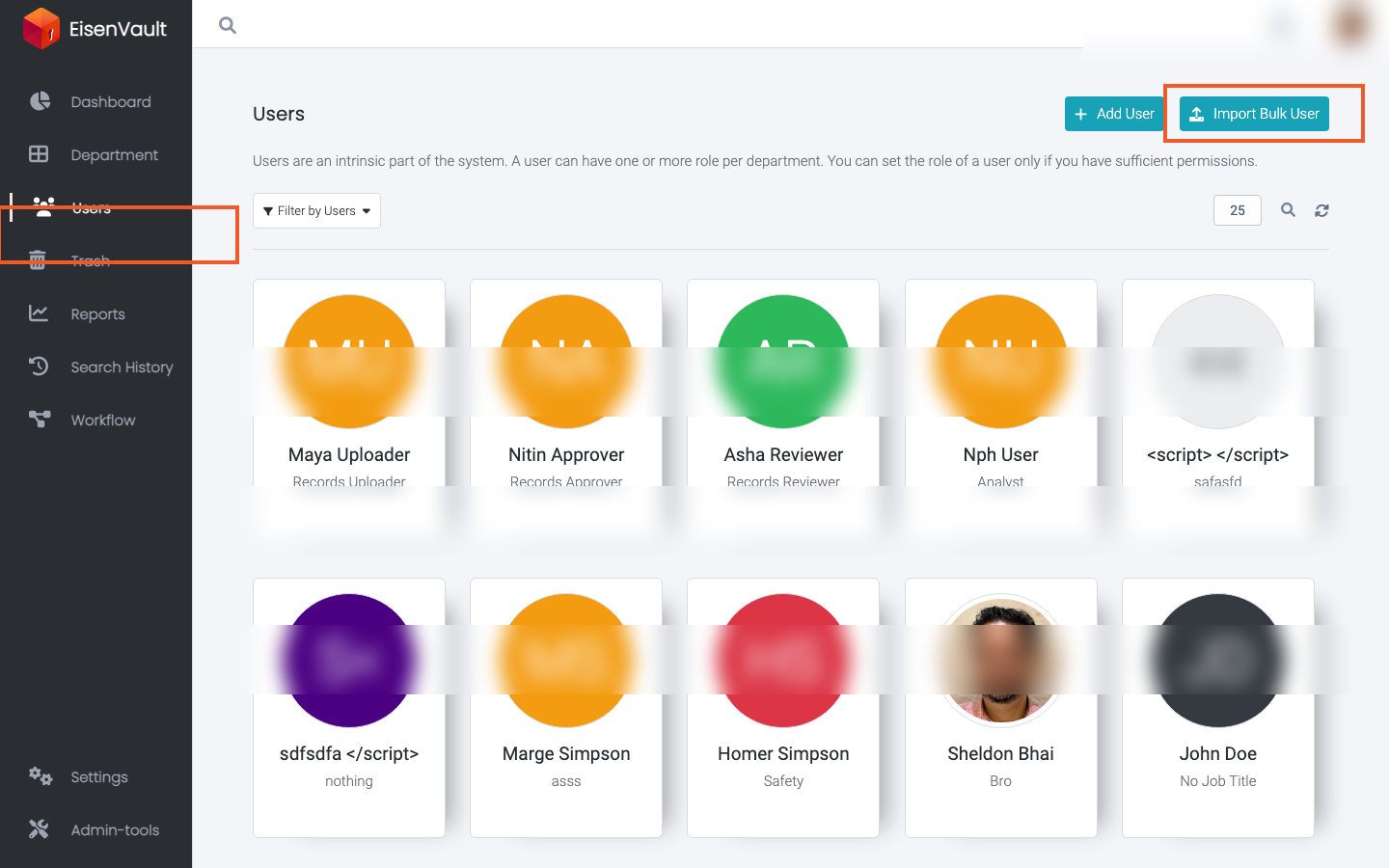
- Open the left navigation and go to Users.
- Click Add User.
- In the Add New User panel, enter the required details:
- First Name
- Last Name
- Quota in Mb (-1 means unlimited)
Job Title is optional. 4. Leave Autogenerate Password enabled unless you need to set a password manually. 5. Leave Force Password Reset enabled if the user should choose a new password at first login. 6. Select a value in Roles only if the user needs a system-level admin role. 7. Click Create User, or Create & add another to save this user and open a fresh form.
Example Walkthrough
-
Open the Users page from the left navigation.
-
Click Add User to open the user creation panel.
-
Enter the new user's details, then click Create User. The new user appears in the list after the account is created successfully.
Expected Result
- The new user appears on the Users page.
- The account can be assigned department-level access as needed.
- If email notifications are configured in your environment, the user may also receive a welcome or password-related email.