Subscribe
Purpose
Subscribe to a document or folder so EisenVault One can notify you when changes occur.
Prerequisites
- You are signed in to EisenVault One.
- You can access the file or folder.
- You have permission to subscribe.
Before You Begin
Subscriptions are personal. Subscribing does not change the file or folder for other users.
When you are already subscribed, the action changes to Unsubscribe.
Subscribe and Unsubscribe can appear in the menu even when your role cannot use them. EisenVault One shows a permission error if you select the action without access.
Subscribe to a File or Folder
- Navigate to the file or folder.
- For a document, open it in preview. For a folder, stay in the Explorer list.
- Open the item's actions:
- Document: use the right-hand actions panel on preview.
- Folder: open the row options menu.
- Click Subscribe.
- Wait for EisenVault One to confirm the subscription.
Example Walkthrough
-
Open the document preview and click Subscribe in the actions panel.
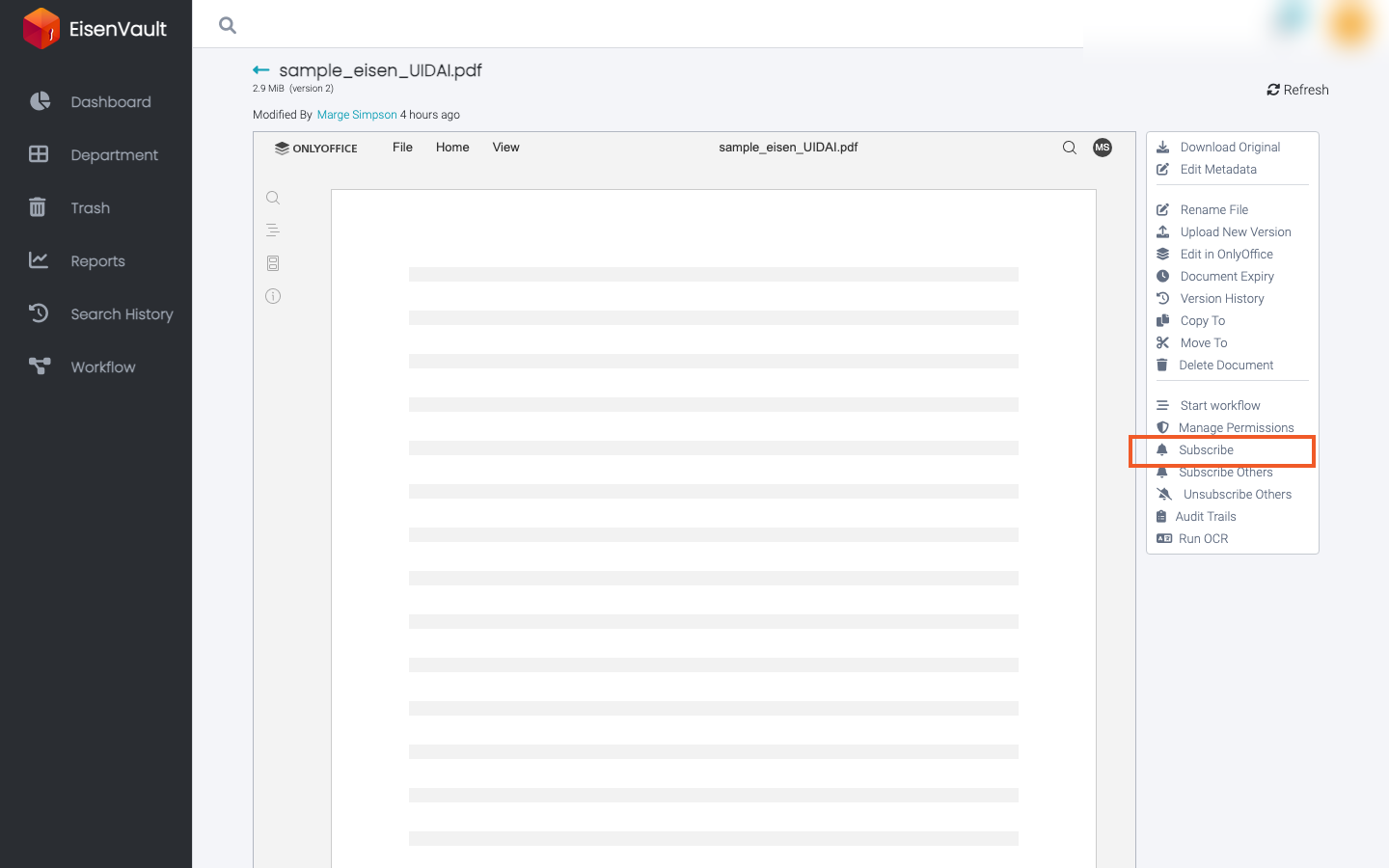
-
EisenVault One adds the item to your subscriptions. See My Subscriptions.
Unsubscribe
- Open the same file or folder actions.
- Click Unsubscribe.
- Wait for EisenVault One to confirm the change.
Expected Result
- The item appears in My Subscriptions on the dashboard when subscribed.
- You can receive notifications for supported change events.
- Unsubscribe removes your personal subscription without affecting other users.