Bulk Import Groups
Purpose
Bulk import lets administrators create or update many groups efficiently from a file, which is useful during initial onboarding or large reorganizations.
Note: This action may require administrator privileges.
Prerequisites
- You are signed in as an administrator.
- You can open Admin Tools > Groups.
- You have permissions to create and edit groups.
Import Bulk Groups
- Open Admin Tools > Groups.
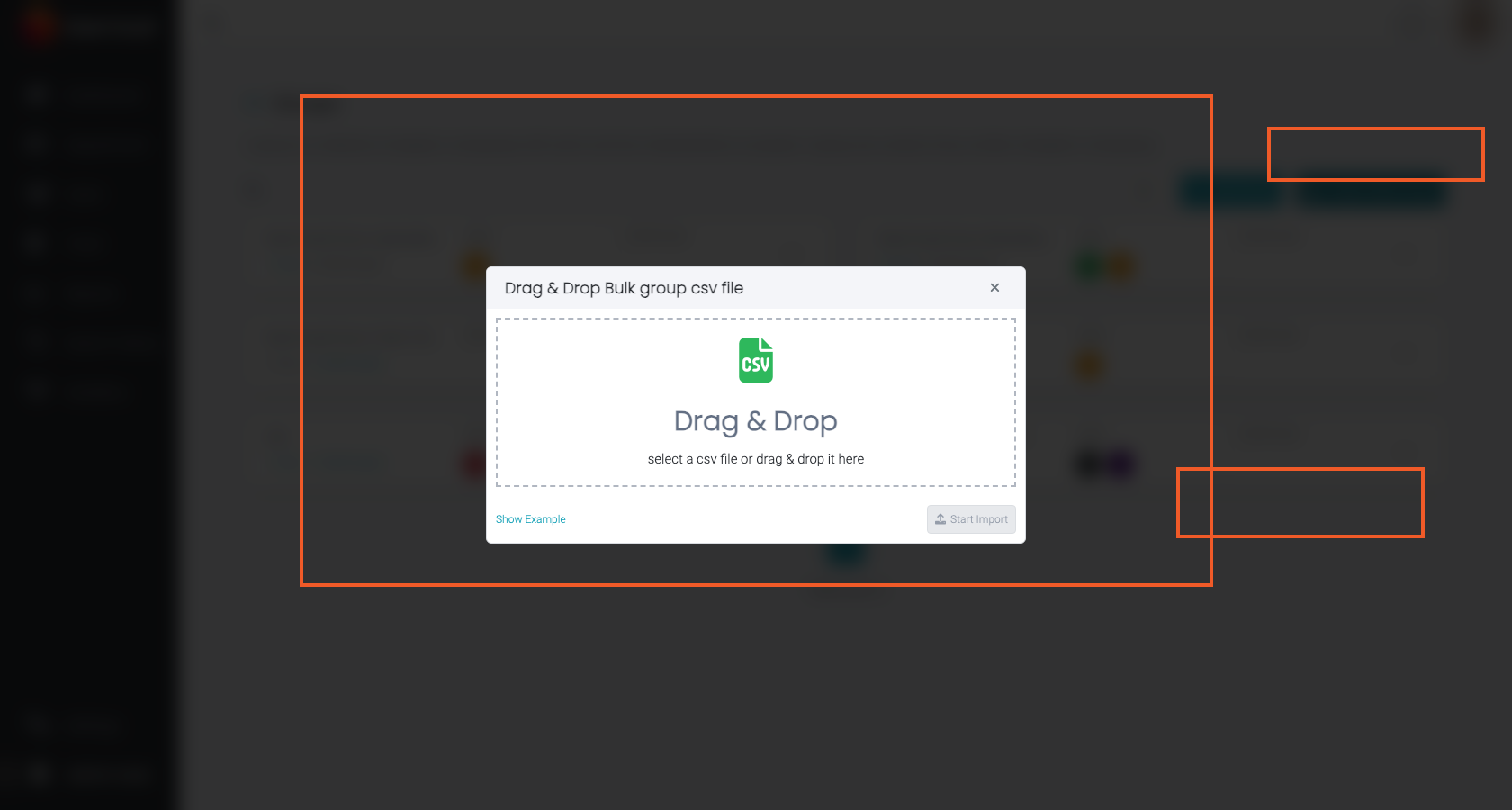
- Click Import Bulk Group.
- Upload a CSV file or drag it into the import area.
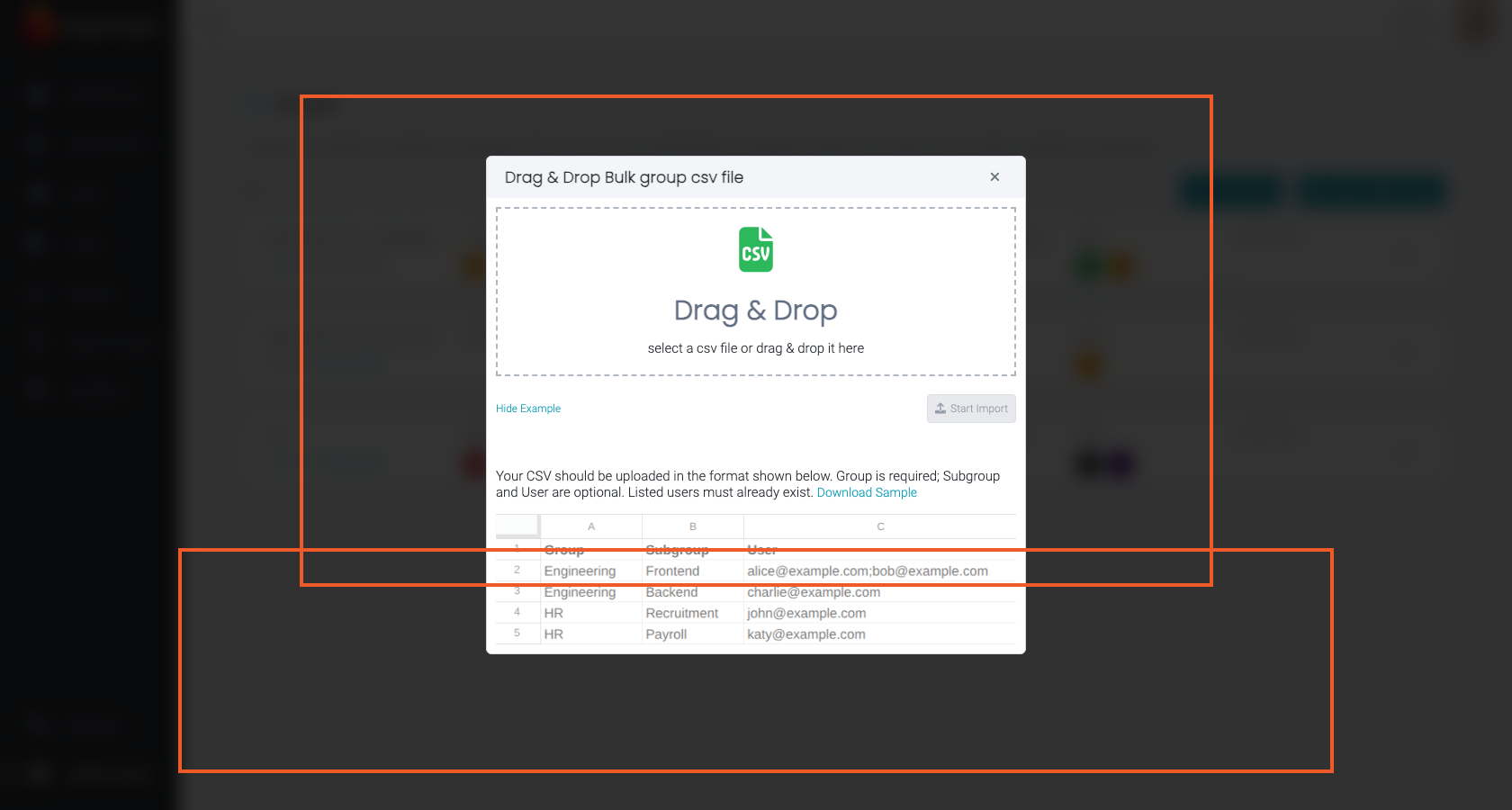
- Optional: open Show example to review the expected column layout.
- Click Start Import.
CSV Format
Use a comma-separated CSV file with these columns:
Group: The parent group to create or update.Subgroup: The subgroup to create or attach under the parent group.User: One or more user email addresses to add to the subgroup.
When adding more than one user in the same row, separate email addresses with semicolons:
Group,Subgroup,User
Engineering,Frontend,alice@example.com;bob@example.com
Engineering,Backend,charlie@example.com
HR,Recruitment,john@example.com
HR,Payroll,katy@example.com
In this example, Engineering is the parent group, Frontend and Backend are subgroups, and the listed users are added to the matching subgroup.
Expected Result
- New groups are created (or existing groups updated) based on the import file.
- Import outcomes may be visible in an import log depending on your deployment.