Date Range Picker
Purpose
Choose the period that dashboards and reports use for their counts, charts, and lists.
Prerequisites
- You are signed in to EisenVault One.
- You are on a page with a date range control, such as the Dashboard, Reports, or a drill-down list.
Before You Begin
The date range control sits at the top right of the page and shows the current period, for example 07/09/2026 - 07/10/2026. Dates are shown as DD/MM/YYYY.
Choose a Date Range
-
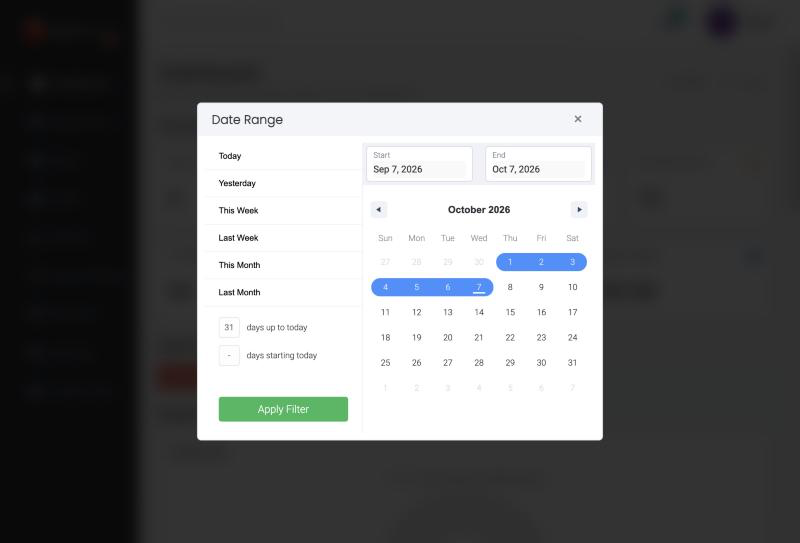
Click the date range at the top right of the page.
-
Pick the period in one of these ways:
- Click a preset: Today, Yesterday, This Week, Last Week, This Month, or Last Month.
- Enter a number of days up to today, or a number of days starting today.
- Click a start date and then an end date on the calendar. The Start and End boxes show your choice.
- To jump to another month or year, click the month and year heading above the calendar. A grid of months opens; choose one, or use the arrows to change year.
- Click Apply Filter.
Expected Result
- The dashboard or report refreshes for the selected period.
- Counts that always use a fixed window, such as Expiring Soon, do not change.