Import from Google Drive or OneDrive
Purpose
Bring files from your Google Drive or Microsoft OneDrive straight into a folder in EisenVault One, without downloading them first.
Prerequisites
- You are signed in to EisenVault One.
- You have permission to add content to the target folder.
- You have a Google or Microsoft account with the files you want to import.
Before You Begin
Imports go into the folder that is currently open in the Explorer, just like a normal upload. Open the target folder first.
Only one Google Drive import, and one OneDrive import, can run at a time.
Start an Import
- Open the target folder in the Explorer.
-
Click the small arrow next to Upload Files. Two Import options appear: one with the Google Drive logo and one with the OneDrive logo.
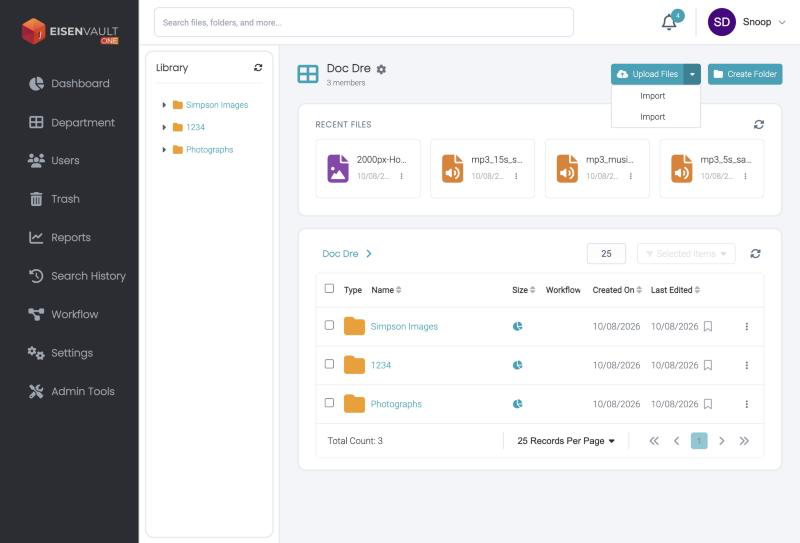
-
Choose the service. If your account is not connected yet, sign in with Google or Microsoft and allow access. If you are already connected, EisenVault One shows the Connected account and lets you Continue or Use another account.
- In the picker, browse your folders using the folder path shown at the top, and select the files you want. The picker shows how many items are selected.
- Click Import selected.
- EisenVault One queues the import and shows a progress panel titled Google Drive Import or OneDrive Import.
Follow the Progress
- The panel shows the status, the percentage complete, and the counts for Imported and Skipped.
- Click Minimize to shrink the panel to a small chip that shows the progress. Click Expand to open it again.
- When the import finishes, a message tells you how many items were imported, failed, and skipped.
- Items that could not be imported are listed under Skipped / failed items, each marked Failed or Skipped.
- If the import is still running after a long time, refresh the folder later to see the results.
If the Connection Expires
If the connection to your account has expired, EisenVault One asks you to reconnect your Google or Microsoft account and try again.
Expected Result
- The selected files appear in the folder and under Recent Files.