Reminders & Expired
Purpose
Track documents that are expiring soon or have already expired. The Reminders & Expired widget shows a short list on the dashboard; the Expiring Documents page shows the full rolling window with sorting and filters.
Prerequisites
- You are signed in to EisenVault One.
- You can view at least one document with an expiry date in the upcoming window.
- You can open Dashboard from the left navigation.
Before You Begin
- Reminders & Expired uses the same expiring-document data as the Expiring Soon overview card.
- The window is always the next 30 days from today (UTC), not the dashboard date range picker.
- See Expiring Soon for the overview card and Document Expiry for setting expiry on a file.
View Reminders on the Dashboard
- Open Dashboard.
- Find the Reminders & Expired widget.
- Review file names and expiry dates in the list.
- Click Load more when additional items exist.
- Click the Reminders & Expired header to open Expiring Documents.
Open the Expiring Documents List
- Click the Reminders & Expired widget header, or click the Expiring Soon overview card.
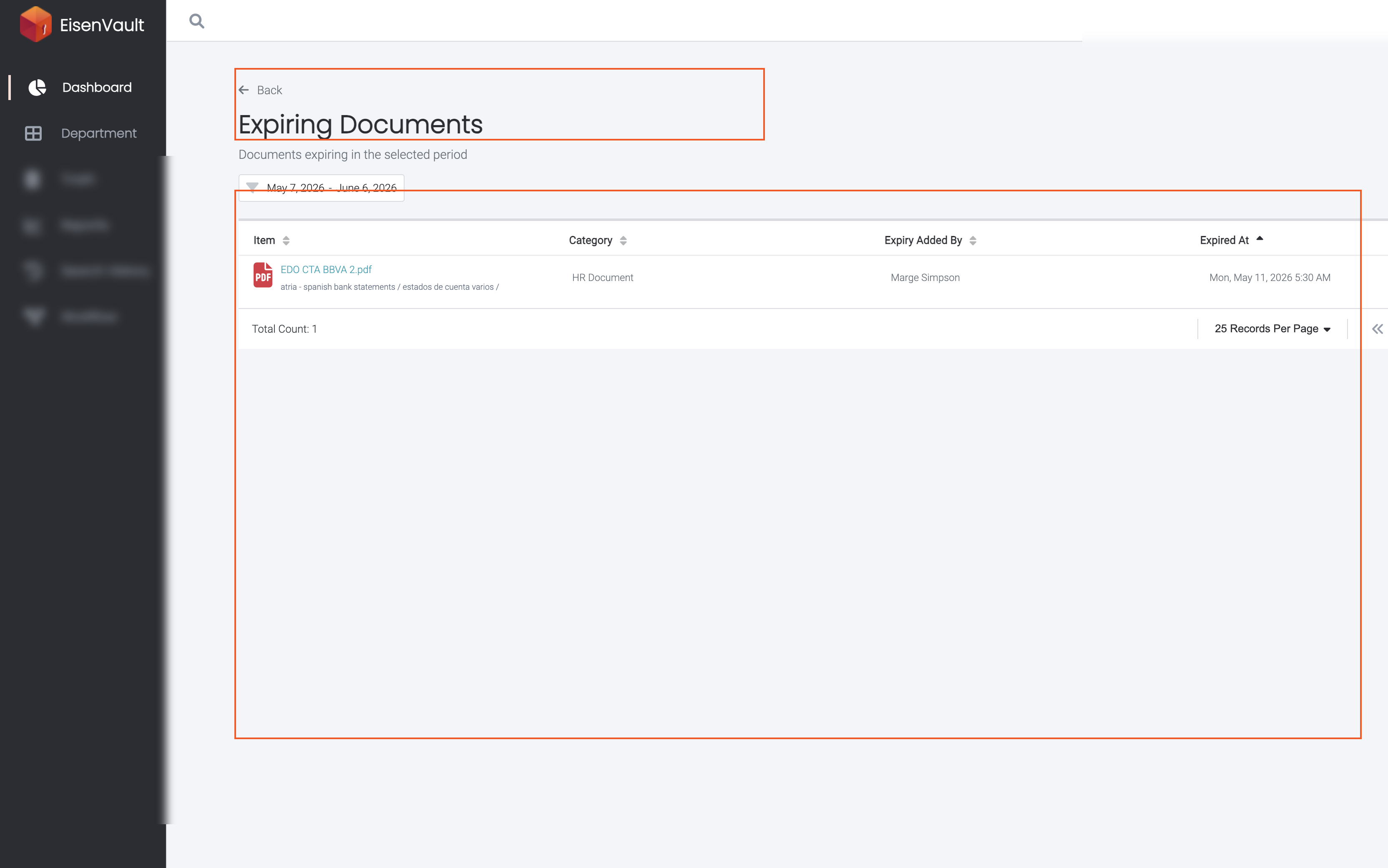
- EisenVault One opens Expiring Documents for the rolling 30-day window.
- Optionally open Filters to narrow by Category or Department.
- Click a document name to open preview.
- Click Back to return to the dashboard.
Example Walkthrough
Demonstration screenshots use redacted file names and user labels.
-
The Reminders & Expired widget surfaces upcoming expiries without leaving the dashboard.
-
Click the widget header or Expiring Soon card to open the full list.
Expected Result
- The widget lists expiring documents you can access or shows No documents expiring in the next month.
- The Expiring Documents page lists the same window with filters, sorting, and pagination.
- Setting or updating an expiry inside the window updates both the widget and the Expiring Soon count.