Pending Approvals
Purpose
Review and complete approval tasks assigned to you. Pending approvals appear on the dashboard Workflow Activity card and in the workflow approvals list after a manual or automated workflow starts.
Prerequisites
- You are signed in to EisenVault One.
- Workflow features are enabled in your environment.
- You have at least one approval task assigned to you.
Before You Begin
When a workflow is started — for example after someone clicks Request approval on the canvas — assigned approvers receive tasks automatically.
Pending approvals may appear in:
- The Workflow Activity widget on the Dashboard.
- In-app notifications from the bell icon.
- Email alerts when your organization sends workflow notifications.
If Start workflow or approval tasks are unavailable, confirm that workflow features are enabled and that your account has approvals permission.
If you are a system administrator, see Workflow Activity for the administrator dashboard view.
Open Your Pending Approvals
- Sign in to EisenVault One.
- Open pending approvals using one of these entry points:
- Dashboard → Workflow Activity → Pending Approvals or View all.
- A notification link from an assigned approval task.
- Review the list of tasks assigned to you.
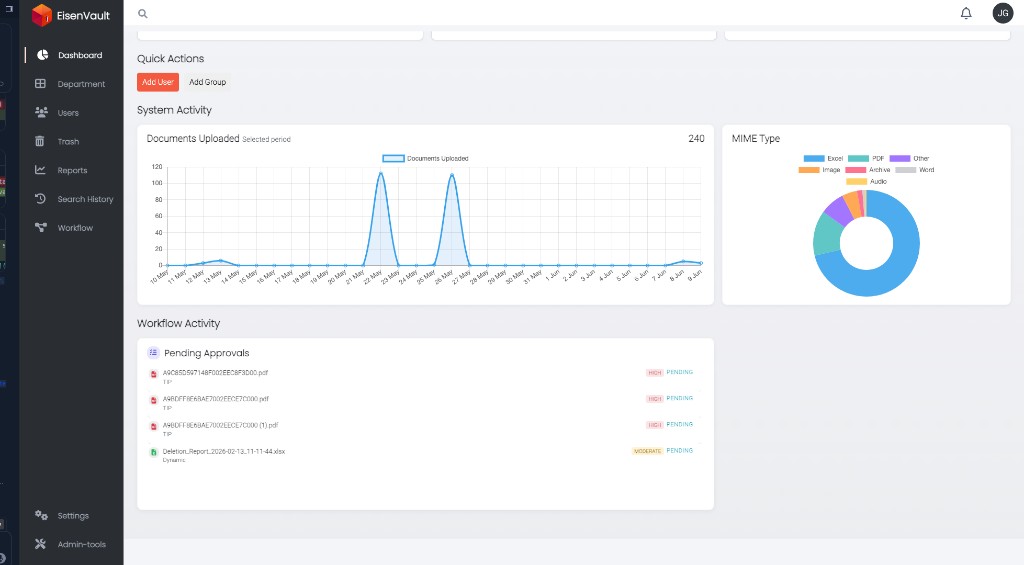
Administrator dashboard — the Workflow Activity section shows pending approvals with file name, workflow type, priority, and Pending status.
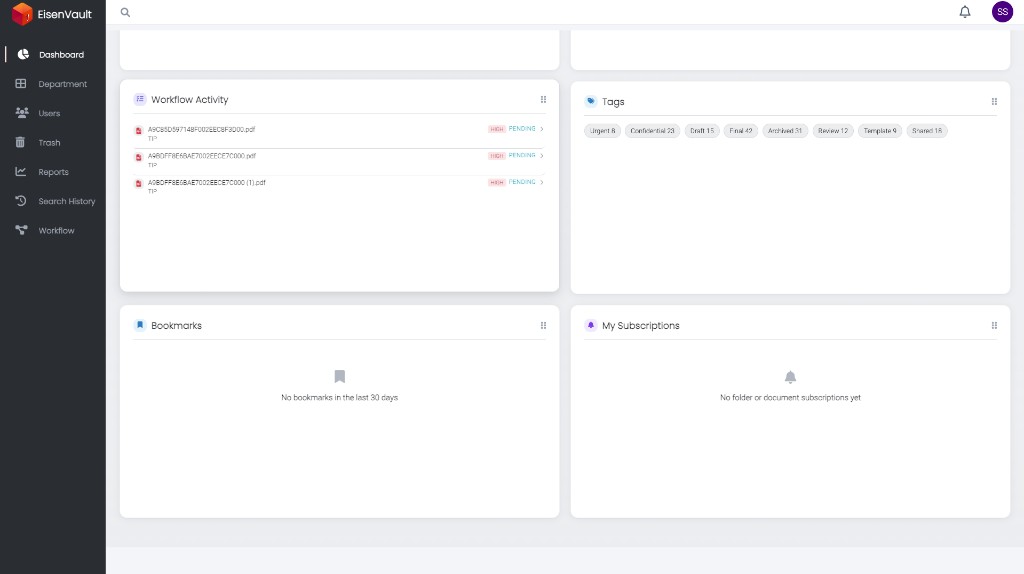
User dashboard — assigned approvers see their pending tasks in the Workflow Activity card with priority and Pending status.
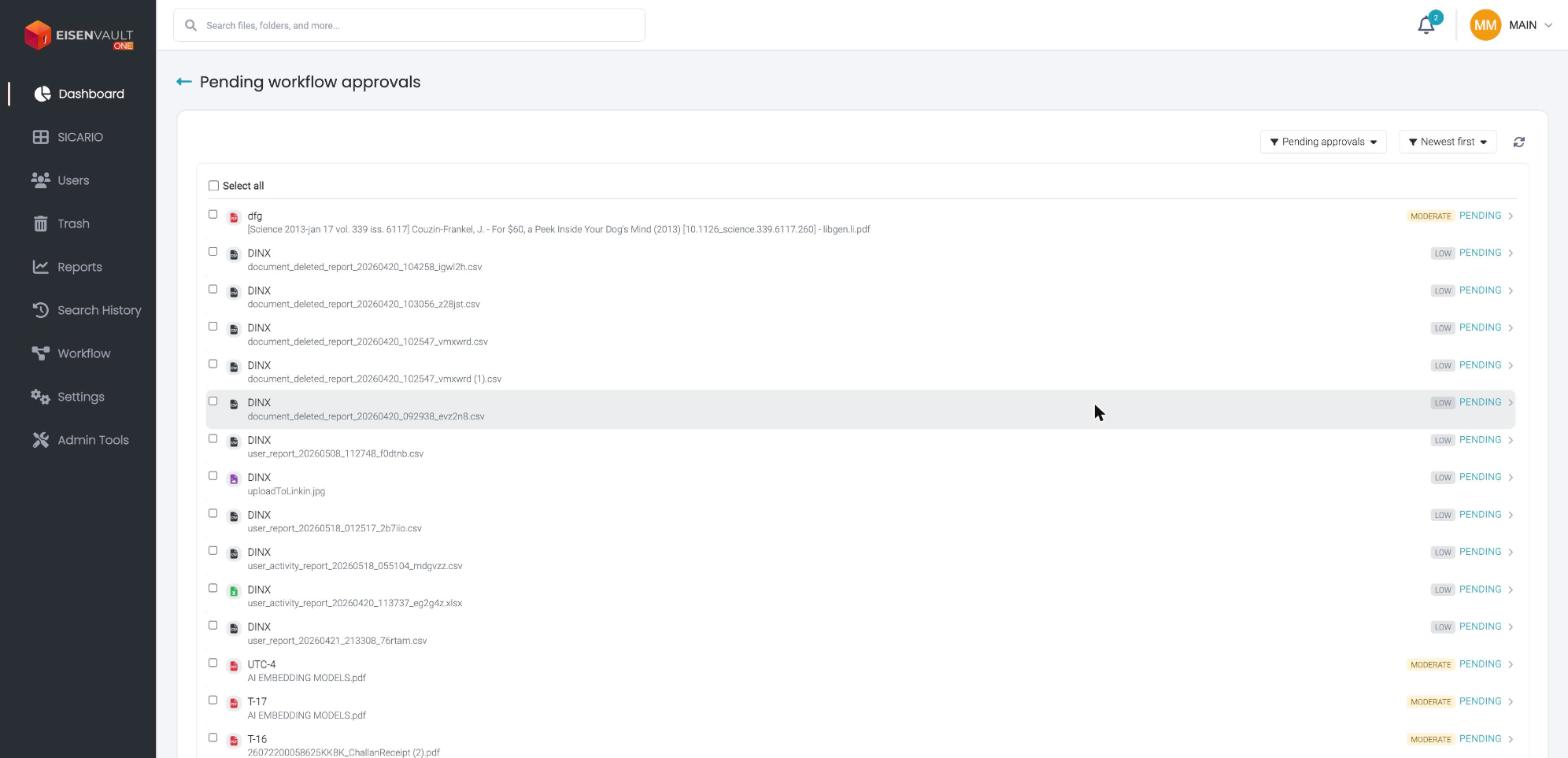
The Pending workflow approvals page lists every task assigned to you. Each row shows the workflow name, the document, a priority badge, and its status. Use the filter (Pending approvals) and sort (Newest first) controls at the top, and Select all to action several at once.
Complete an Approval Task
- Open a pending approval from the dashboard card or approvals list.
- Review the document, request note, priority, and due date.
- Open Approval Details when you need the full timeline, workflow progress, or approval history.
- Type a note explaining your decision. This is required for Approve, Reject, and Send back — those buttons stay disabled until you enter one. Quick Approve does not need a note.
- Choose one of the four actions:
| Action | Use it when |
|---|---|
| Approve | The document is acceptable. You confirm the Before you approve checklist first. |
| Quick Approve | The document is acceptable and you want to approve in one click, with no checklist and no note. |
| Reject | The document is not acceptable. By default this stops the whole workflow. |
| Send back | You need an earlier approver to look at the request again before you decide. |
- Confirm the action on the dialog that appears.
For Sequential workflows, completing your step creates the next approver's task. For Parallel workflows, other approvers may still have open tasks until enough responses are received.
See Approval Actions for what each action does in detail, how Send back and revalidation work, and what every approval status means.
Action Several Approvals at Once
If several approvals are waiting, tick Select all or individual rows, then click Approve selected or Reject selected. EisenVault One reports how many decisions were recorded and tells you if any could not be processed.
Bulk actions cover Approve and Reject only. Send back must be done one approval at a time.
If an Approval Is Overdue
An approval that passes its due date can no longer be completed. EisenVault One shows This approval is past its due date and can no longer be completed. and refuses the decision.
If the workflow was created with an Editable due date, the workflow creator or an administrator can extend it while the run is still active, which reopens the approval. If the due date is Locked, it cannot be changed.
Monitor Workflow Status
Authorized users can also review all workflow runs from Workflow → Runs. Status summary cards show:
| Status | Meaning |
|---|---|
| Running | The workflow is in progress |
| Completed | All required steps finished successfully |
| Stopped / Failed | The workflow was terminated or errored |
See Workflow Runs to search, filter, and open any run for full details.
Expected Result
- Assigned approval tasks move out of your pending list after you action them.
- The workflow advances to the next step or completes according to the approval type.
- The run detail view and task timeline update to reflect your action.