Create Role
Purpose
Create a custom role when the default roles do not match your organization's access model.
Note: This action may require administrator privileges.
Prerequisites
- You are signed in as a user administrator or system administrator.
- You can open Admin Tools > Roles.
- You have permission to create roles.
Before You Begin
Roles are bundles of permissions. Choose the role type carefully:
- Global Role — grants system-level capabilities, such as user administration.
- Content Role — grants permissions on content such as departments, folders, or documents.
Create the smallest role that matches the job function. Avoid mixing unrelated permissions into a single role.
Create a Role
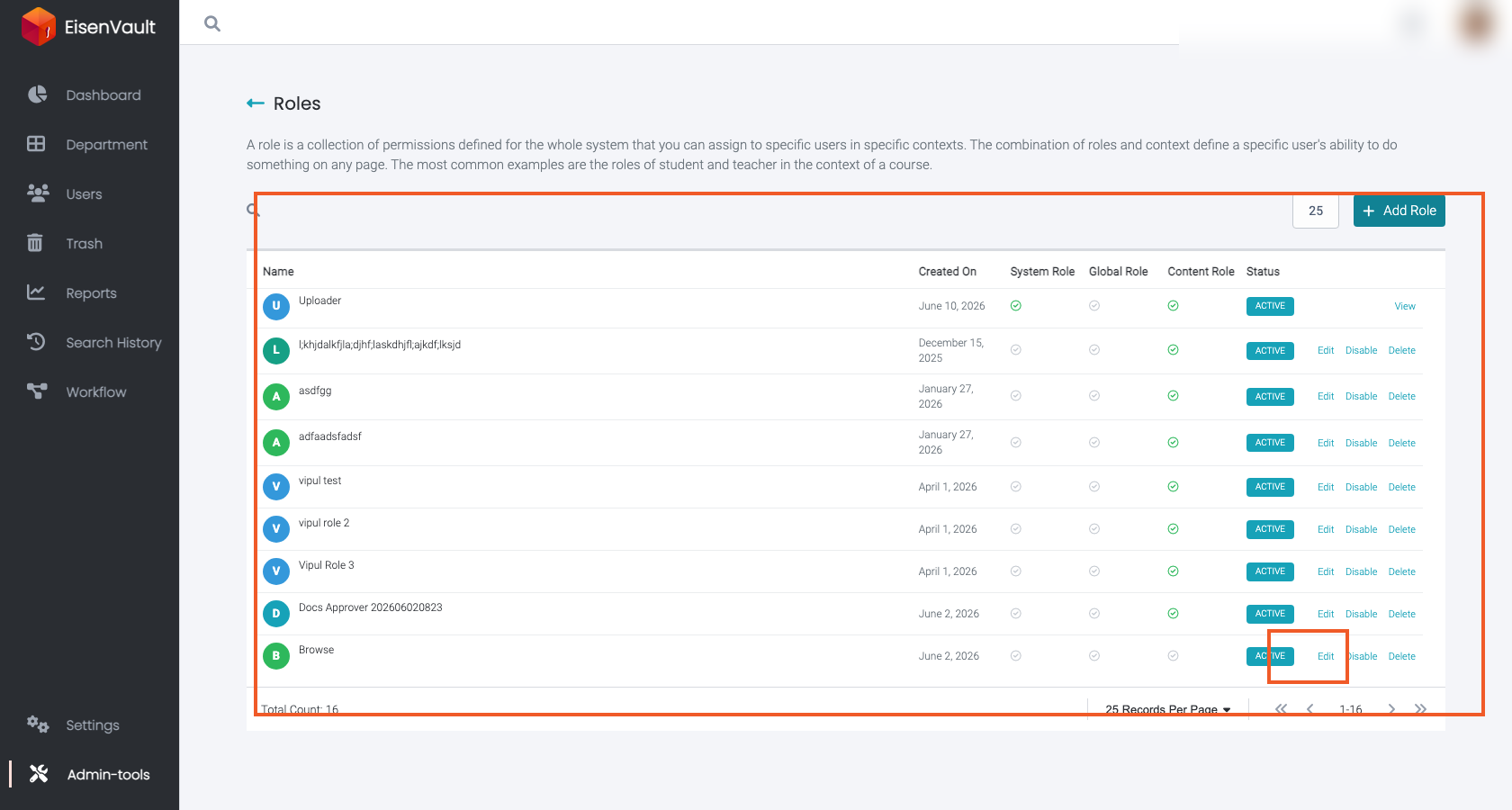
- Open Admin Tools > Roles.
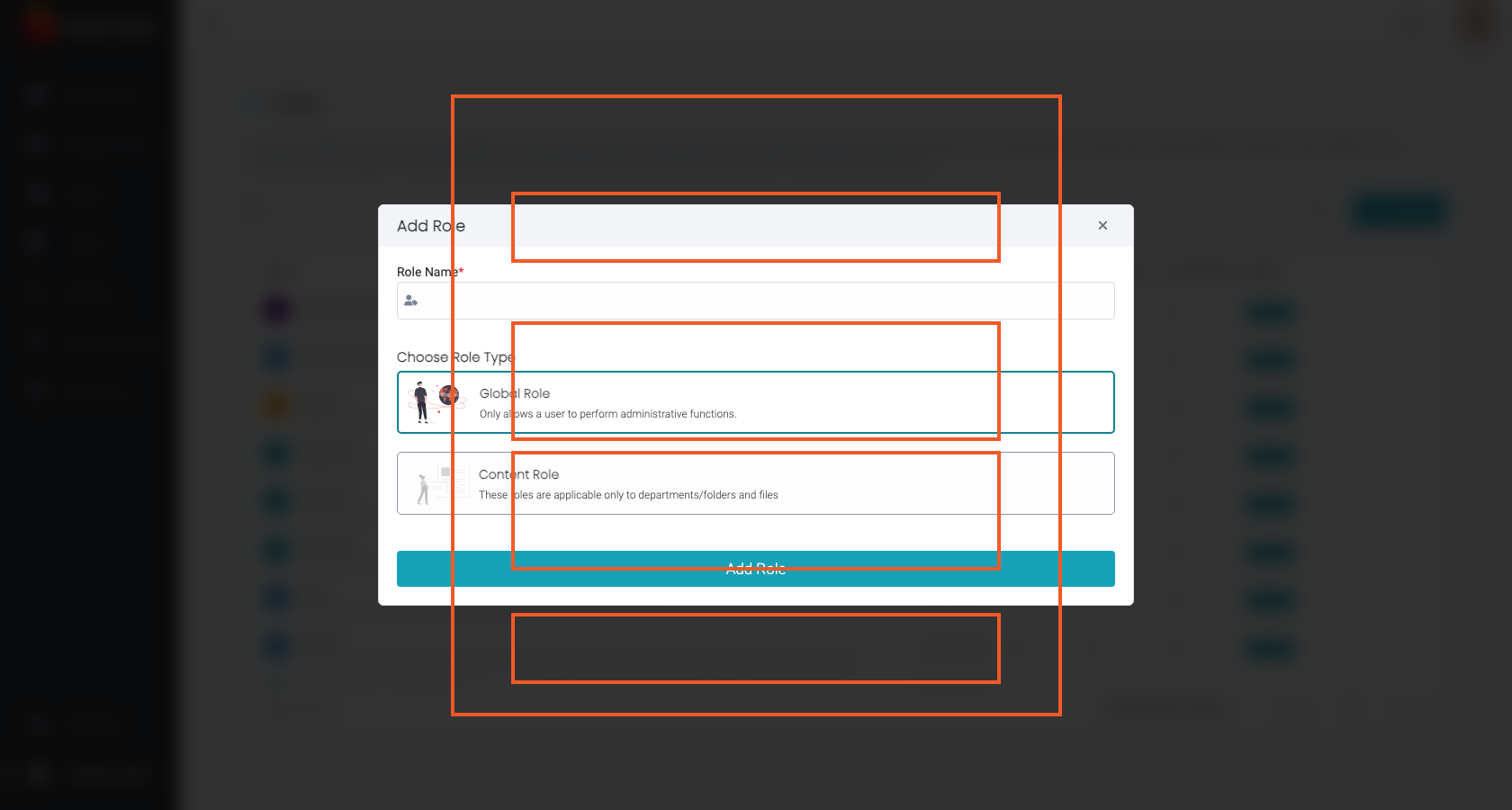
- Click Add Role.
- Enter a role name.
- Select Global Role or Content Role.
- Click Add Role.
- Select the permissions the role should grant.
- Click Save Permissions.
Example Walkthrough
-
Use Add Role on the roles list to create the draft role.
-
After the role is created, confirm its type and status in the roles list.
Expected Result
- The role appears in the roles list.
- The role can be opened to view or edit its permission set.
- The role can be assigned according to its type.