Bookmarks
Purpose
Open folders and documents you bookmarked for quick access. The Bookmarks widget shows recent bookmarks on the dashboard; the All Bookmarks page lists everything in the selected period with sorting and pagination.
Prerequisites
- You are signed in to EisenVault One.
- You can open Dashboard from the left navigation.
- You have bookmarked at least one folder or document. See Bookmarking.
Before You Begin
- Bookmark a folder or file from the document library to populate this widget.
- Click the Bookmarks widget header to open All Bookmarks.
- The list page respects the dashboard date range when you navigate from the dashboard.
View Bookmarks on the Dashboard
- Open Dashboard.
- Find the Bookmarks widget.
- Review bookmarked items and how long ago you saved them.
- Click Load more when available.
- Click the Bookmarks header to open All Bookmarks.
Work with the All Bookmarks List
On the All Bookmarks page:
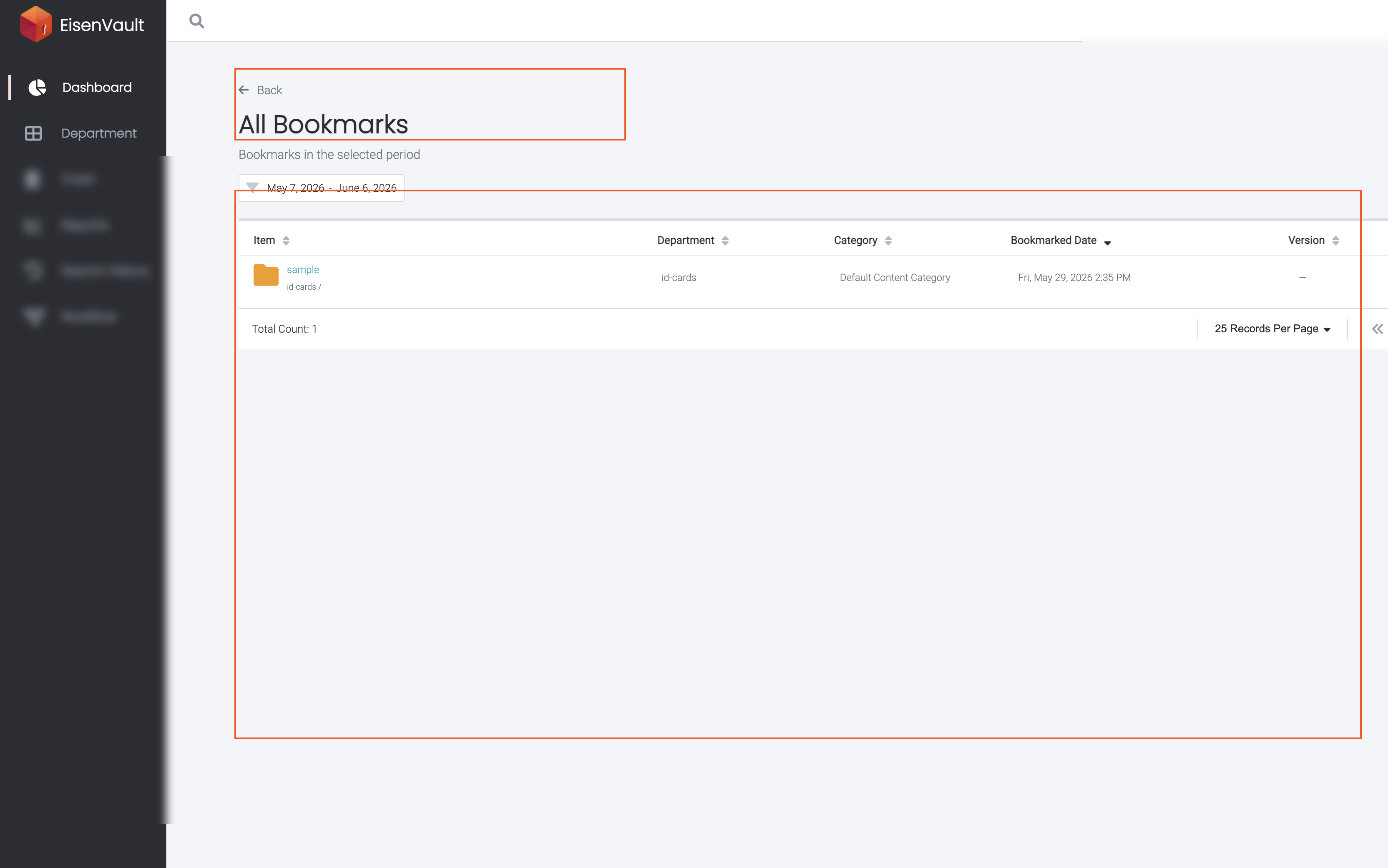
- Confirm the subtitle Bookmarks in the selected period.
- Adjust the date range filter if needed.
- Sort by Item, Department, Category, Bookmarked Date, or Version.
- Click an item name to open the folder or document.
- Click Back to return to the dashboard.
Example Walkthrough
Demonstration screenshots use redacted names.
-
The Bookmarks widget shows your latest saved locations on the dashboard.
-
Click the widget header to open the full All Bookmarks table.
Expected Result
- The widget lists bookmarks or shows No bookmarks in the last 30 days.
- All Bookmarks provides sortable, paginated results for the selected period.
- Clicking an active item opens it in EisenVault One.