Delete or Troubleshoot Groups
Purpose
Groups cannot always be deleted or modified. This page explains the most common reasons a group deletion fails (or a delete action is disabled) and what to do next.
Note: This action may require administrator privileges.
Before You Begin
Deleting a group can affect access to departments, folders, and documents if the group is used in content permissions.
When You Cannot Delete a Group
A group may be blocked from deletion in scenarios such as:
- The group is a system group.
- The group is part of another group as a subgroup.
- The group is assigned in permissions on a department, folder, or document.
In these cases, remove the group from those references first, then try again.
Find Where a Group Is Used
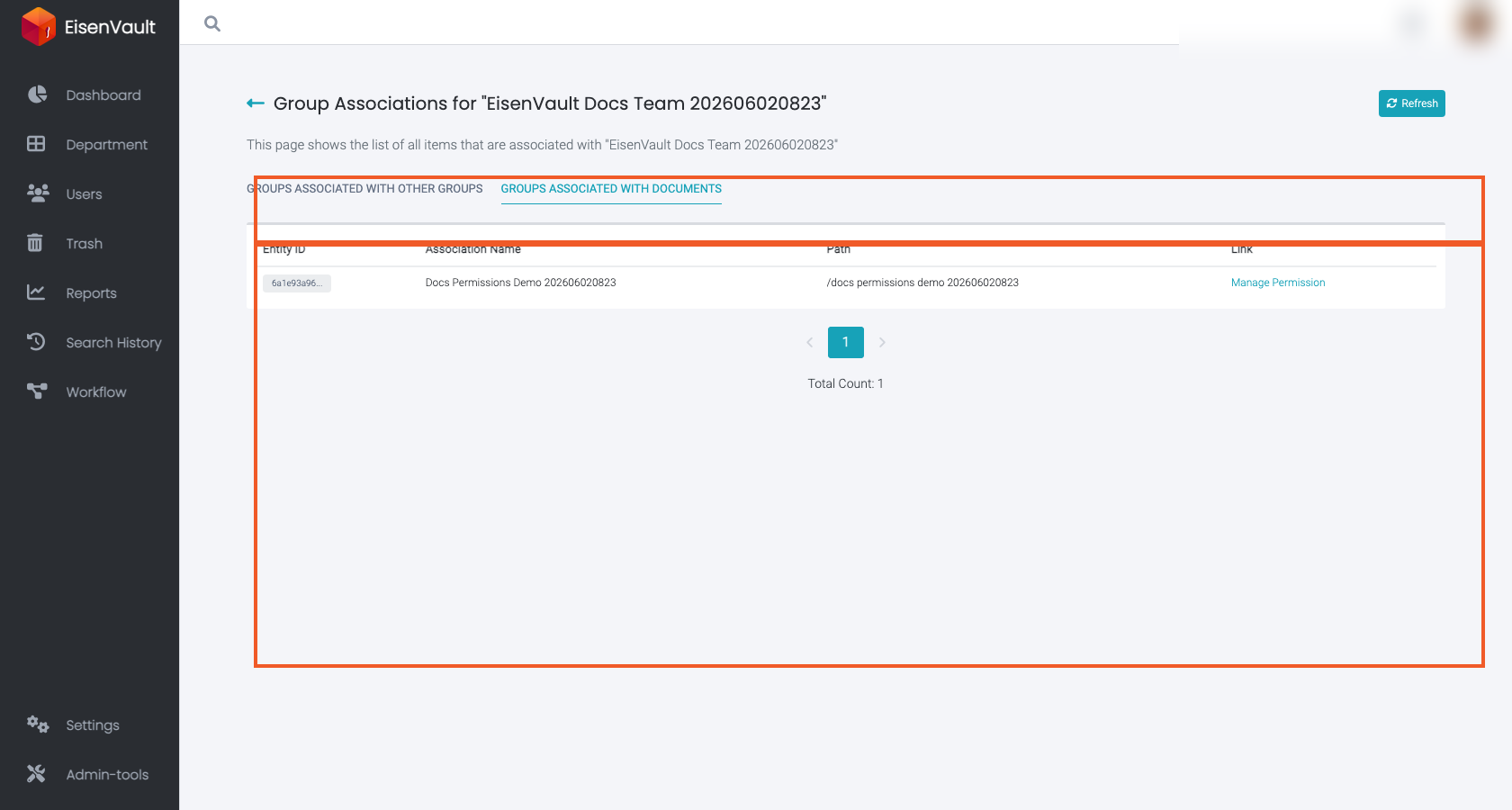
If the UI shows an error when deleting a group, click the error message link to open Group Associations for that group.
Typical places to check:
- Parent groups that include this group as a subgroup.
- Content items where the group has a role assigned.
Demonstration screenshots use redacted sample names from a staging tenant.
-
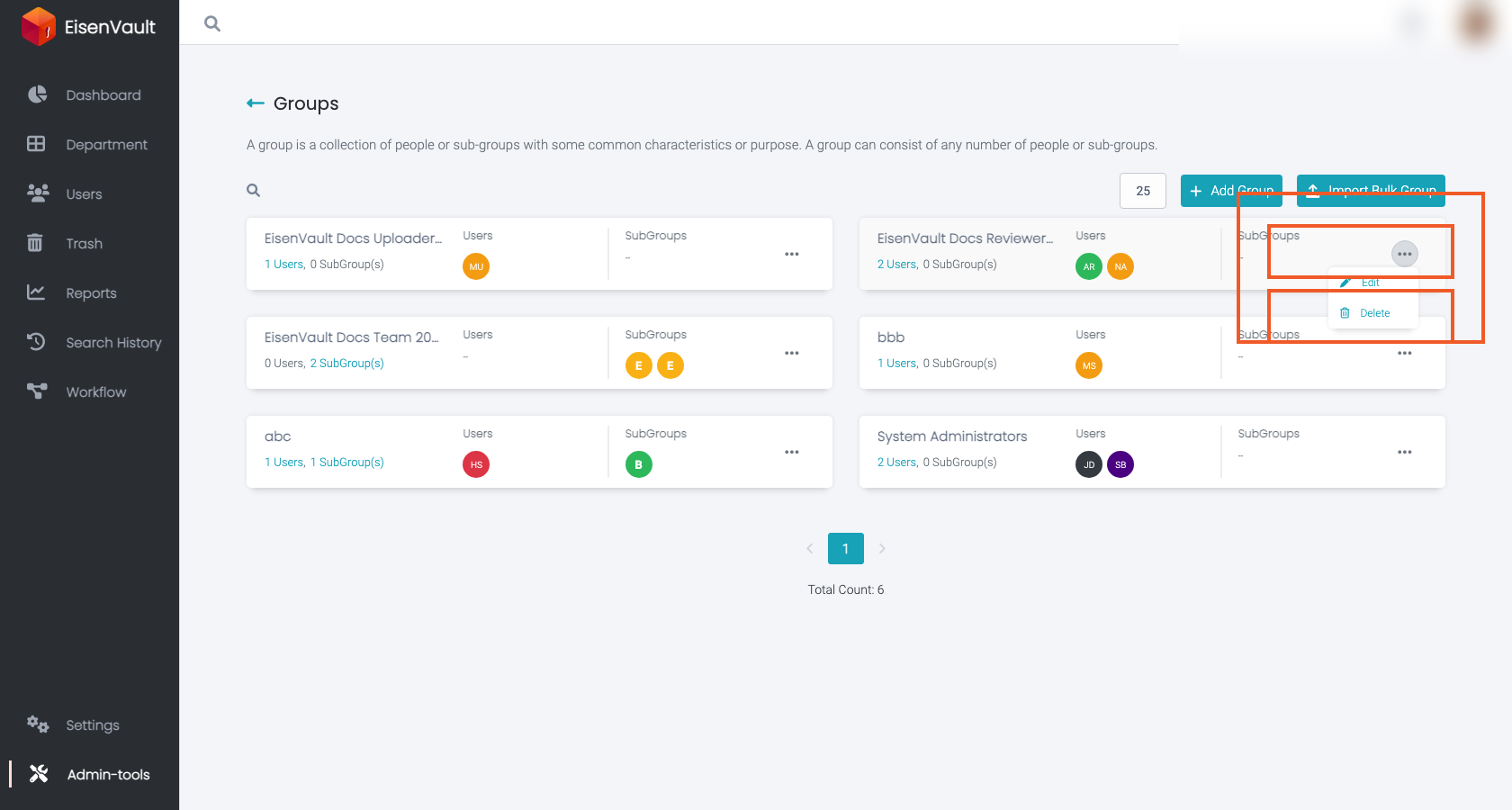
On the groups list, point to the row of the group you want to review. Custom groups show a Delete link at the end of the row. Click the group name to edit it.
-
If deletion is blocked, review Group Associations to see parent groups and content assignments.
Safe Remediation Pattern
- Identify where the group is used (parent group membership or content permissions).
- Remove the group from those references.
- Confirm access implications with your administrators/content owners.
- Delete the group.