Preferences
Purpose
Update your locale, time zone, and email notification settings in EisenVault One.
Prerequisites
- You are signed in to EisenVault One.
- You can open your account settings from the top-right account menu.
Before You Begin
Preferences are managed on a separate page from your main profile. While the read-only profile view shows your current locale, time zone, and notification status, those values are changed here on the Preferences page.
Open the account area from Edit Profile in the top-right account menu, then use Preferences in the account sidebar on the left.
The Basic Preferences section contains:
- Locale — the language EisenVault One uses for your signed-in session
- Time Zone — the time zone used for dates and times in the application
- Navigation layout — whether the main navigation appears as a left Sidebar or a horizontal top bar
The Email Preferences section controls whether EisenVault One sends you email notifications for:
- App updates
- Task Assigned
- Comments Added
- Workflow due-soon reminders (email) — email reminders before an approval due date
- Workflow overdue reminders (email) — email when an approval is overdue
- Document updated
The Locale and Time Zone dropdowns are searchable. Type in the search box to filter the options.
Update Your Preferences
- Click your account avatar in the top-right corner.
- In the account menu, click Edit Profile.
- In the account sidebar, click Preferences.
- In Basic Preferences, choose your Locale, Time Zone, and Navigation layout.
- In Email Preferences, turn each notification switch on or off as needed.
- Click Update Settings.
Example Walkthrough
The screenshots below show the preferences flow for a demonstration user.
-
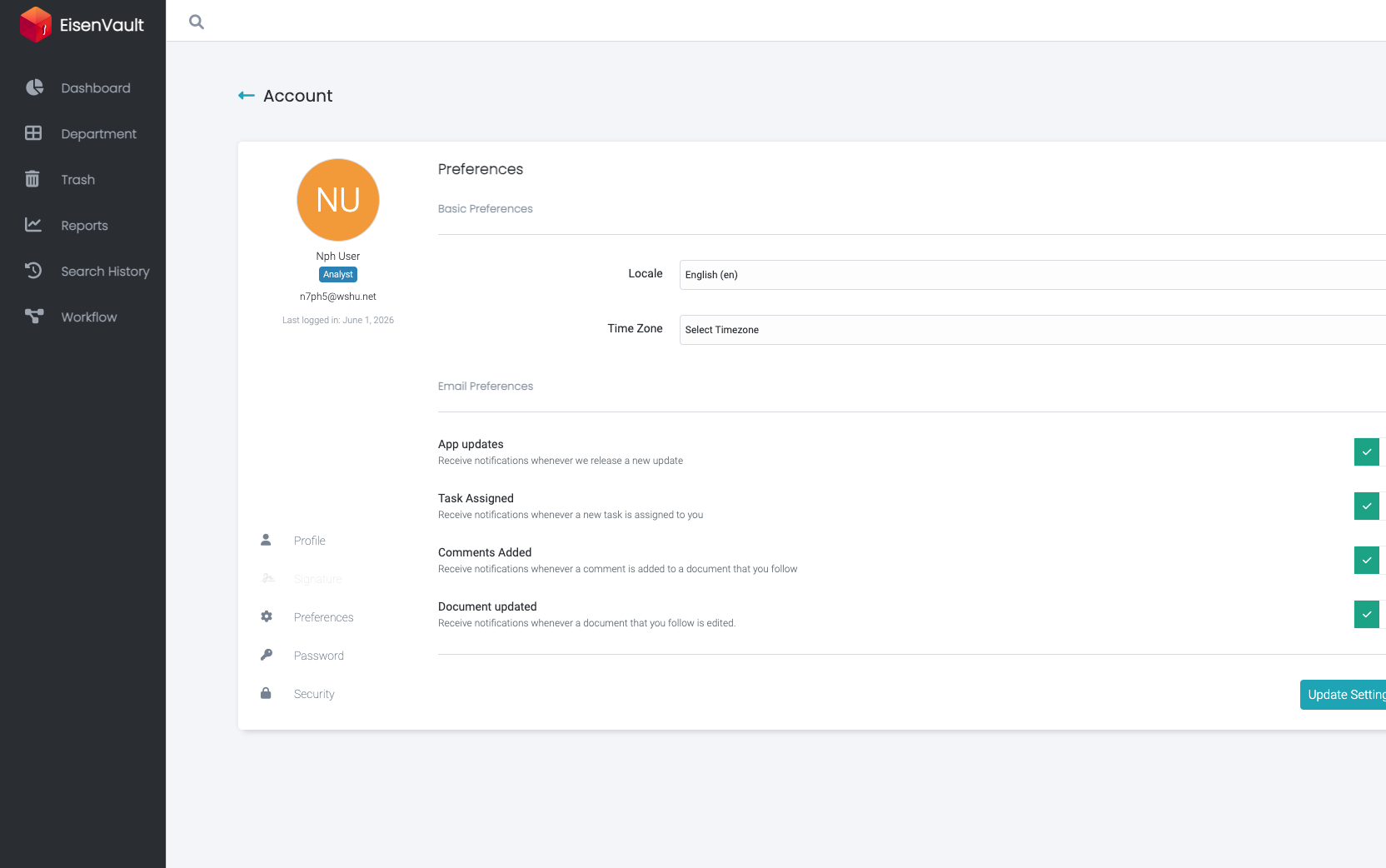
Open the Preferences page from the account sidebar after entering the account area.
-
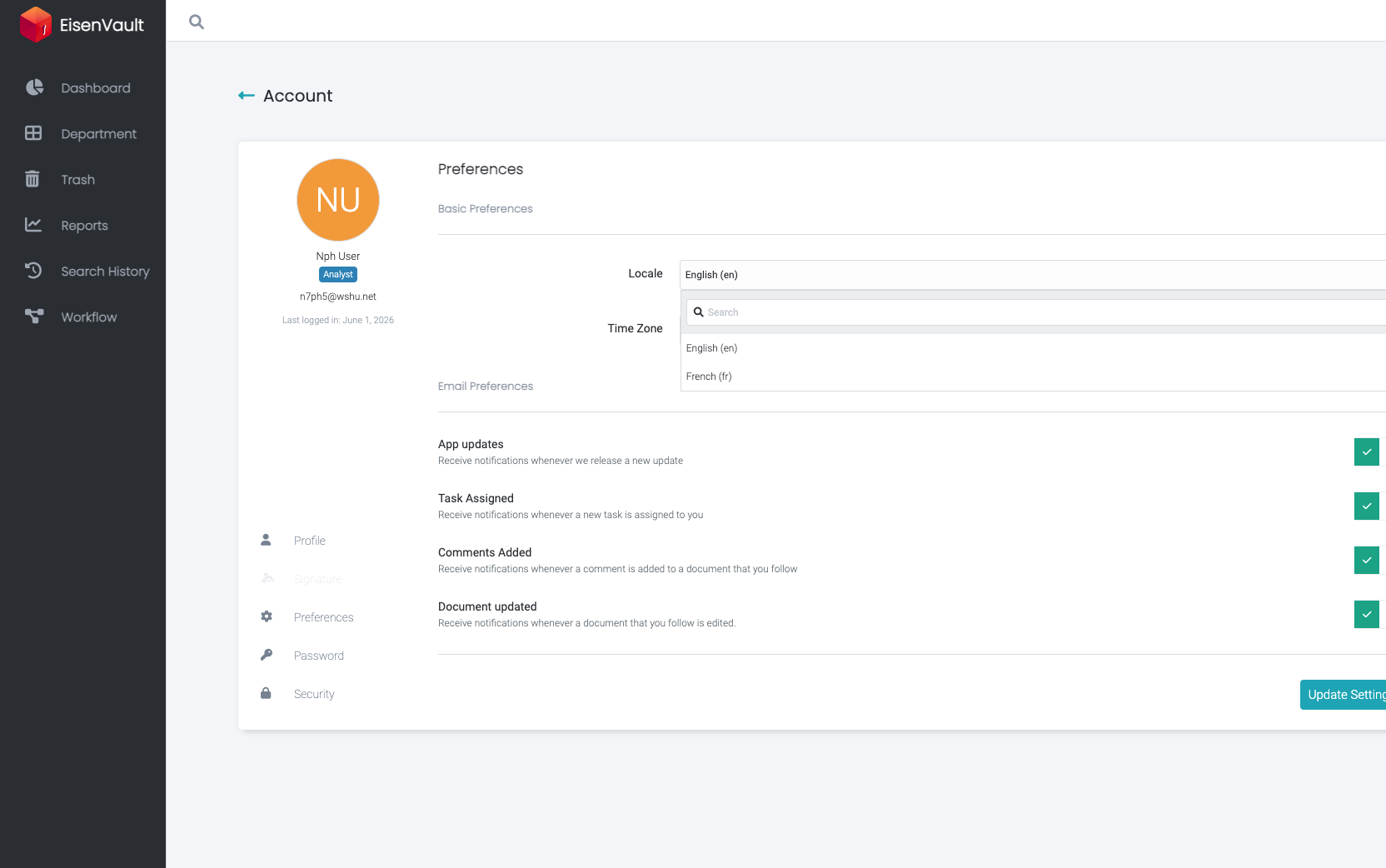
Open the Locale dropdown to choose your language. The available options depend on what is enabled in your environment.
-
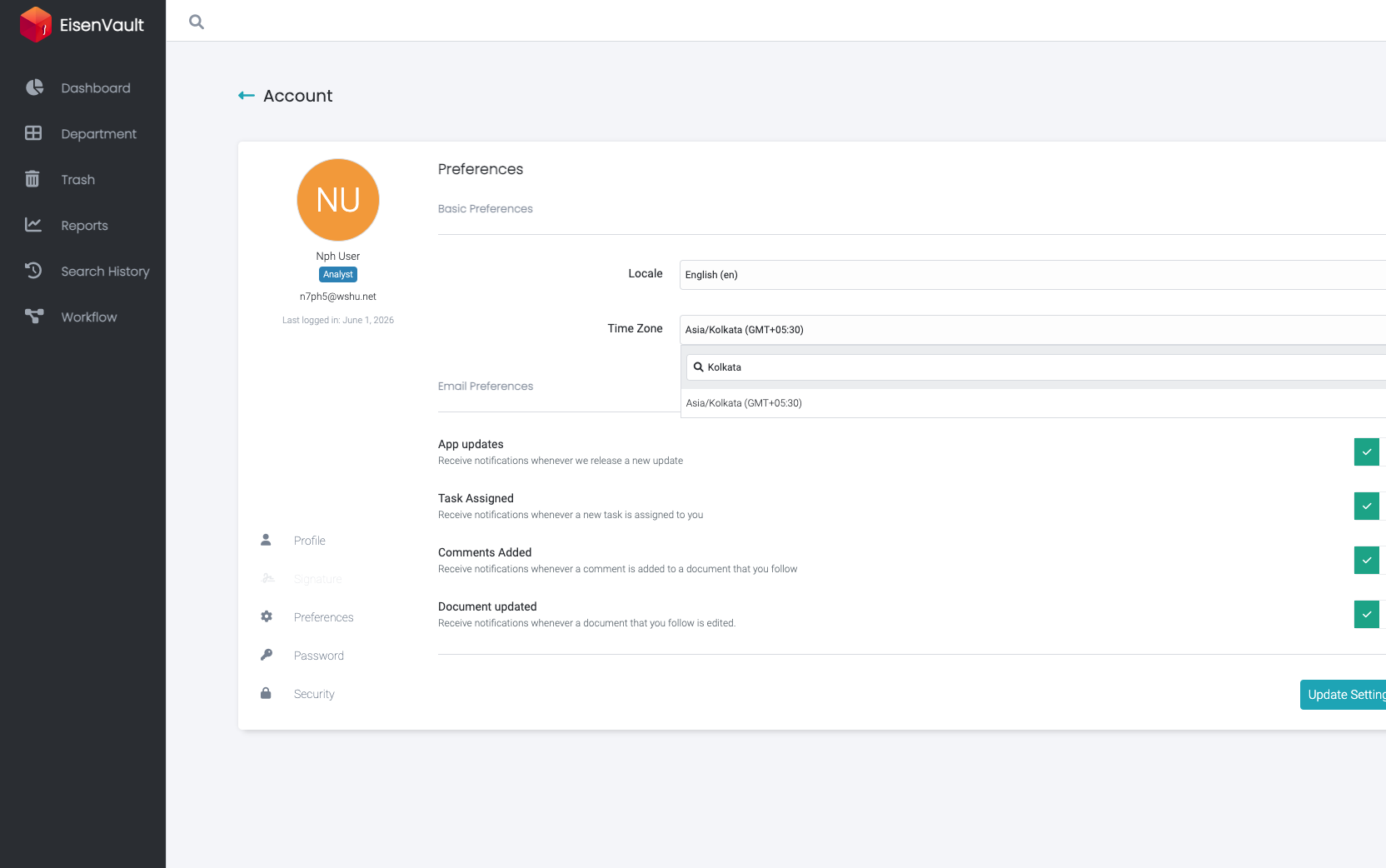
Open the Time Zone dropdown and search for your location. Select the matching time zone from the filtered list.
-
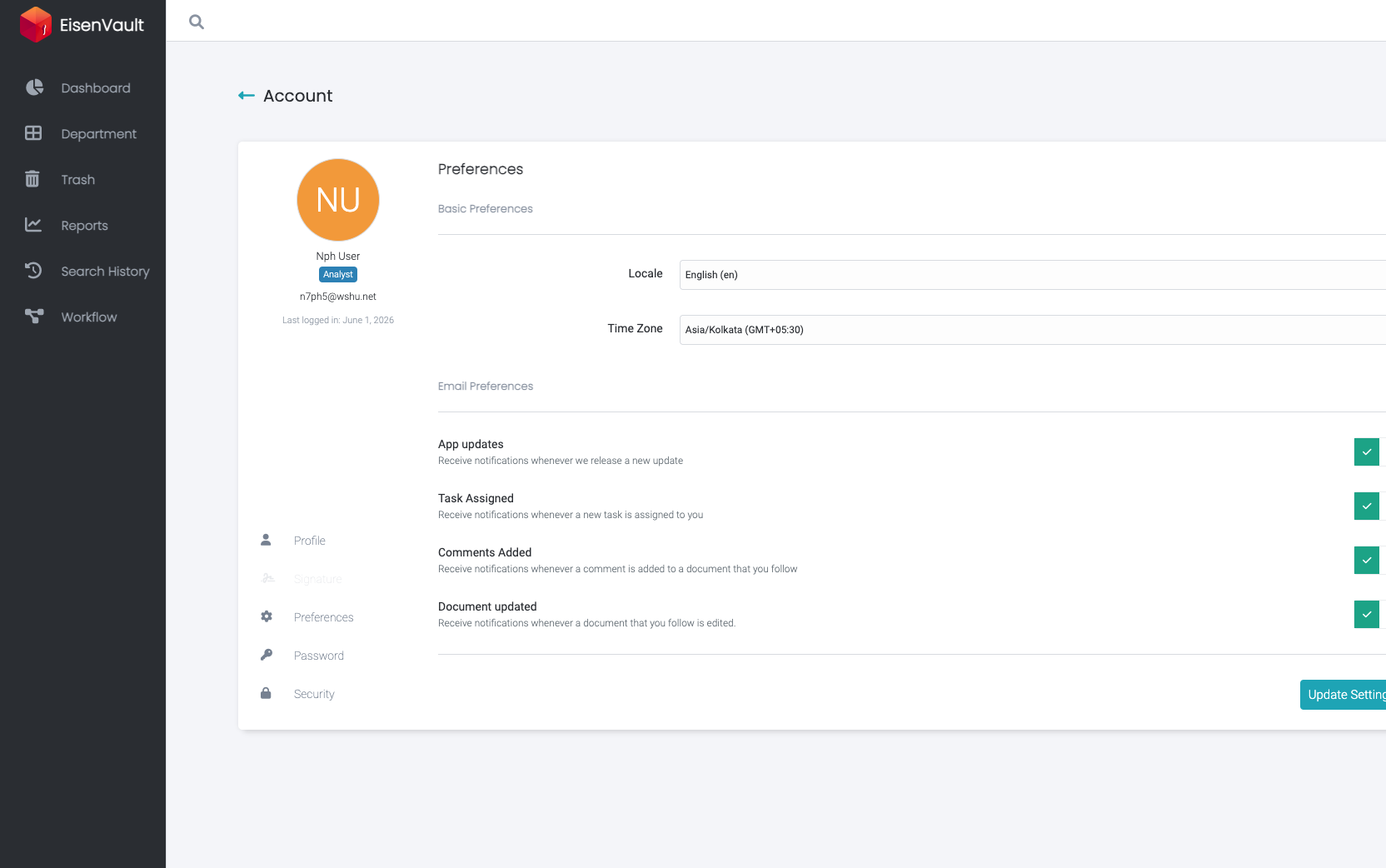
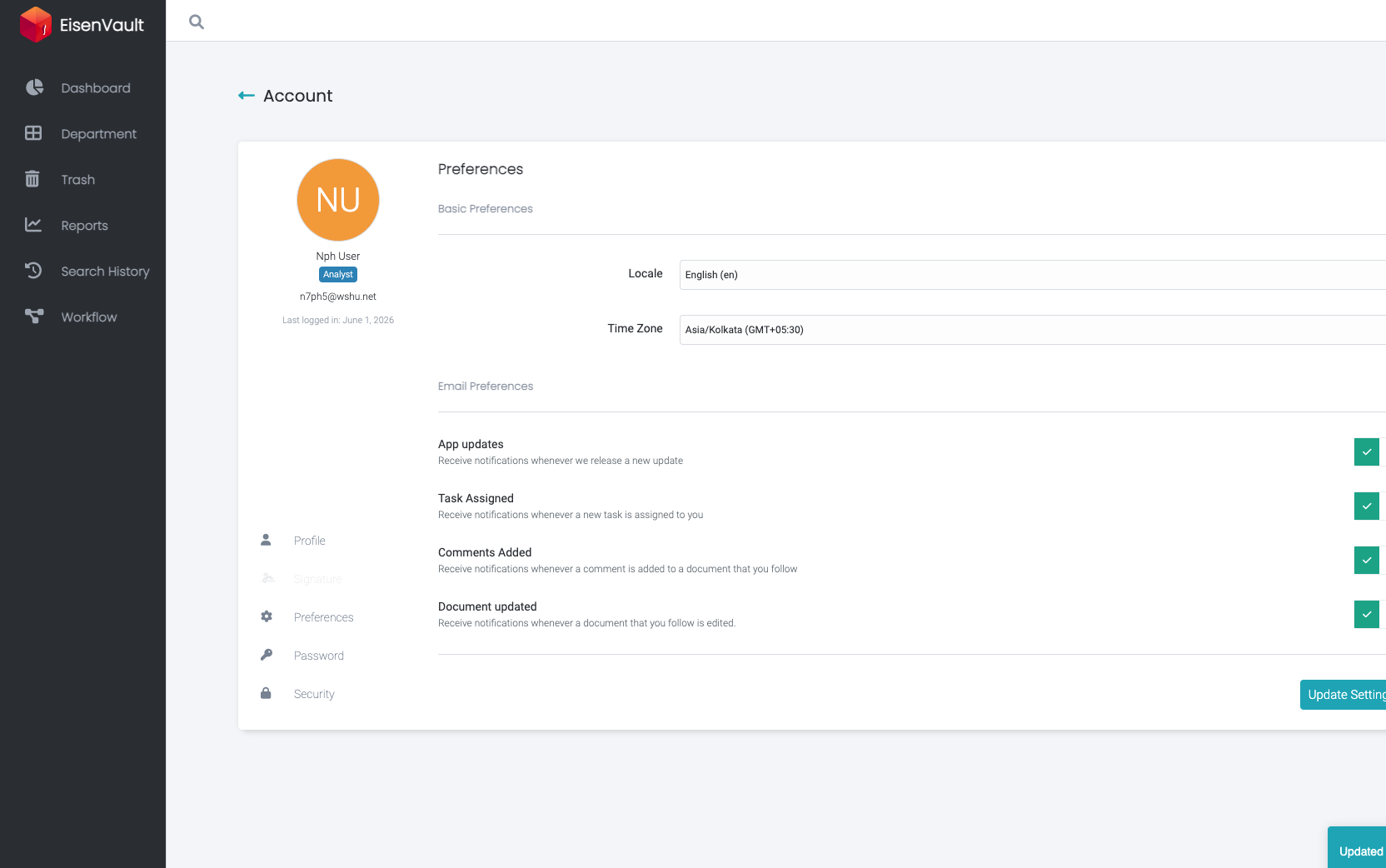
Review your selected locale and time zone, adjust the email notification switches if needed, and click Update Settings.
-
EisenVault One saves your changes and shows a confirmation message on the page.
Expected Result
- Your selected locale and time zone are saved to your account.
- Your email notification switches reflect the choices you made.
- EisenVault One shows an Updated confirmation after the settings are saved successfully.
- The read-only profile view shows your updated locale and time zone values.