Change Theme
Purpose
Switch EisenVault One between light mode, dark mode, and a theme that matches your browser settings.
Prerequisites
- You are signed in to EisenVault One.
- You can open the account menu from the top-right corner.
Before You Begin
Theme settings are available directly from the top-right account menu. They are not on the account sidebar pages used for profile, preferences, or password.
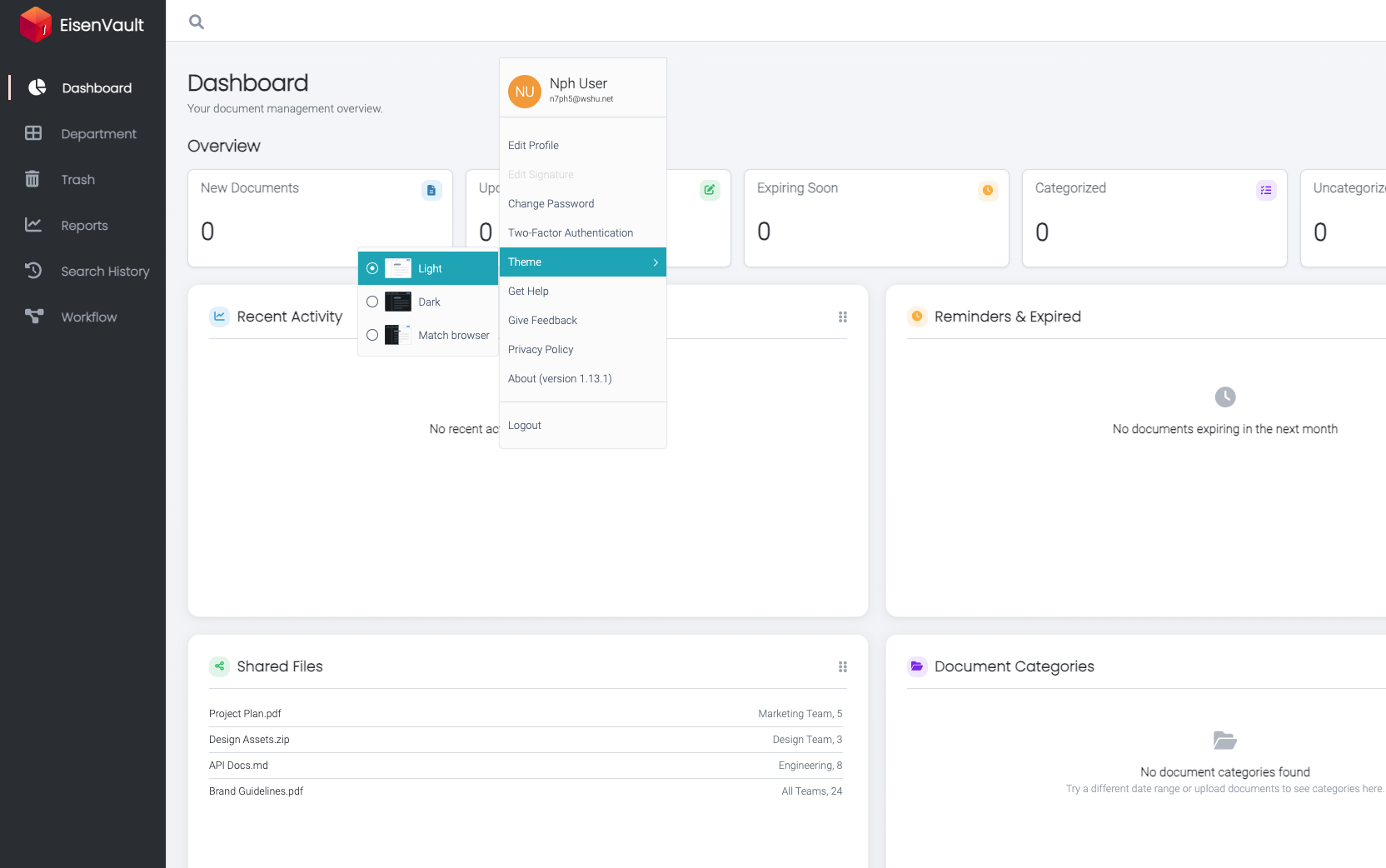
EisenVault One offers three theme options:
- Light — always use the light interface
- Dark — always use the dark interface
- Match browser — follow your operating system or browser light/dark preference
Your choice is saved in the browser and applied immediately across EisenVault One.
Change Your Theme
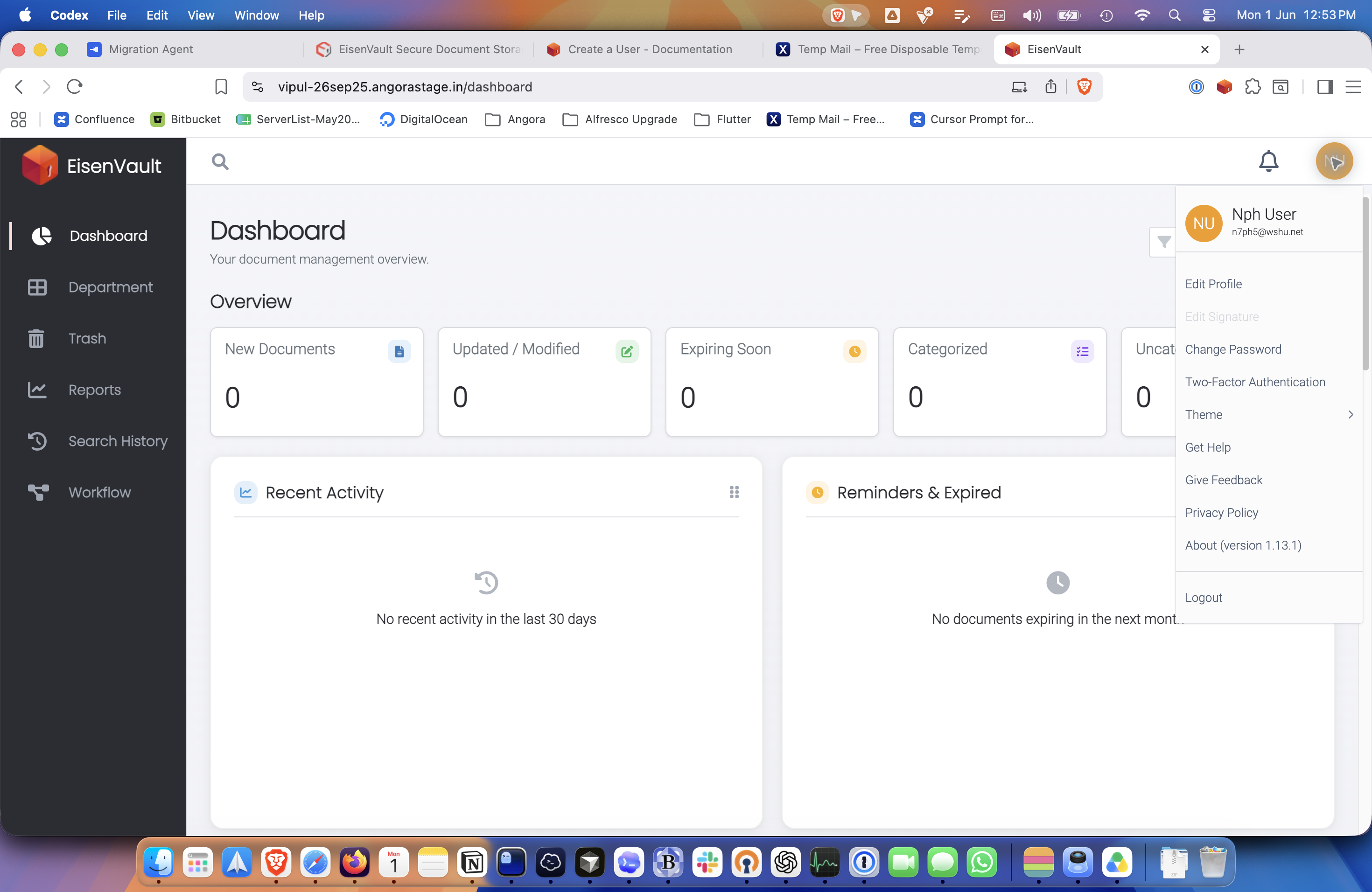
- Click your account avatar in the top-right corner.
- In the account menu, click Theme.
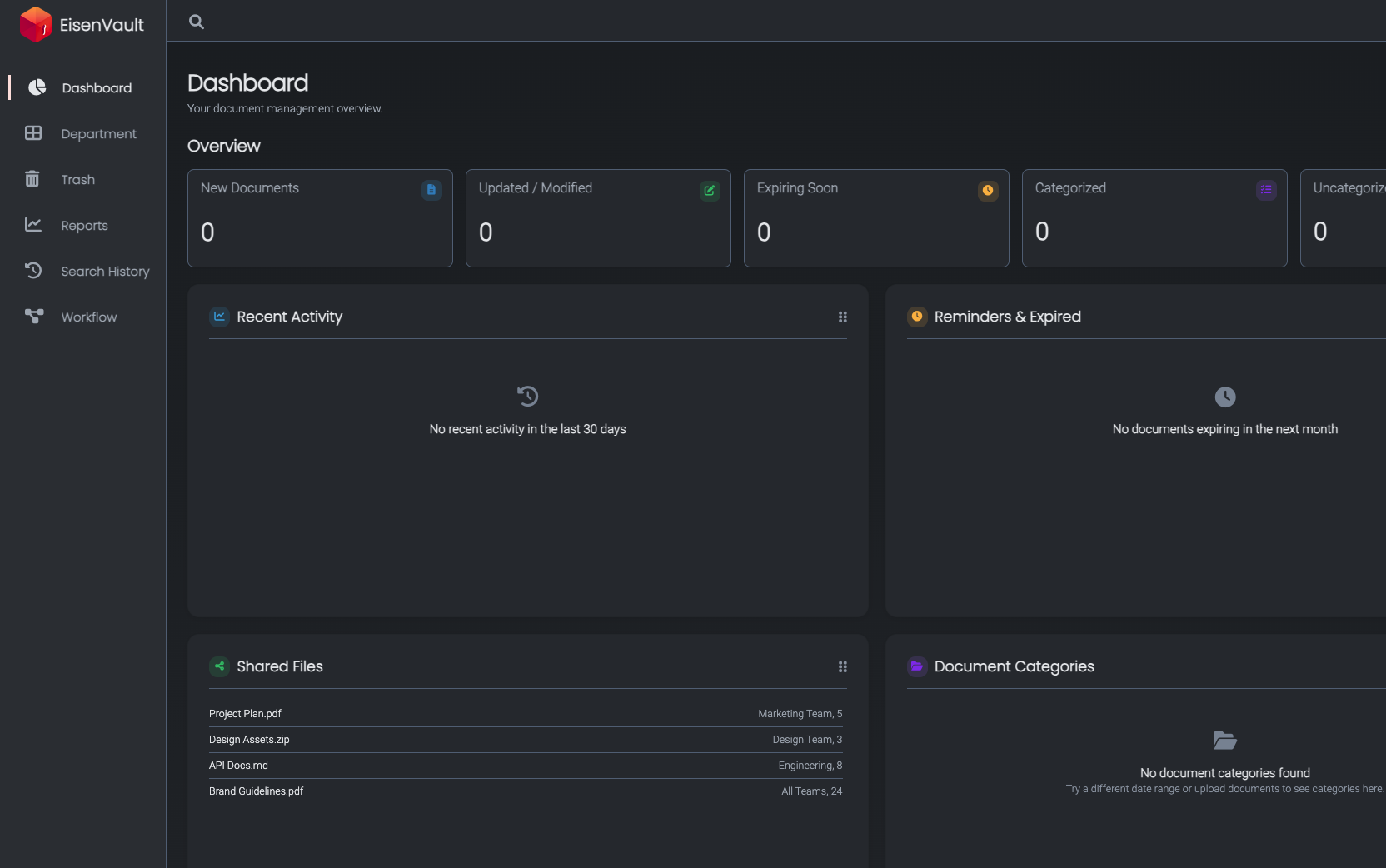
- Select Light, Dark, or Match browser.
- EisenVault One applies the selected theme right away.
Example Walkthrough
The screenshots below show the theme selection flow for the user n7ph5@wshu.net.
-
Open the account menu from the avatar in the top-right corner.
-
Click Theme to open the theme options submenu.
-
Select Dark. EisenVault One switches to the dark interface immediately.
Expected Result
- The selected theme is applied immediately.
- EisenVault One remembers your choice for future visits in the same browser.
- Match browser updates automatically when your system or browser light/dark preference changes.