Run OCR
Purpose
Run optical character recognition (OCR) on a document so scanned or image-based content becomes searchable text.
Prerequisites
- You are signed in to EisenVault One.
- You can open the document in preview.
- You have permission to run OCR.
- OCR is enabled by your administrator.
Before You Begin
OCR runs on individual documents from preview. The action is available for supported file types such as PDFs and images.
If OCR is already complete or already in progress, EisenVault One shows an error instead of starting a duplicate job.
Run OCR on a Document
- Navigate to the document and open it in preview.
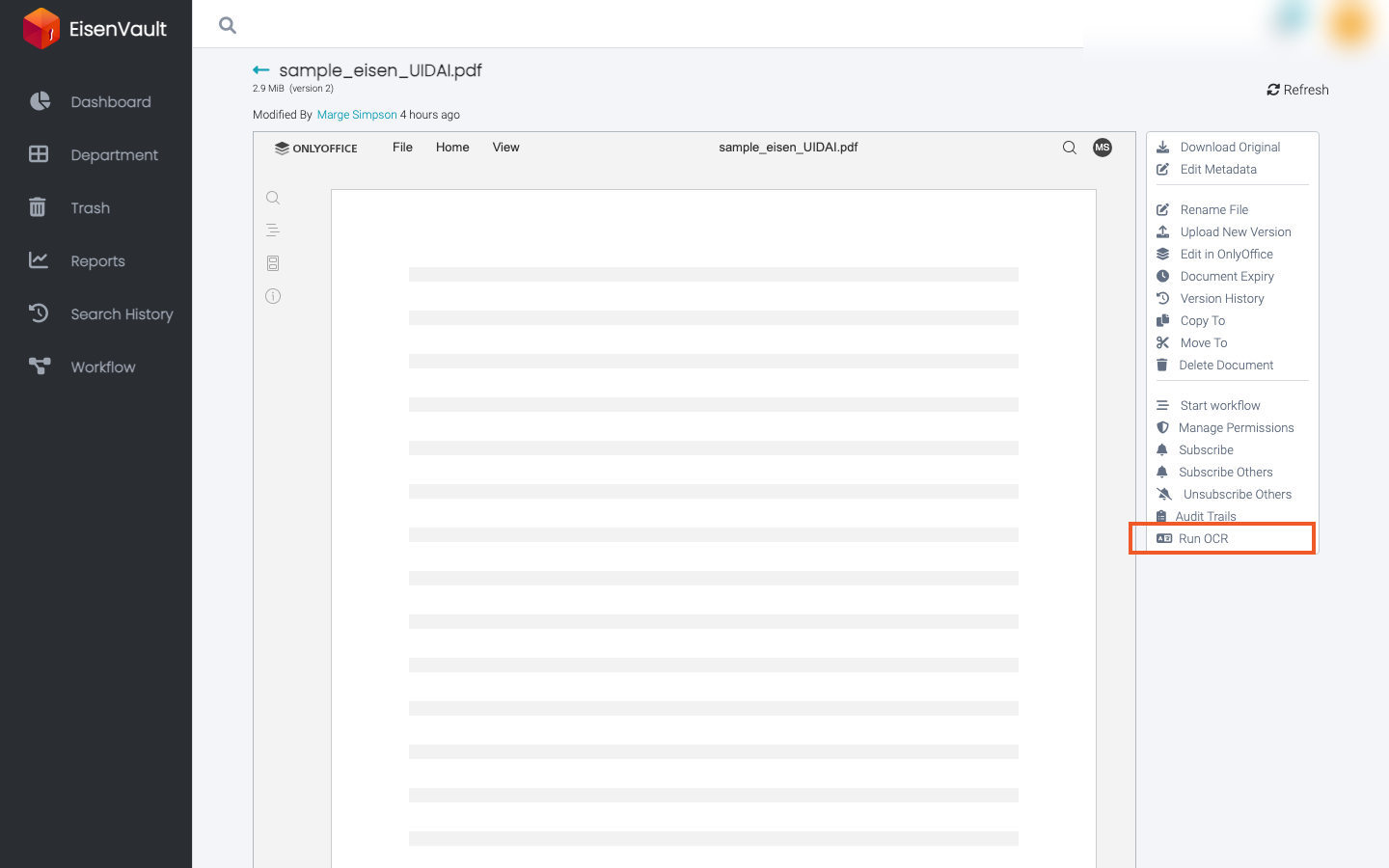
- In the right-hand actions panel, click Run OCR.
- Wait for EisenVault One to queue the OCR request.
- When processing completes, searchable text becomes available for the document.
Example Walkthrough
-
Open preview and click Run OCR.
-
Wait for the success notification that OCR was queued, then allow time for processing to finish.
Expected Result
- EisenVault One queues the OCR job successfully.
- The document becomes searchable after OCR completes.
- Audit trails can show OCR Run for the file.
- Running OCR again on an already processed file shows an error message.