Approval Details
Purpose
Review the full detail of a single workflow run, including document information, workflow metadata, approval progress, approval history, and the complete task timeline.
Run Detail vs Assignment Detail
EisenVault One provides two related but different detail screens:
| View | Opened from | Best for |
|---|---|---|
| Run detail (this page) | Workflow → Running Workflows → click a run | Monitoring any run — progress, history, and audit timeline |
| Assignment detail | Dashboard Workflow Activity or pending-approvals list | Completing your assigned approval step |
Run detail is available at /workflow/runs/{instanceId}. Assignment detail is available at /workflow-approvals/{assignmentId} (user dashboard) or /dashboard/workflow-approvals/{assignmentId} (administrator dashboard).
Prerequisites
- You are signed in to EisenVault One.
- You have access to the workflow run — as an assigned approver, the requester, or a user with permission to view workflow details.
Before You Begin
Open approval details from:
- The Running Workflows view — click an Instance ID on Workflow Runs.
- Pending Approvals — open a task assigned to you.
- A notification link for an assigned approval.
Workflow Run Header
The header shows the workflow name and, beneath it, the document under review. On the right sit the priority badge (LOW, MODERATE, HIGH), the status badge (for example IN REVIEW), and the actions available to you — Quick Approve and Stop run.
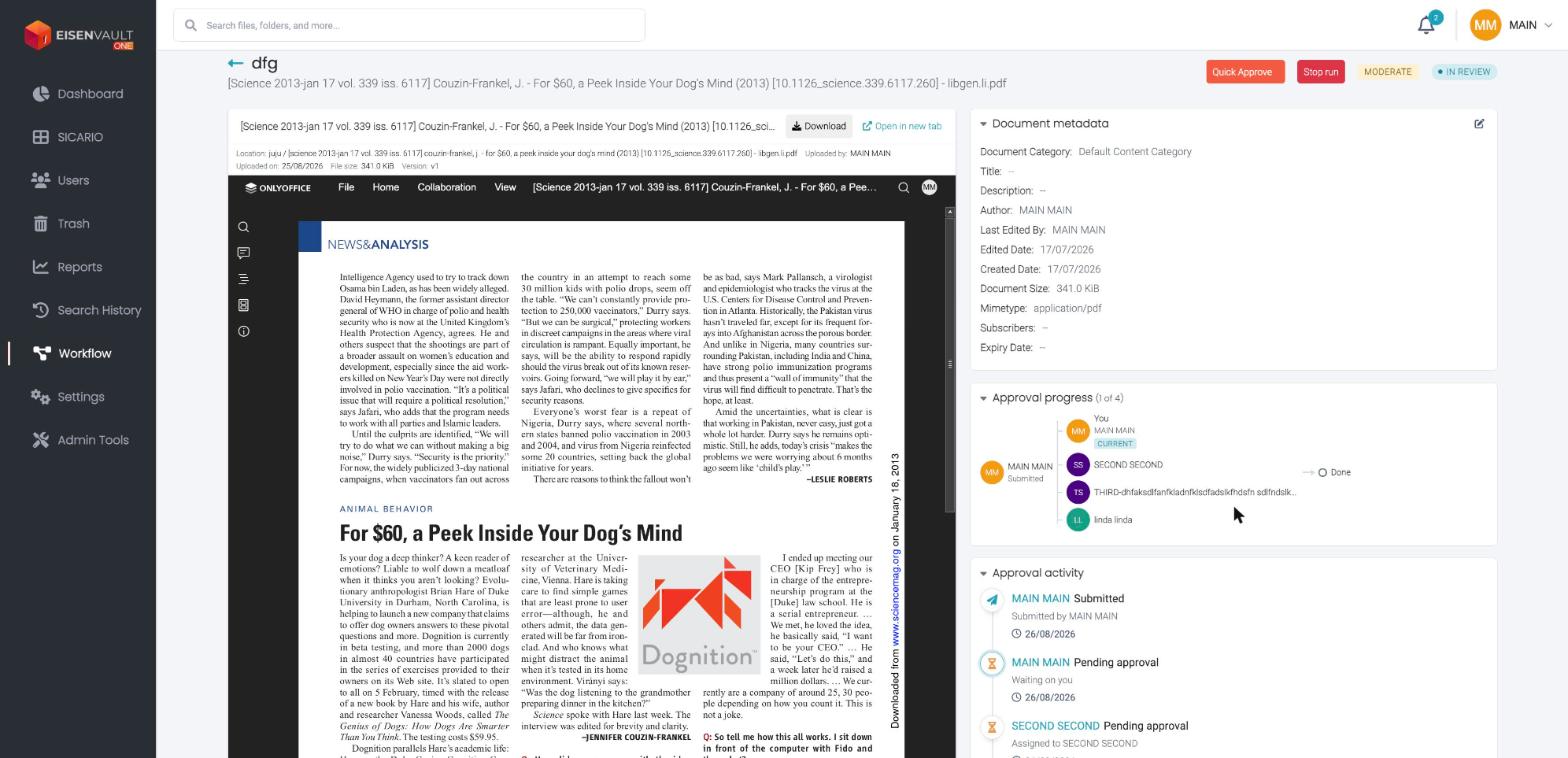
The left side previews the document, with Download and Open in new tab, and shows its location. If the file type cannot be previewed it reads Preview is not available.
Panels
The right side is split into three panels: Document metadata, Approval progress, and Approval activity.
Document metadata
The document's own metadata, with an edit control.
Approval progress
A chain of approver avatars in order, with a counter such as (2 of 4). The approver whose turn it is carries a CURRENT badge, the requester is marked Submitted, and the end of the chain shows Done.
Approval activity
A chronological record of the run — who submitted it, who is pending, who has acted, and when. Each entry shows the person, what happened, and the date.
Run Information
The information panel includes:
| Field | Description |
|---|---|
| ID | Unique instance identifier for this workflow run |
| Workflow | Workflow template name |
| Started by | User who started the workflow |
| Started at | Date and time the workflow began |
| Completed at | Date and time the workflow finished (when applicable) |
| Current step | Active step or final state such as Completed |
| Priority | Priority level set for this run |
| Due date | Expected completion date and time |
| Request note | Message provided when the workflow was started |
Workflow Progress
The Workflow progress section shows each approval step in order with:
- Step number and label (for example Approval step 1, Approval step 2).
- Assigned approver name or email.
- Timestamp for when the step was actioned.
Steps use color indicators to show state — for example completed or rejected steps.
Step statuses
Each step shows one of these statuses:
| Status | Meaning |
|---|---|
| Pending | Waiting for the approver to act |
| In review | The approver has opened the task |
| Waiting | The step has not started yet — an earlier step is still in progress |
| Approved | The approver approved |
| Rejected | The approver rejected |
| Sent back | The approver returned the request to an earlier step for revalidation |
| Revalidating | This step was sent back and is being looked at again |
| Skipped / No longer required | The step is no longer needed, usually because the workflow stopped after a rejection |
Approval History
Approval history lists each approval step in separate cards with:
- Step name.
- Approver identity.
- Action timestamp.
- Visual status indicator (approved, rejected, or pending).
Task Timeline
The Task timeline provides a chronological audit trail of every event in the workflow run, such as:
- Workflow started
- Approval requested
- Approved or rejected by a named user at a specific step
- Workflow completed
Use the timeline to confirm who acted, when they acted, and whether the workflow finished, failed, or was stopped.
Take Action
If you are the current approver and the workflow is still running, a Your decision panel appears at the bottom of the right column, headed Action required from you.
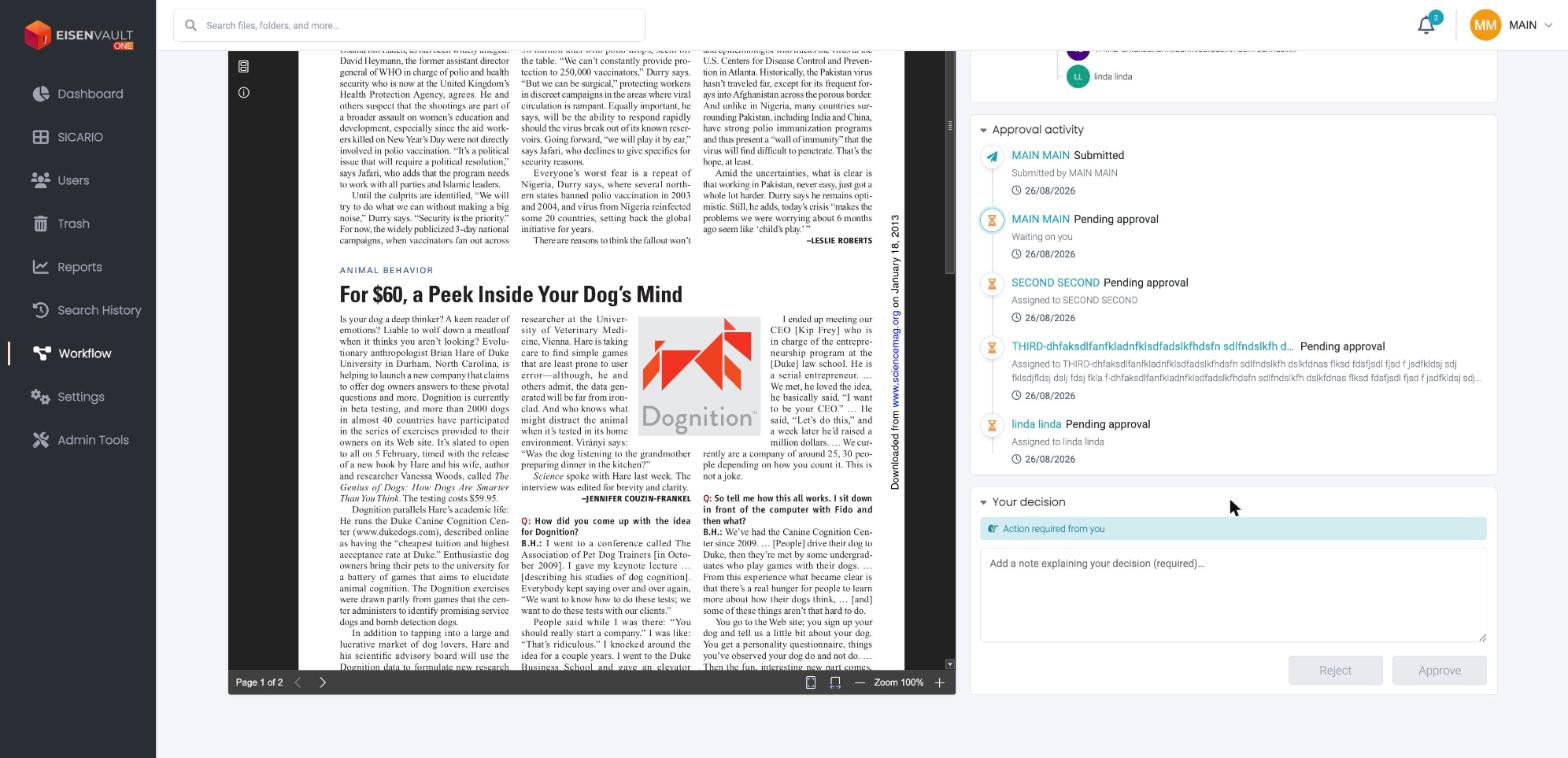
The note box reads Add a note explaining your decision (required)… and the action buttons stay disabled until you type something.
- Review the document, request note, and timeline.
- Type a note explaining your decision. This is required.
- Choose Approve, Quick Approve, Reject, or Send back.
- Confirm the action.
See Approval Actions for what each action does.
The approval history and task timeline update after your action is recorded.
Example Walkthrough
-
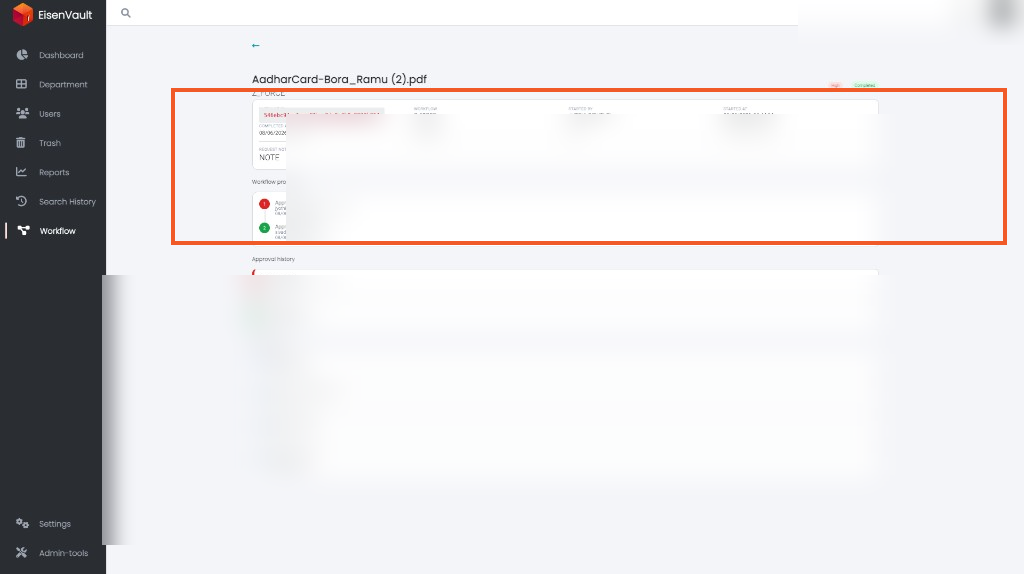
Open a workflow run from the Running Workflows view.
-
Review Workflow progress to see each approval step and its status.
- Scroll to Approval history for step-by-step outcomes.
- Use Task timeline for the full chronological record.
Expected Result
- All workflow metadata, progress, and history are visible for the selected run.
- Approvers can complete their assigned step when the workflow is still active.
- The timeline provides a complete auditable record of the approval journey.