Selecting Locale
Purpose
Choose the language EisenVault One should use during sign-in.
Before You Begin
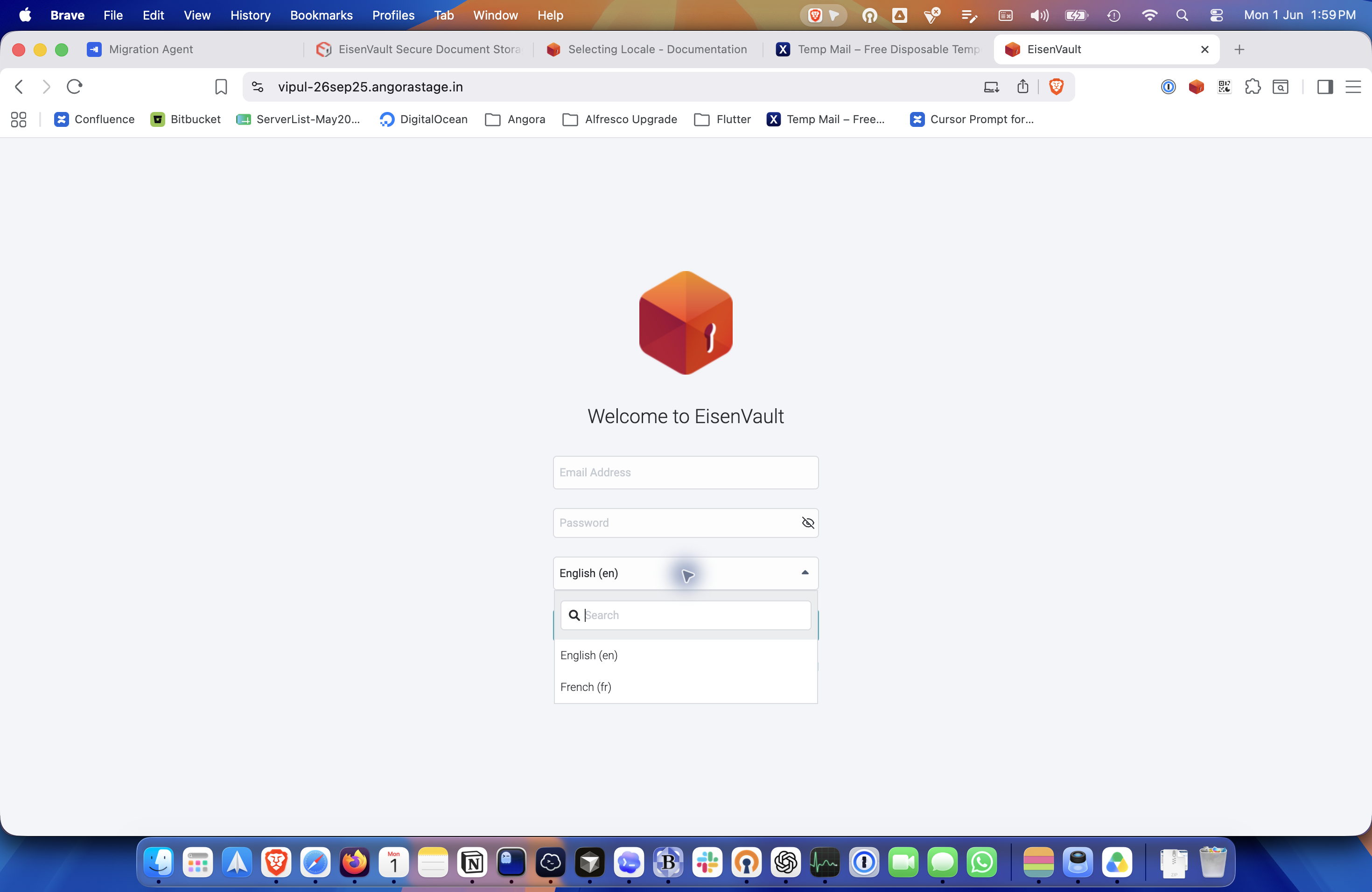
This environment offers two built-in locale options on the login page:
English (en)French (fr)
If you do not change the locale, EisenVault One uses English by default.
Select a Locale
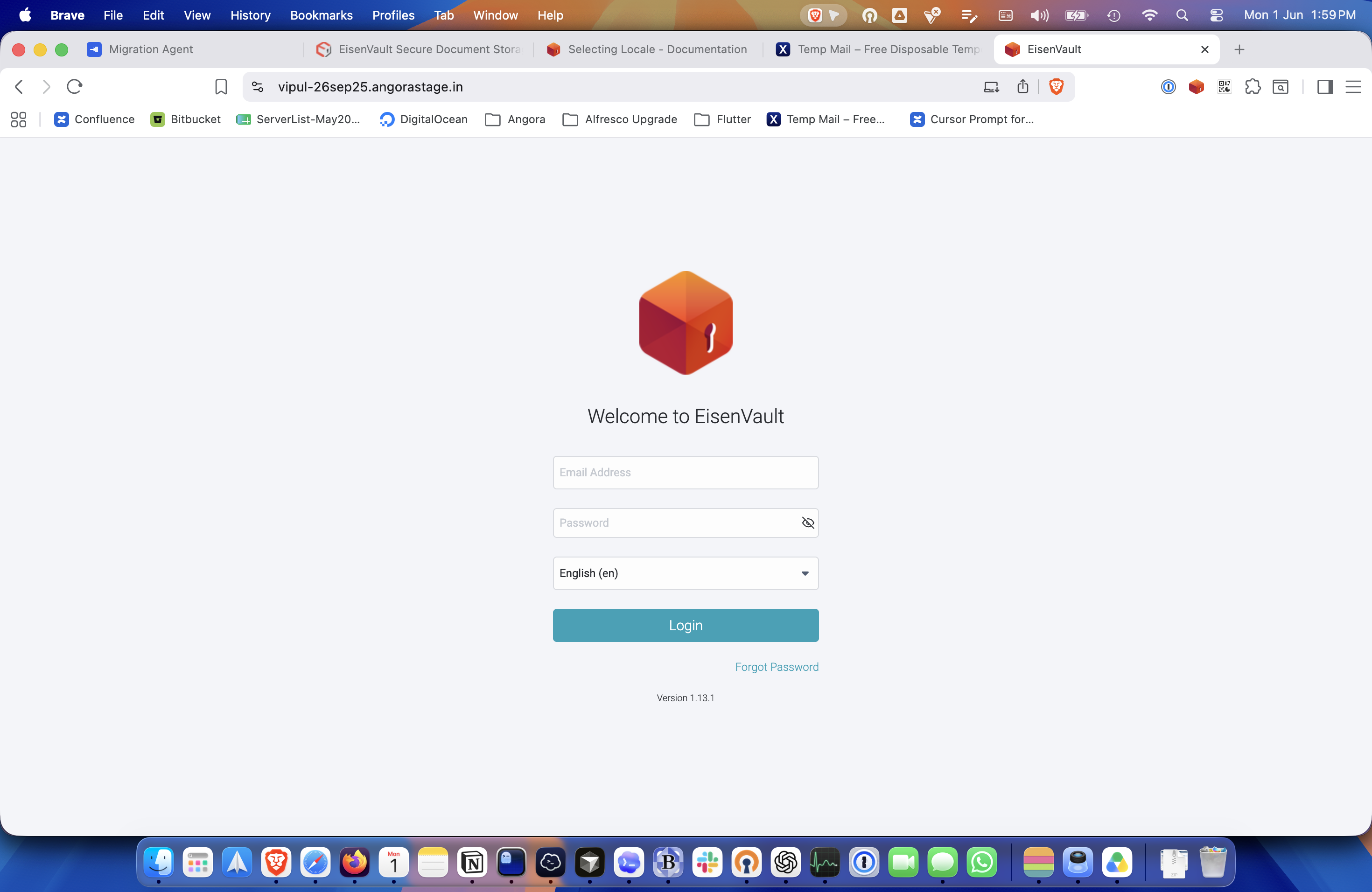
- Open the EisenVault One login page.
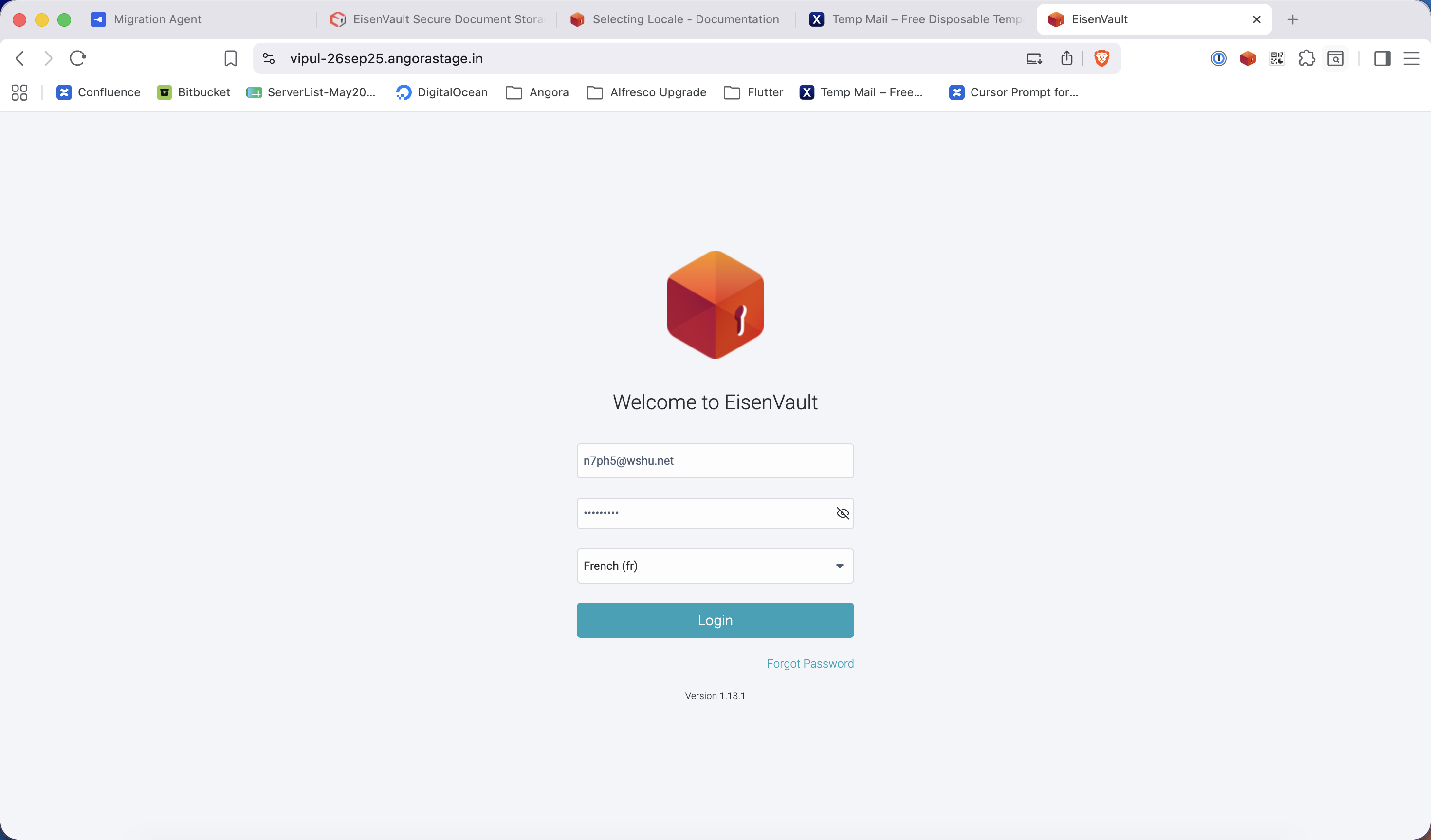
- Find the locale field below the password field.
- Leave the default value as English (en) if you want to continue in English.
- Open the dropdown and select French (fr) if you want to continue in French.
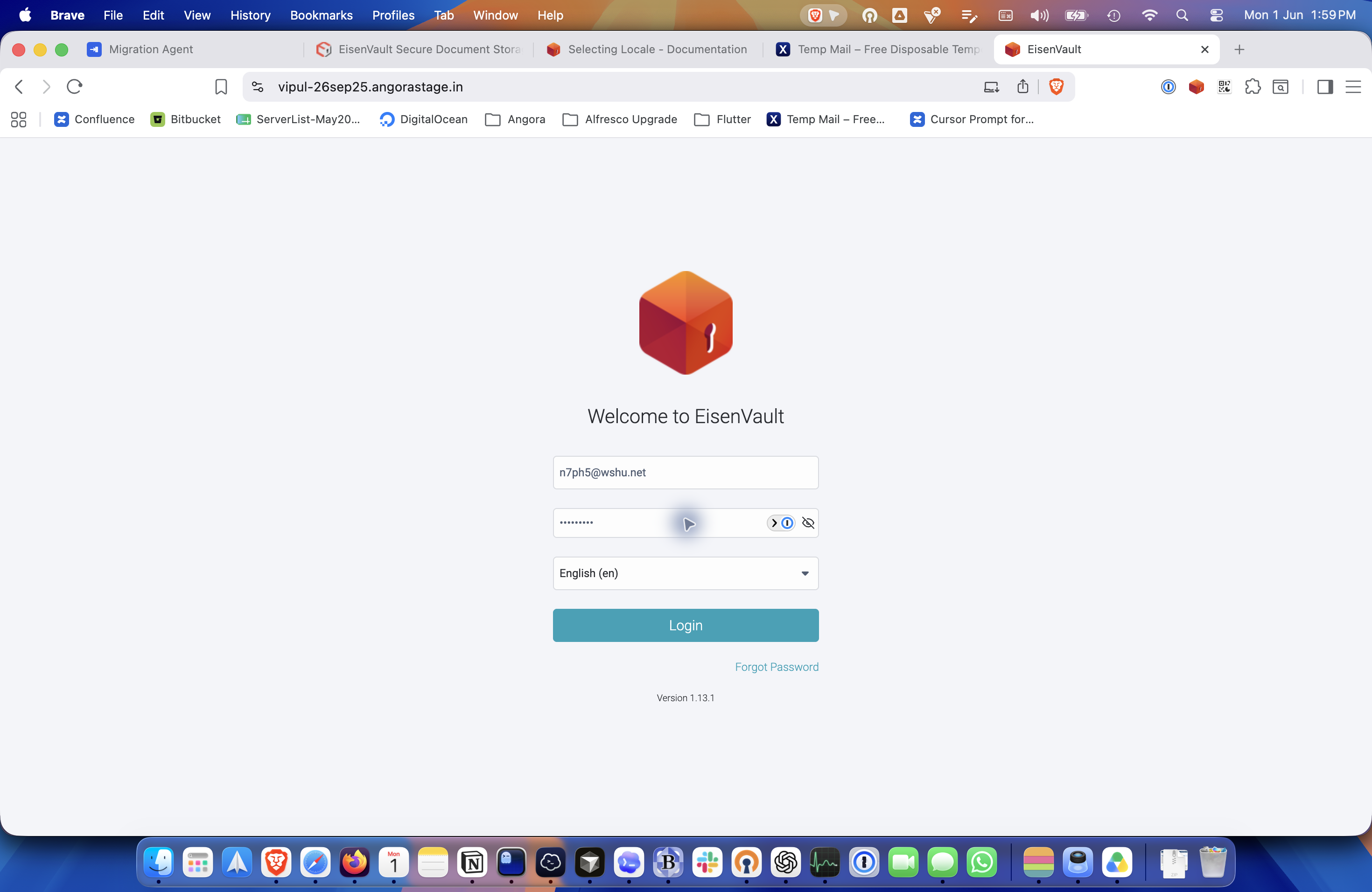
- Enter your email address and password.
- Click Login.
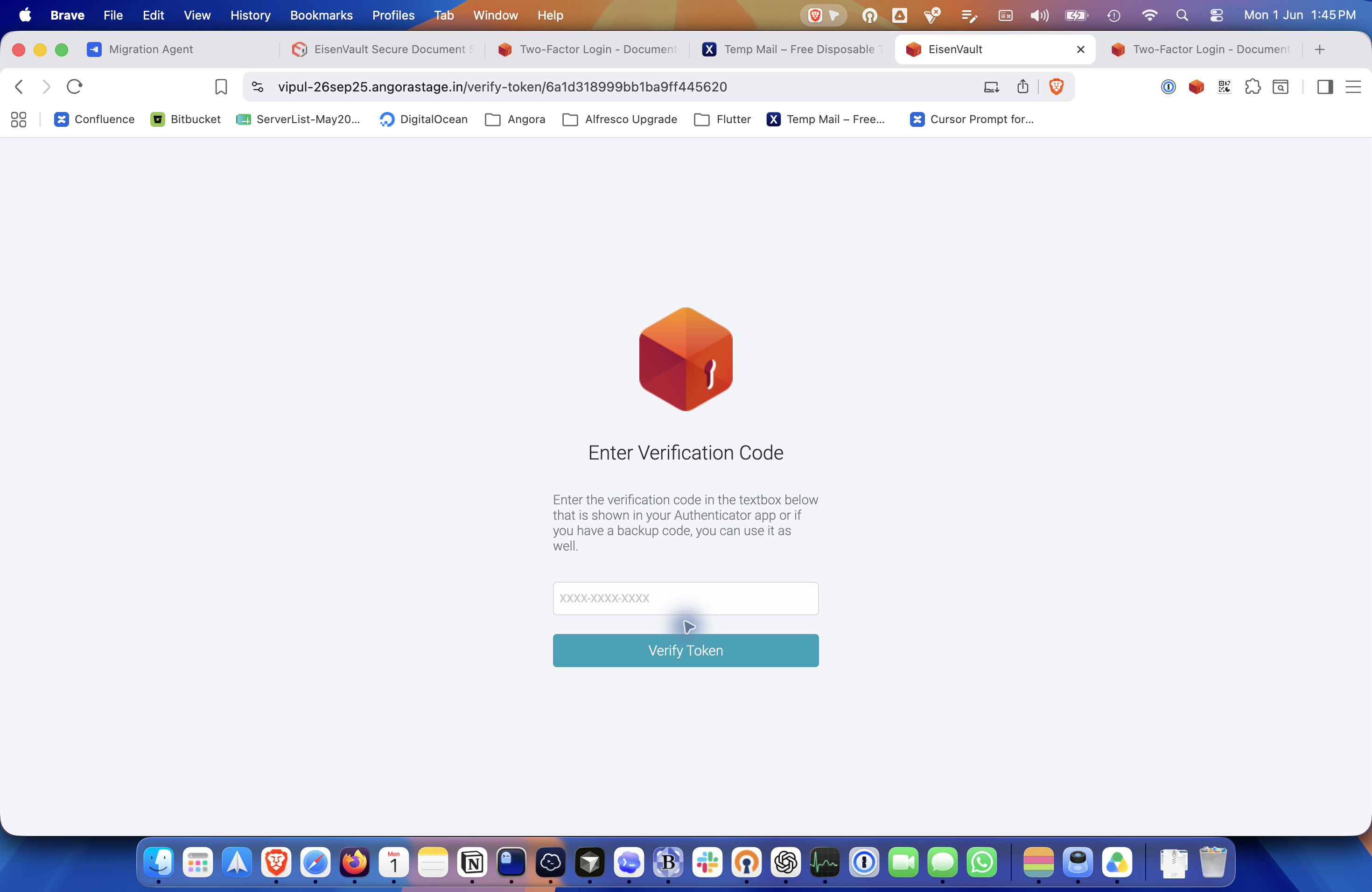
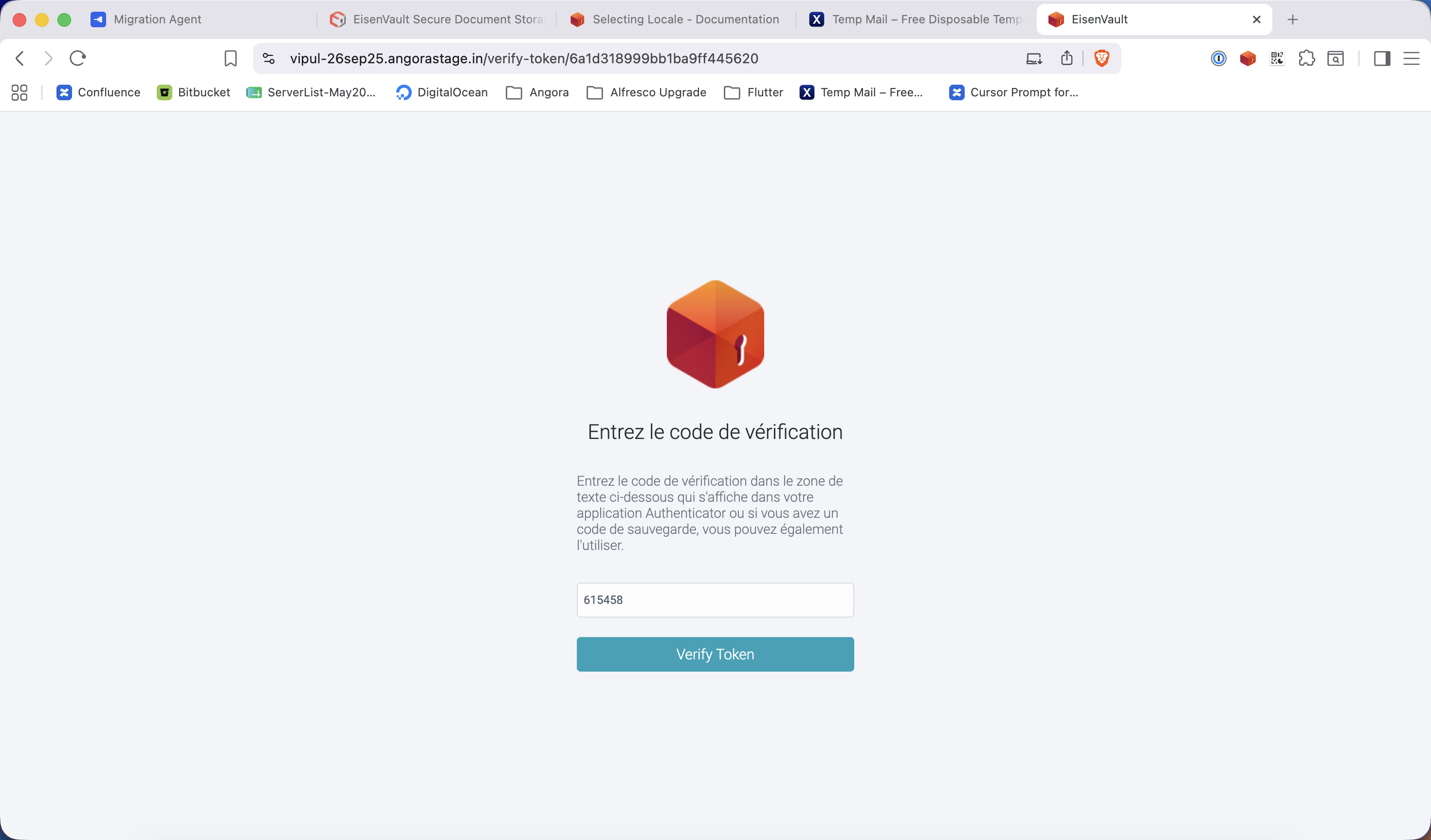
- If two-factor authentication is enabled, continue on the verification screen.
Example Walkthrough
The screenshots below show the live locale options and the sign-in flow for both English and French.
-
On the login page, EisenVault One shows English (en) by default.
-
Open the locale dropdown to see the available choices.
-
If you keep the default locale, you can sign in normally in English.
-
After the password is accepted, EisenVault One continues to the standard 2FA verification screen.
-
To use French instead, select French (fr) before signing in.
-
After you submit the French login form, EisenVault One continues to the same verification step for 2FA.
Expected Result
- English is used automatically when no locale is selected explicitly.
- You can switch the login locale to French from the dropdown.
- After login, EisenVault One continues to the normal authentication flow, including 2FA when enabled.