View & Export Audit Trails
Purpose
Review the activity history for a document or folder and export the audit log to Excel.
Prerequisites
- You are signed in to EisenVault One.
- You can open the file or folder.
- You have permission to view audit trails.
Before You Begin
Audit trails show actions such as uploads, metadata changes, permission updates, subscriptions, copies and moves, external shares (including views by recipients), attachment events, and document expiry changes. Workflow messages appear in the same timeline as the file's other activity.
The export uses the same date filter as the on-screen list.
View Audit Trails
- Navigate to the file or folder.
- For a document, open it in preview. For a folder, open the row options menu.
- Click Audit Trails.
- EisenVault One opens the Audit Trails page for the item.
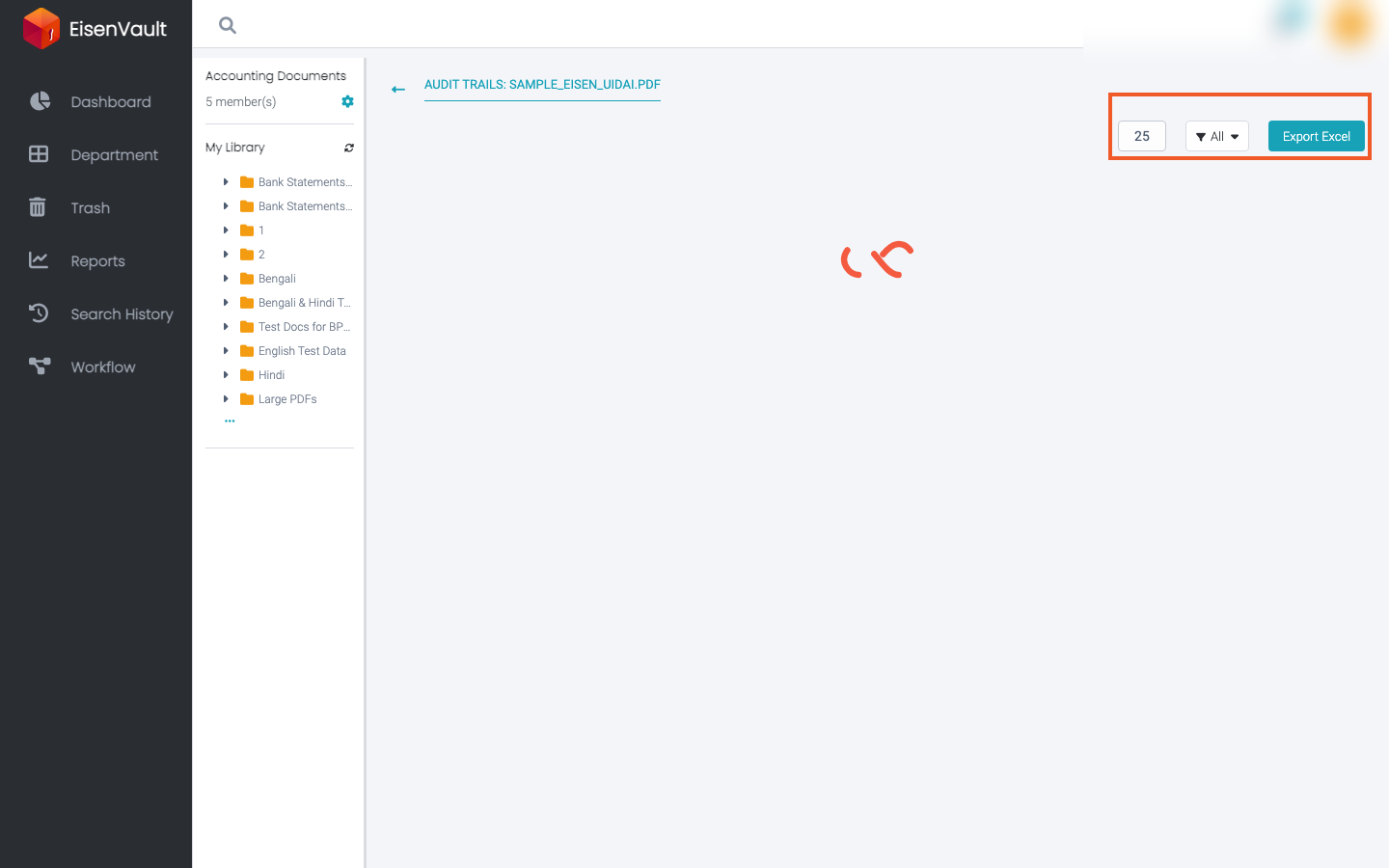
- Use the filter dropdown beside the page-size box to narrow the list by date (for example Today, Yesterday, Last Week, Last Month, Custom Date, or All).
- Review the activity timeline. Each entry names the person, the action, and the date, and can be expanded for details.
- Click Back to return to the previous page.
Export Audit Trails
- Open Audit Trails for the file or folder.
- Set the date filter you want to export.
- Click Export Excel (.xlsx).
- EisenVault One downloads an
.xlsxfile with columns for User, Action, and Date/Time.
Example Walkthrough
-
Open preview and click Audit Trails.
-
Choose a date filter and click Export Excel to download the log.
Expected Result
- The audit list shows actions for the selected period.
- Export Excel downloads a spreadsheet for the current filter.
- If no records exist for the filter, EisenVault One shows a no-data message instead of exporting an empty file.