Expiring Soon
Purpose
Find documents that have an expiry date coming up in the next 30 days, starting from today (UTC). Use the Expiring Soon overview card for a quick count, the Reminders & Expired widget for a short list on the dashboard, and the full Expiring Documents page to sort, filter, and open files.
Prerequisites
- You are signed in to EisenVault One.
- You have permission to view at least one document that has an expiry date in the upcoming window.
- You can open the Dashboard from the left navigation.
Before You Begin
Expiring views behave differently from New Documents and Updated / Modified:
- Expiring Soon does not use the dashboard Date Range control above the overview cards. The count is always based on documents expiring from today through the next 30 days (UTC, date-only).
- New Documents and Updated / Modified both follow the date range you select on the dashboard; Expiring Soon does not.
- The Reminders & Expired widget uses the same expiring-document data as the overview card. It shows a scrollable list on the dashboard (with Load more when additional items exist).
- Clicking the Expiring Soon overview card opens the Expiring Documents list page. That page shows the same rolling window in its subtitle (for example
Documents in period: 02-Jun-2026 – 02-Jul-2026, with exact dates depending on when you open the page).
You only see documents you are allowed to view. If nothing expires in the next 30 days, the card shows 0, the widget shows No documents expiring in the next month, and the list page shows No expiring documents found.
View the Expiring Soon Count
- Open the left navigation and go to Dashboard.
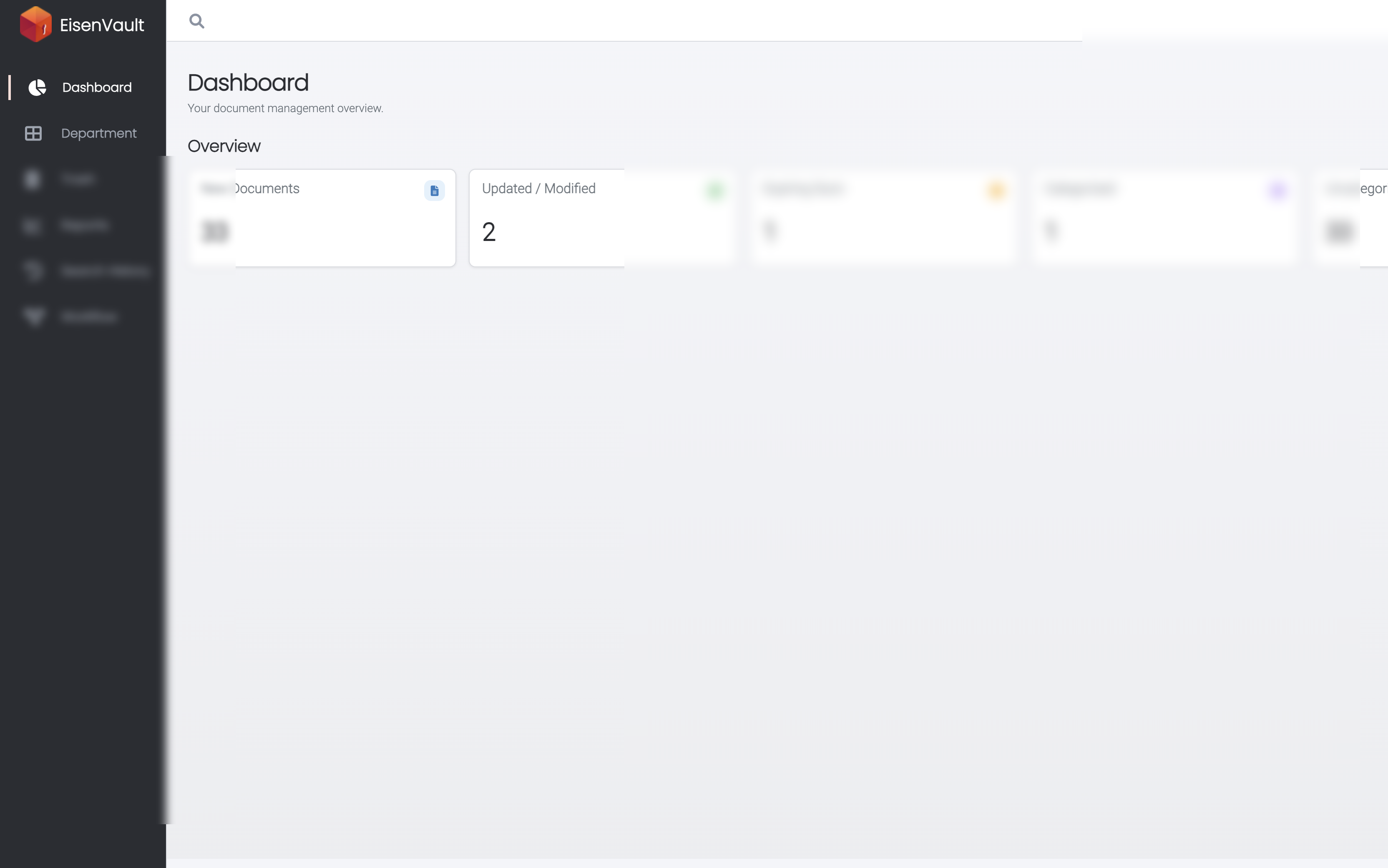
- In the Overview row, find the Expiring Soon card (clock icon) and note the count.
- Optionally review Reminders & Expired in the widgets section below for file names and expiry dates without leaving the dashboard.
Open the Expiring Documents List
- On the Dashboard, click the Expiring Soon overview card.
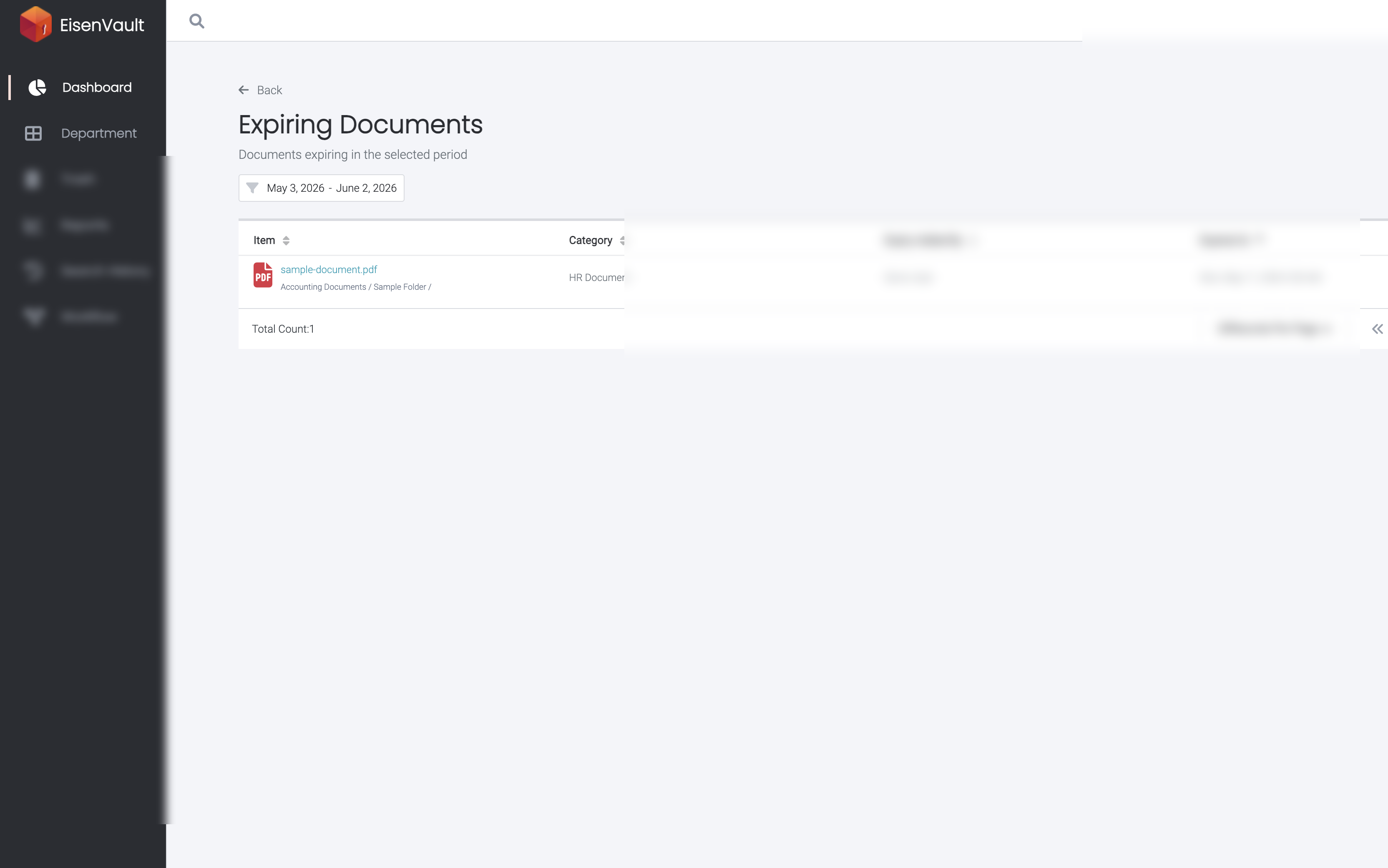
- EisenVault One opens Expiring Documents for the rolling 30-day window.
- Click Back to return to the dashboard.
Work with the Expiring Documents List
On the Expiring Documents page:
- Confirm the period line under the title reflects the next-30-days window.
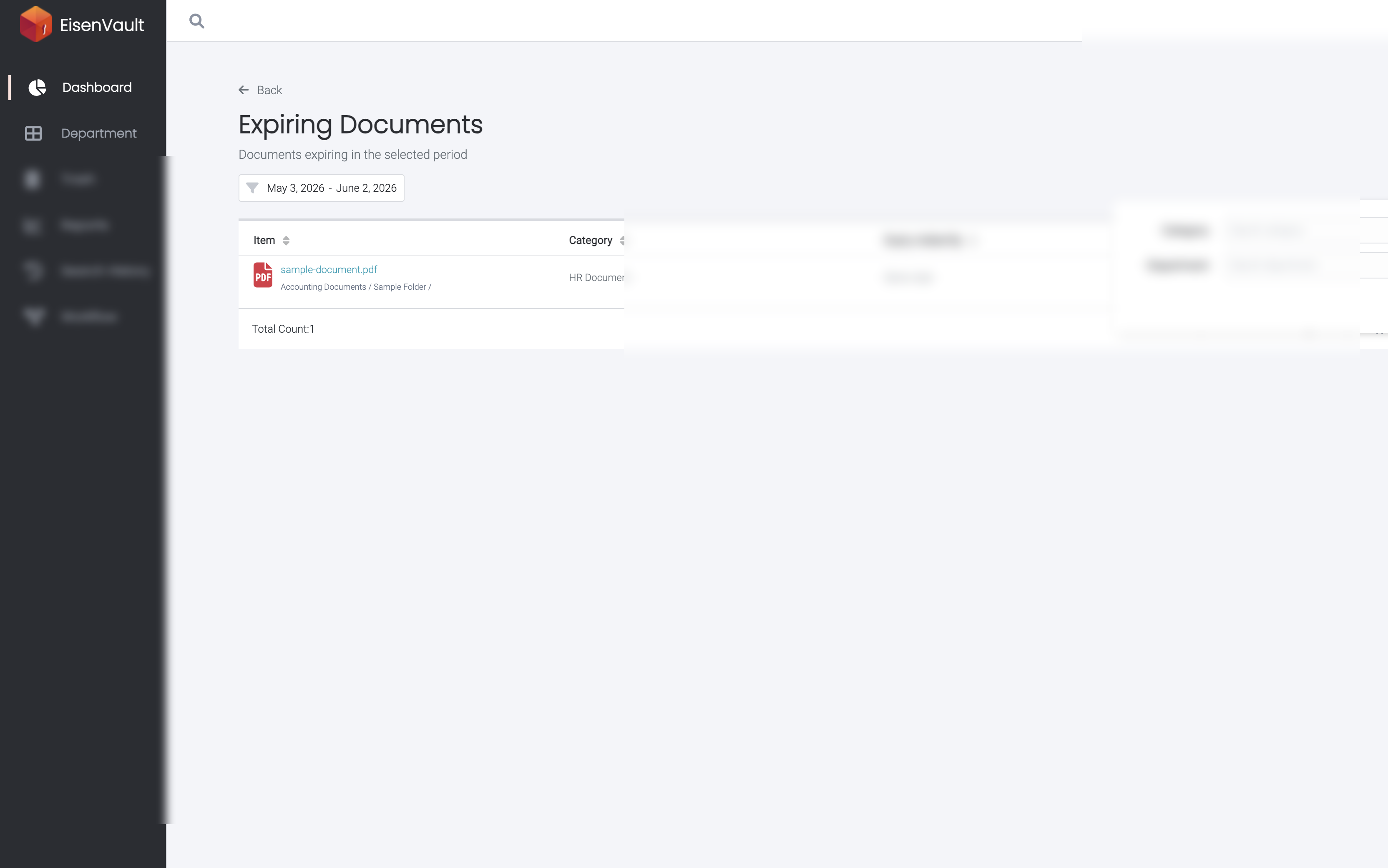
- Optionally open Filters to narrow the list by:
- Category
- Department (your organization may use a custom label for this field)
- Enter filter values and click Apply, or click Clear to remove filters.
- Use the column headers to sort by Item, Category, Expiry Added By, or Expired At (the expiry date and time).
- Click a document name to open its preview.
- Use pagination at the bottom when more than one page of results exists.
- Click Back to return to the dashboard.
See the Count After Setting Expiry
When you add or change an expiry date on a document you can access, and that date falls within the next 30 days, the Expiring Soon count can increase.
- Set an expiry date on a document from preview. See Document Expiry.
- Return to Dashboard and check the Expiring Soon card and Reminders & Expired widget.
- Click Expiring Soon to confirm the document appears on the Expiring Documents list with the correct Expired At value.
Example Walkthrough
The screenshots below use a demonstration tenant. Names, email addresses, and file titles are redacted.
-
On the Dashboard, the Expiring Soon overview card appears in the Overview row. When at least one document expires in the next 30 days, the count is greater than zero.
-
Click Expiring Soon to open Expiring Documents. The table lists the file name, folder path, category, who set the expiry, and the expiry date.
-
Open Filters to narrow the list by category or department.
Expected Result
- The Expiring Soon overview card shows how many documents expire in the next 30 days (UTC), independent of the dashboard date range picker.
- Reminders & Expired lists upcoming expiries on the dashboard when the widget is enabled.
- The Expiring Documents page lists the same window with sorting, filters, and pagination.
- Clicking a document name opens preview when you still have access.
- Setting or updating an expiry date inside the window can increase the count; clearing expiry or moving the date outside the window removes it from these views.
- Back returns you to the dashboard.