Inactive Users
Purpose
Find user accounts that did not sign in during the dashboard date range. The Inactive Users overview card shows the count; the Inactive Users list helps you review dormant accounts.
Note: This action may require administrator privileges.
Prerequisites
- You are signed in to EisenVault One as a system administrator.
- You can open Dashboard from the left navigation.
Before You Begin
- Inactive Users is the complement of Active Users for the same date range.
- Last activity may show --- when no login occurred in the period.
- Use the list as a starting point before disabling or removing accounts in Users.
View Inactive Users
- Open Dashboard.
- Set the date range, then click Apply Filter.
- Note the Inactive Users count.
- Click the card.
Work with the Inactive Users List
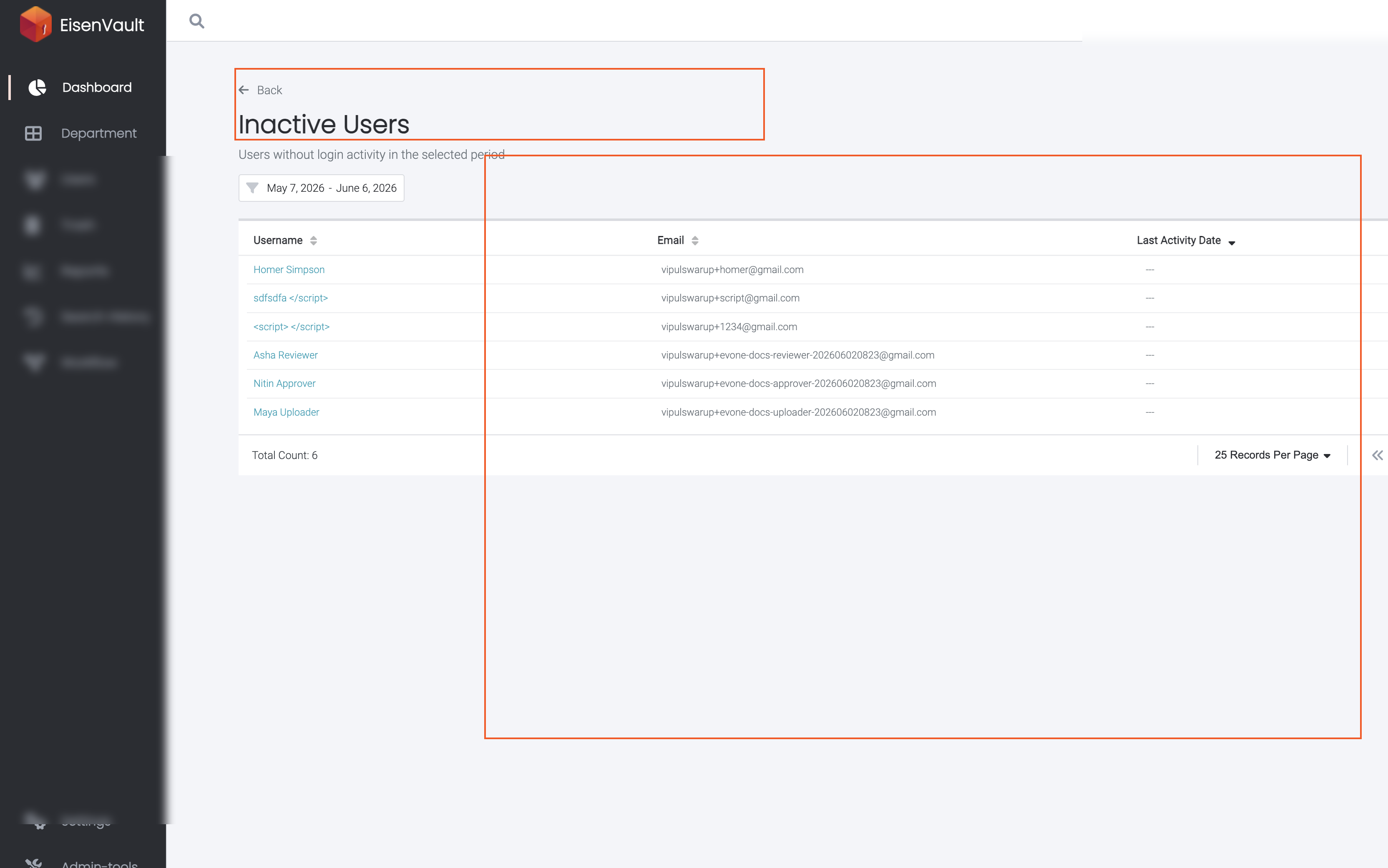
On the Inactive Users page:
- Sort by Username, Email, or Last Activity.
- Optional: click Filters beside the page-size box to narrow the list.
- Click a username to review the account when permitted.
- Click Back to return to the dashboard.
Example Walkthrough
Demonstration screenshots redact email addresses and display names.
-
Click Inactive Users on the dashboard.
Expected Result
- The overview card shows how many users had no login activity in the period.
- The list highlights accounts to review for cleanup or re-engagement.
- Sorting and pagination work on the list page.