Document Expiry
Purpose
Set or update when a document should expire, or remove an expiry date you no longer need. Expiry dates help your organization track retention and appear on the dashboard under Expiring Soon and in the Reminders & Expired widget.
Prerequisites
- You are signed in to EisenVault One.
- You can open the document in preview.
- You can use document actions from the preview page.
Before You Begin
Document expiry is configured per file from the preview page, not from the upload window.
- Open the document first. See View Document if you need steps to reach preview.
- The Document Expiry action is in the right-hand actions panel on preview.
- Saving a new date stores the expiry on the file. Clearing the Expiry Date field and clicking Save removes the expiry.
- You can also change the expiry from the Metadata panel: click the pencil icon, edit Expiry Date in the Edit Metadata drawer, and save. The preview refreshes so the new date shows without reloading.
- Changes are recorded in audit trails as Changed Document Expiry.
Set or Update an Expiry Date
- Navigate to the department and folder that contains the document.
- Open the document in preview.
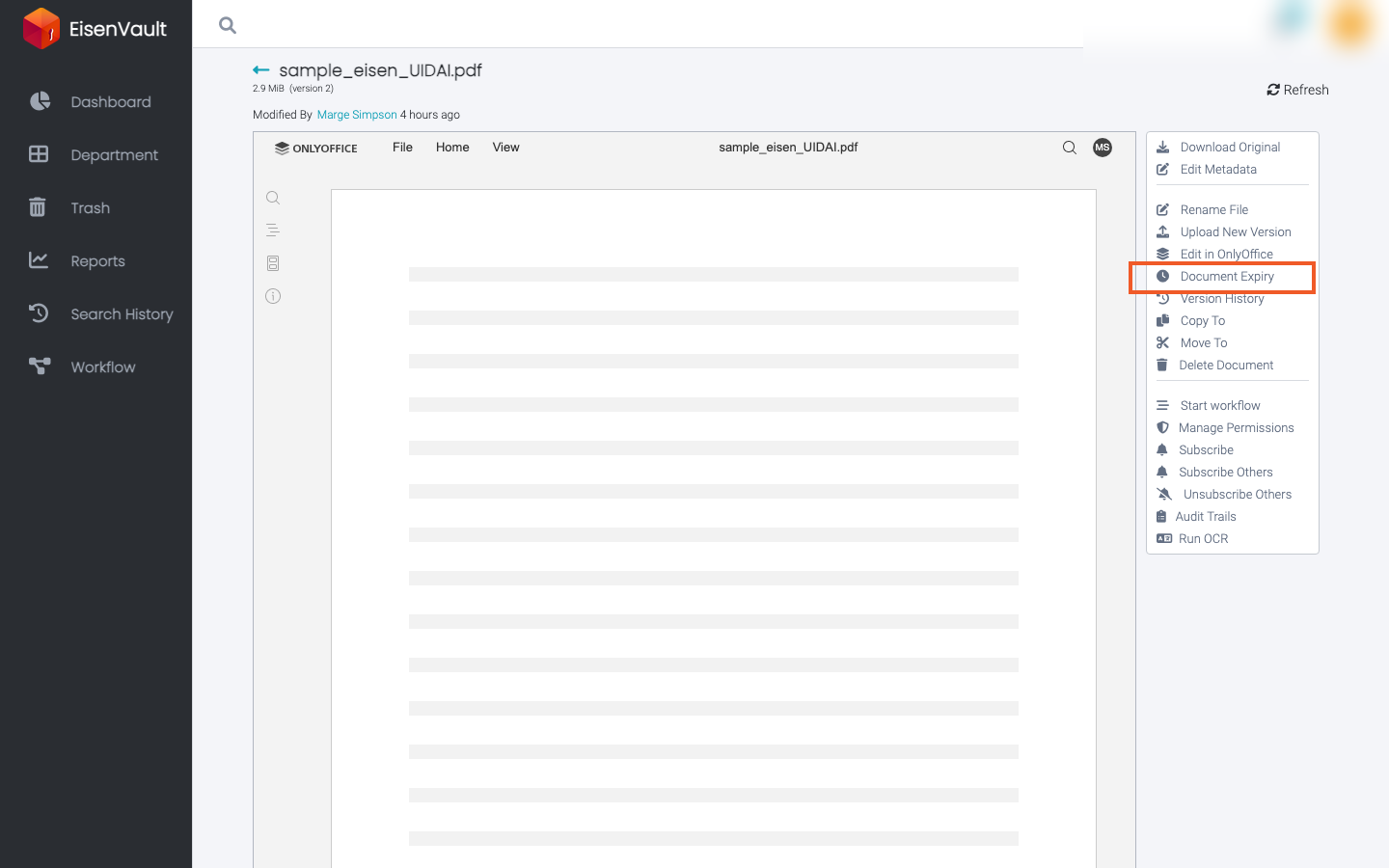
- In the right-hand actions panel, click Document Expiry.
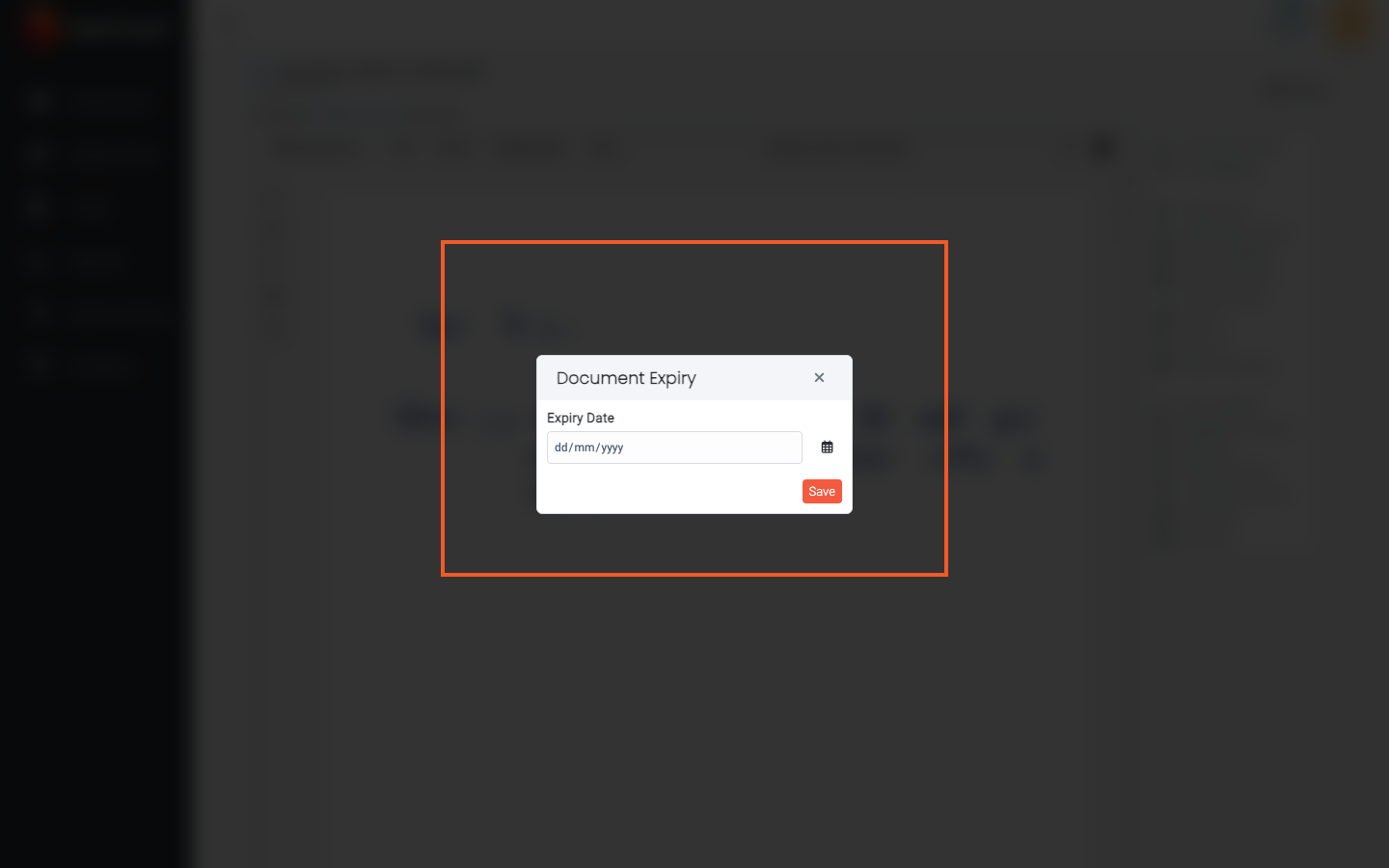
- In the Document Expiry window, choose a date in Expiry Date.
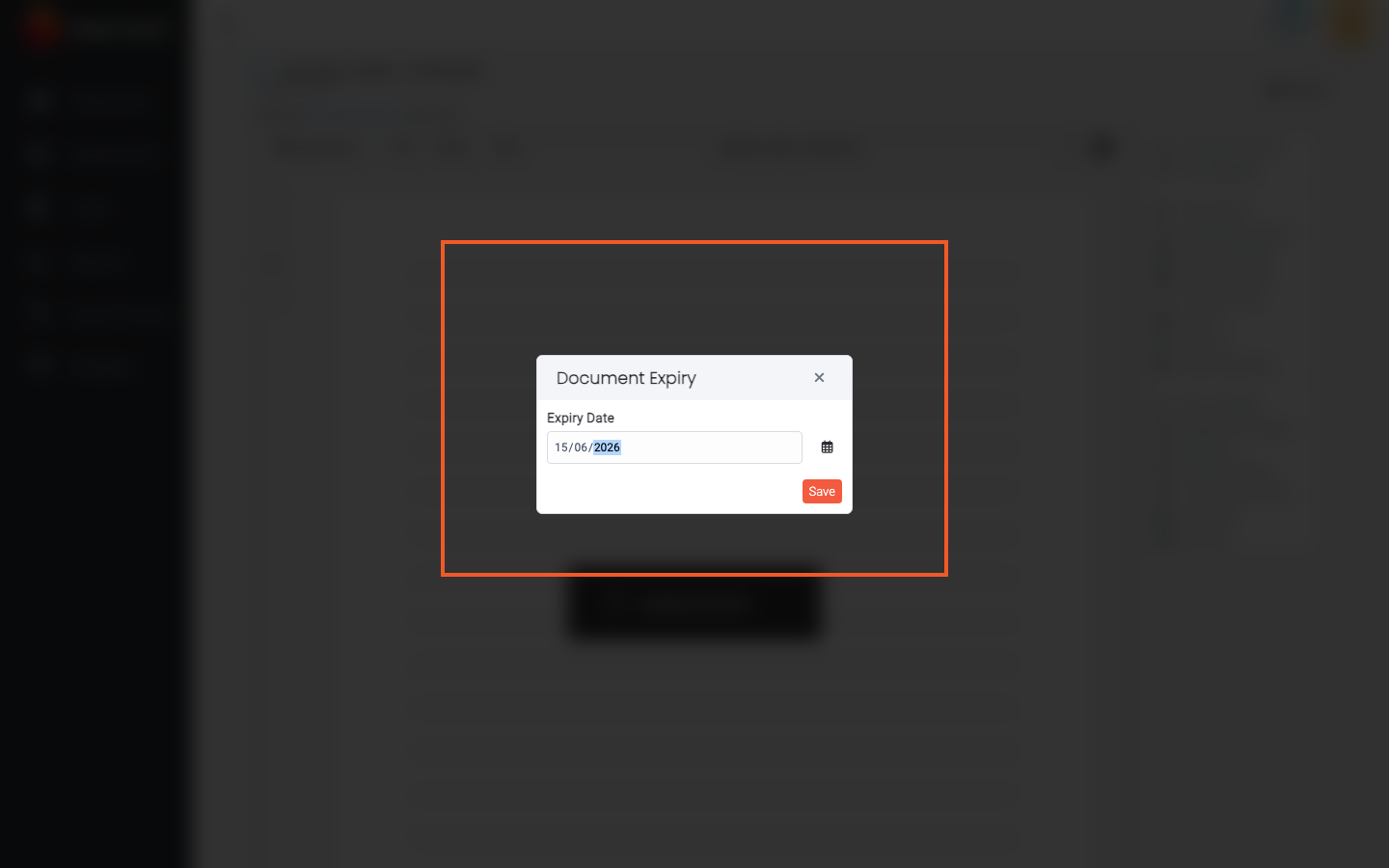
- Click Save.
Remove an Expiry Date
- Open the same document in preview and click Document Expiry again.
- Clear the Expiry Date field so it is empty.
- Click Save.
Example Walkthrough
The screenshots below use a demonstration file in Accounting Documents.
-
With the document open in preview, locate Document Expiry in the right-hand actions panel.
-
Click Document Expiry. The window opens with the Expiry Date field.
-
Choose a date and click Save.
Expected Result
- Document Expiry opens from preview and accepts a date in Expiry Date.
- Save stores the expiry; clearing the date and saving removes it.
- Audit trails can show Changed Document Expiry for the file.
- Documents with an expiry in the upcoming window appear in dashboard expiring views when you have permission to see them.