Categorized
Purpose
See documents that were assigned to a custom category during the selected dashboard date range.
Prerequisites
- You are signed in to EisenVault One.
- You can open Dashboard.
- At least one accessible document has a custom category.
Before You Begin
The Categorized count respects the dashboard date range. Change the date range on the dashboard first when you need a different period.
Documents using Default Content Category are not counted here. They appear under Uncategorized.
View Categorized Documents
- Open Dashboard.
- Set the date range you want to review.
- Click the Categorized overview card.
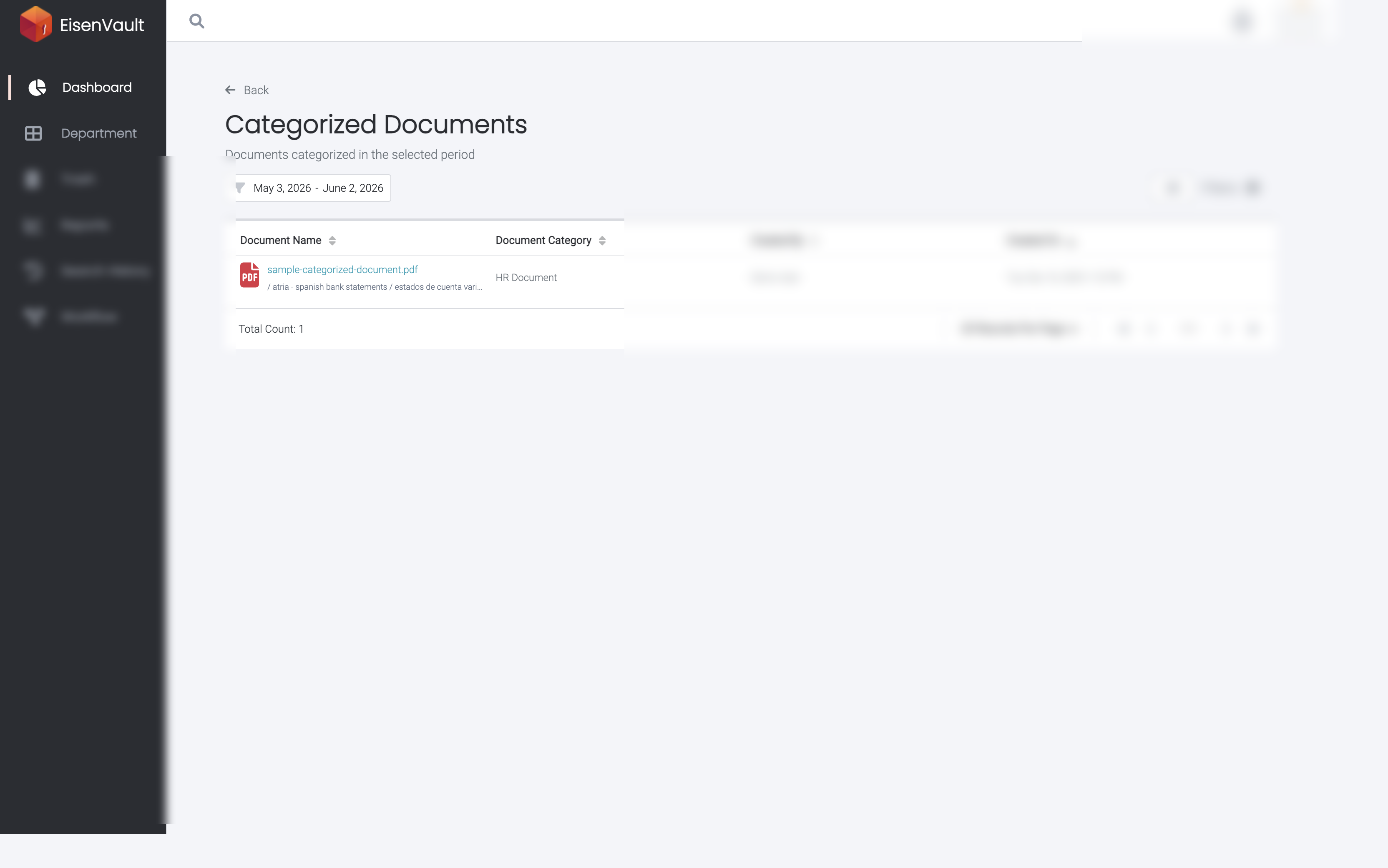
- Review the Categorized Documents table.
- Use Filters to narrow the list by category, creator, or department.
- Sort by Document Name, Document Category, Created By, or Created On.
- Click a document name to open it.
Example Walkthrough
The Categorized Documents page lists each matching document with its category, creator, and created date.
Expected Result
- The page lists documents assigned to a custom category in the selected range.
- Filters, sorting, and pagination update the table.
- Back returns to the dashboard.