Change Number of Items Visible
Purpose
Change how many files and folders appear on each page of the document library.
Prerequisites
- You are signed in to EisenVault One.
- You can open the department or folder you want to review.
Before You Begin
The item count affects only the current document library view. A higher count shows more items at once but may take longer to load in folders with many documents.
If you do not see an item-count control, your deployment may use a fixed page size.
Change the Visible Item Count
- Click Department in the left navigation and select a department.
- Navigate to the department or folder you want to review.
- Locate the item-count or rows-per-page control near the document library.
- Select the number of items you want to show per page.
- Wait for the document library to refresh.
- Use pagination controls if the folder still contains more items than the selected page size.
Example Walkthrough
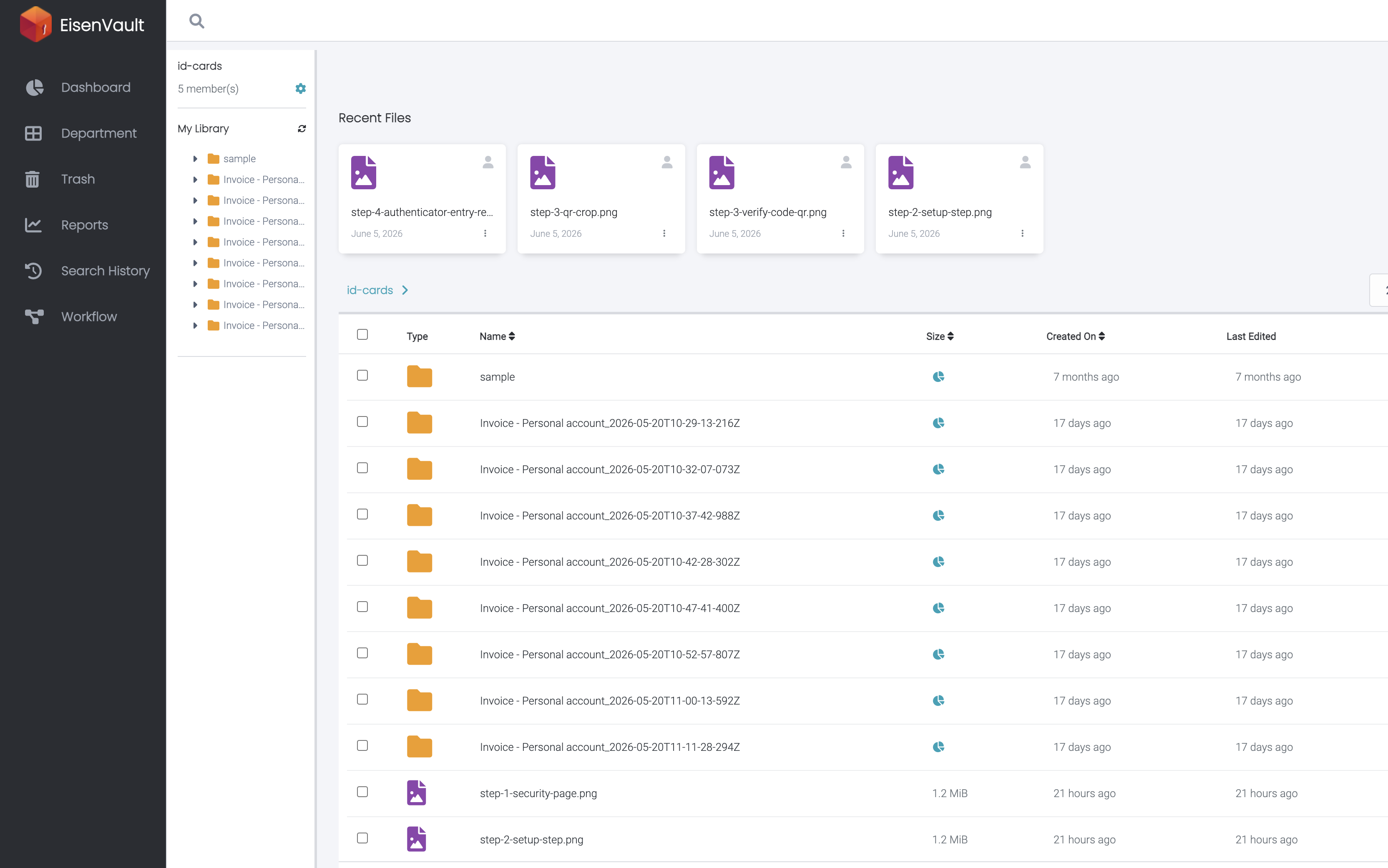
The screenshot below shows the pagination controls at the bottom of the document library in id-cards.
-
Click 25 Records Per Page and choose a different page size.
Expected Result
- The document library refreshes using the selected item count.
- Pagination updates to match the new page size.
- The files and folders themselves are not changed.