Bookmarking
Purpose
Bookmark frequently used files or folders so you can return to them quickly from the dashboard.
Prerequisites
- You are signed in to EisenVault One.
- You have access to the file or folder you want to bookmark.
Before You Begin
Bookmarks are personal shortcuts. Bookmarking an item does not change its location, permissions, metadata, or visibility for other users.
If the item is later moved, renamed, deleted, or removed from your access, the bookmark may no longer open the item as expected.
Bookmark a File or Folder
- Click Department in the left navigation and select a department.
- Navigate to the file or folder you want to bookmark.
- Open the item's options menu.
- Click Bookmark or Add Bookmark.
- Confirm the bookmark action if prompted.
You can also click the bookmark icon in the file list row without opening the options menu.
Example Walkthrough
The screenshots below show bookmark controls in the id-cards document library. The sample folder already has a bookmark; other items show Add bookmark.
-
Open the department and locate the file or folder you want to bookmark.
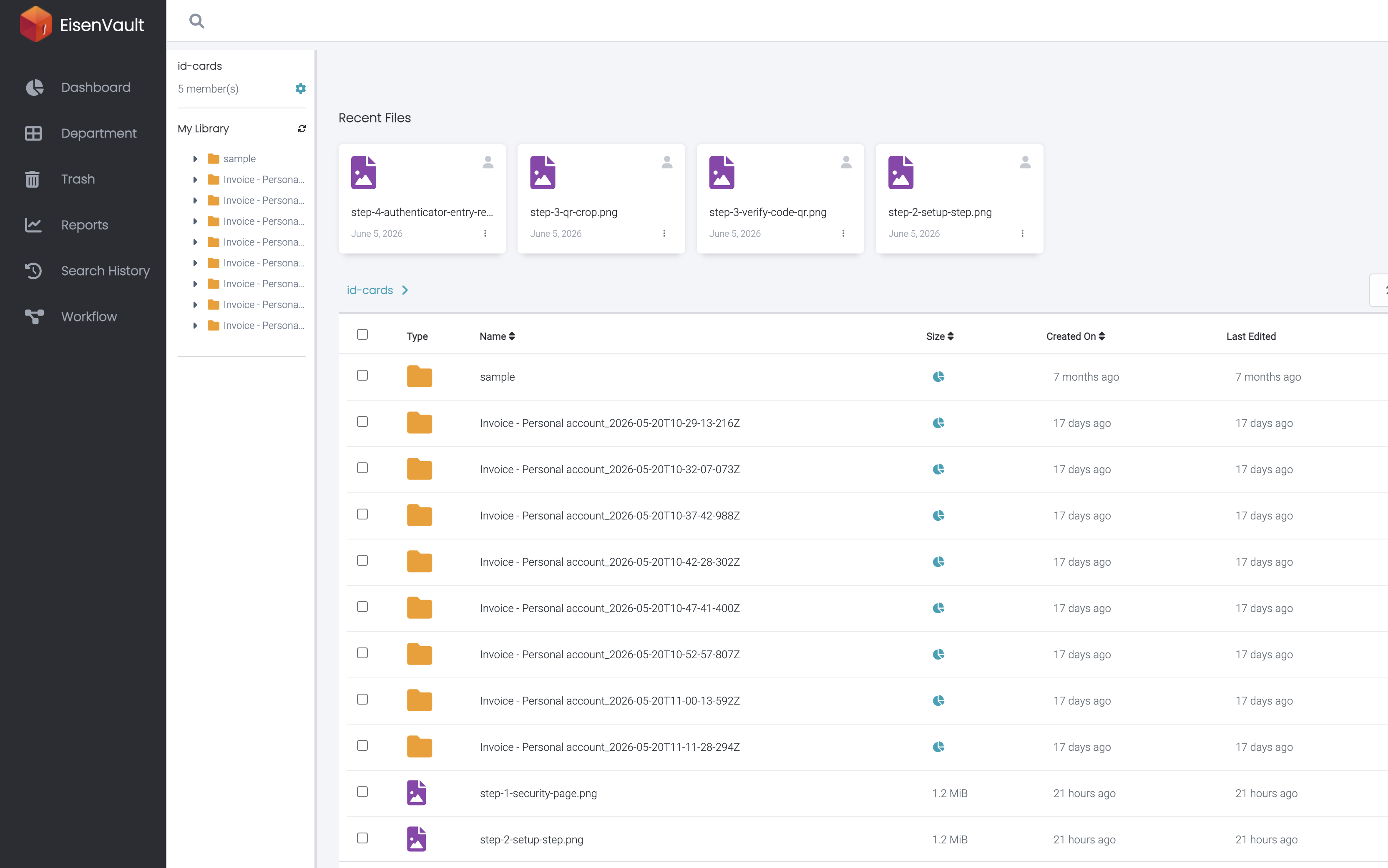
-
Click Add bookmark on the row, or use the options menu bookmark action.
Open a Bookmark
- Open Dashboard.
- Locate the Bookmarks widget.
- Click the bookmarked file or folder.
- Wait for EisenVault One to open the item or its containing location.
Remove a Bookmark
- Navigate to the bookmarked file or folder, or open it from the Bookmarks widget.
- Open the item's options menu.
- Click Remove Bookmark or the equivalent unbookmark action.
- Confirm the action if prompted.
Expected Result
- The item appears in or is removed from your personal bookmarks.
- The original file or folder remains unchanged.
- Other users' bookmarks are not affected.