Edit Group Membership
Purpose
Edit a group’s membership by adding or removing:
- Users in the group
- Subgroups in the group
Note: This action may require administrator privileges.
Prerequisites
- You are signed in as an administrator.
- You can open Admin Tools > Groups.
- The group already exists.
Open Group Details
- Open Admin Tools > Groups.
- Select the group.
- Open the group’s details.
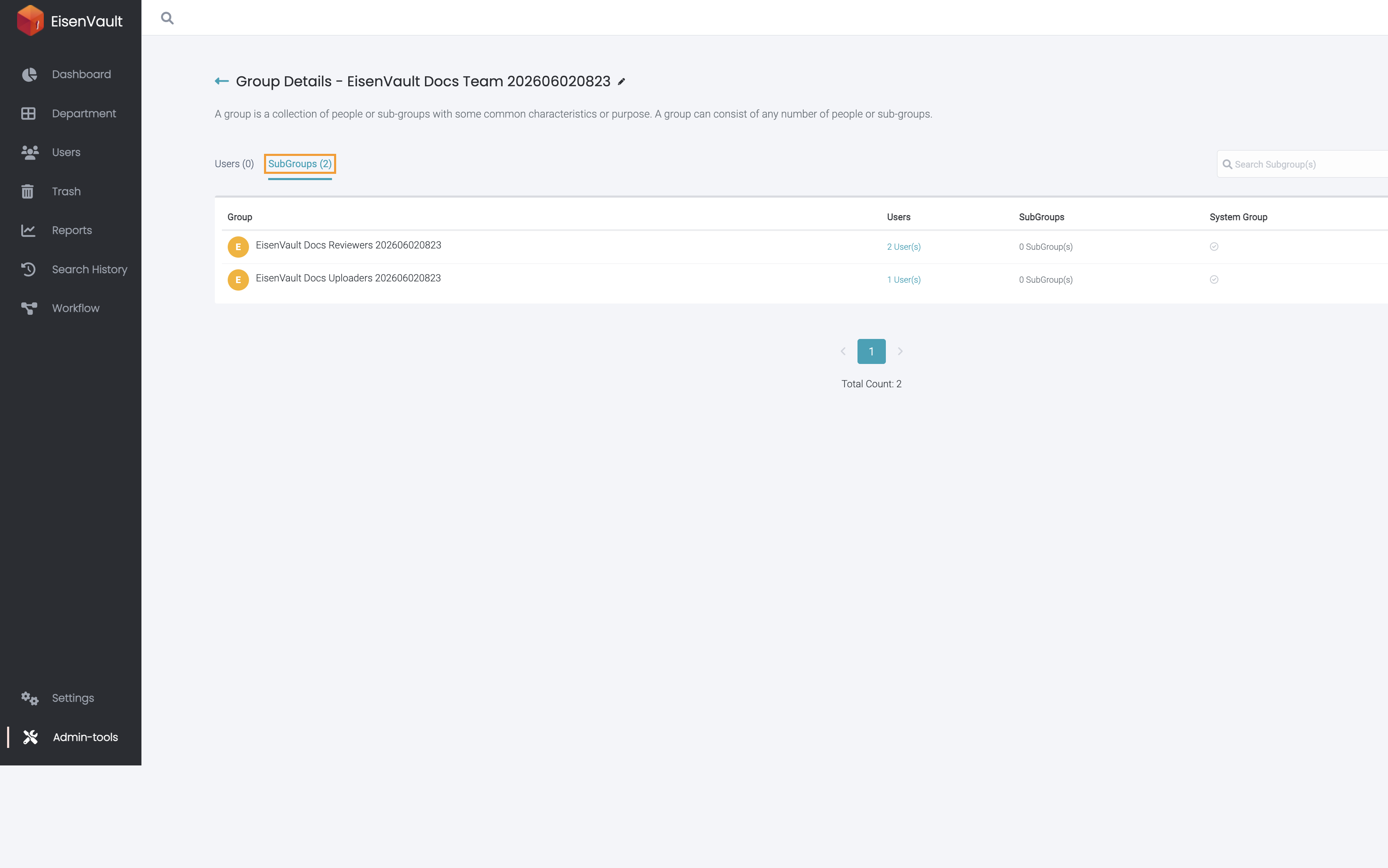
In the group details screen, membership is typically organized into two tabs:
- Users
- Subgroups
Membership Editing Rules and Restrictions
Some groups may not be editable. Common reasons include:
- The group is a system group.
- Membership editing has been disabled for the group.
- The group is linked to a department or is system-managed.
If the UI disables editing actions, review Delete or Troubleshoot Groups for next steps.