Advanced Search
Purpose
Open the Advanced Search panel from the header search bar to narrow results by item type, category, file type, size, people, and dates.
Prerequisites
- You are signed in to EisenVault One.
- You have Read access to the content you want to find.
Before You Begin
The Advanced Search panel opens from any page. A keyword is optional: you can run a filter-only search, for example every file over 50 MB created last month.
The search bar has two small icons next to the keyword box:
| Icon | What it does |
|---|---|
| ab | Groups the words you type into one exact phrase. |
| Magnifier with a plus sign | Opens Advanced Search. |
The panel offers these filters:
| Filter | What it does |
|---|---|
| Item type | Search Files, Folders, or Both (default). |
| Document Category | Limit results to one category. |
| File type | Limit results to one file type. Optional. |
| Size | Pick a range from Less than 1 MB to More than 500 MB, or choose Custom to enter your own limits in bytes, KB, or MB. |
| Author/Creator | Match items created by a selected user. |
| Editor | Match items last edited by a selected user. |
| Created | Limit by creation date. |
| Modified | Limit by last-modified date. |
Run an Advanced Search
-
Click the magnifier-with-plus icon in the header search bar.
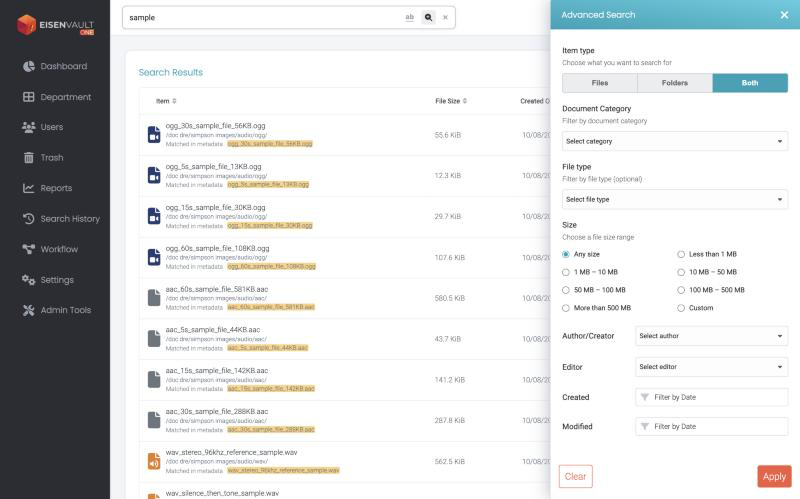
-
Optional: type a keyword in the search bar first.
- Choose the filters you need.
- Click Apply.
- Review the updated list on the Search page.
- Click Clear to reset every filter, or the X at the top right of the panel to close it.
Expected Result
- Only items that match the keyword (if any) and every selected filter appear in the results.
- Typing a new keyword on the Search page clears the advanced filters.
- Active filters are kept when you save the search. See Save a Search.