Workflow Runs
Purpose
Monitor active and completed workflow executions in the Running Workflows view of the Workflows page. Review running, completed, stopped, and failed workflows, then open any run for full approval history and timeline details.
Prerequisites
- You are signed in to EisenVault One.
- Workflow features are enabled in your environment.
- Your account has permission to view workflow runs.
Before You Begin
The Running Workflows view complements the Workflow Library on the Workflows page:
- Workflow Library — workflow definitions and versions.
- Running Workflows — live and historical executions of those workflows on specific files.
The view has a Status filter and a search box. Search accepts plain text or field filters — the placeholder shows Search workflow, file, status:running, approver:…
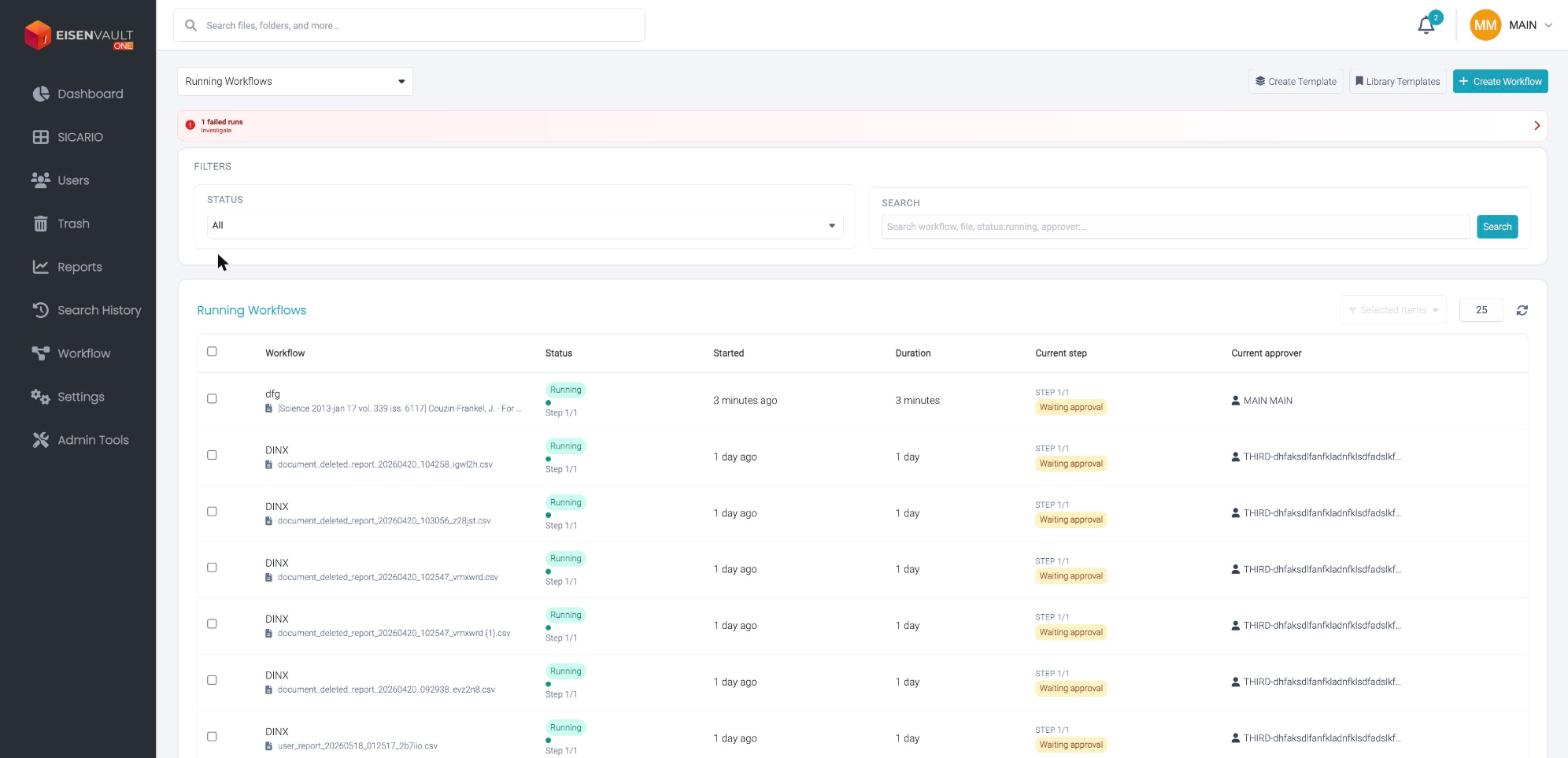
If nothing matches, the list reads No workflow runs found.
Who Sees Which Runs
The list is scoped to you unless your role widens it.
| You are | What you see |
|---|---|
| A participant | The runs you started, and the runs where you are named as an approver |
| A user whose role grants view all workflow runs | Every run in your organization |
| A root user | Every run, the same as above |
This is a permission rather than a role, so any role carrying it grants the wider view. Users without it are not blocked — they simply see their own runs.
Each row shows the workflow name and the document under review, Status with step progress, Started, Duration, Current step with a badge such as Waiting approval, and Current approver.
A run that is past its due date shows an Overdue badge, rather than a tinted row.
Long document names and approver names are shortened with an ellipsis so the columns stay aligned. Click a shortened value to see it in full, and click again to collapse it.
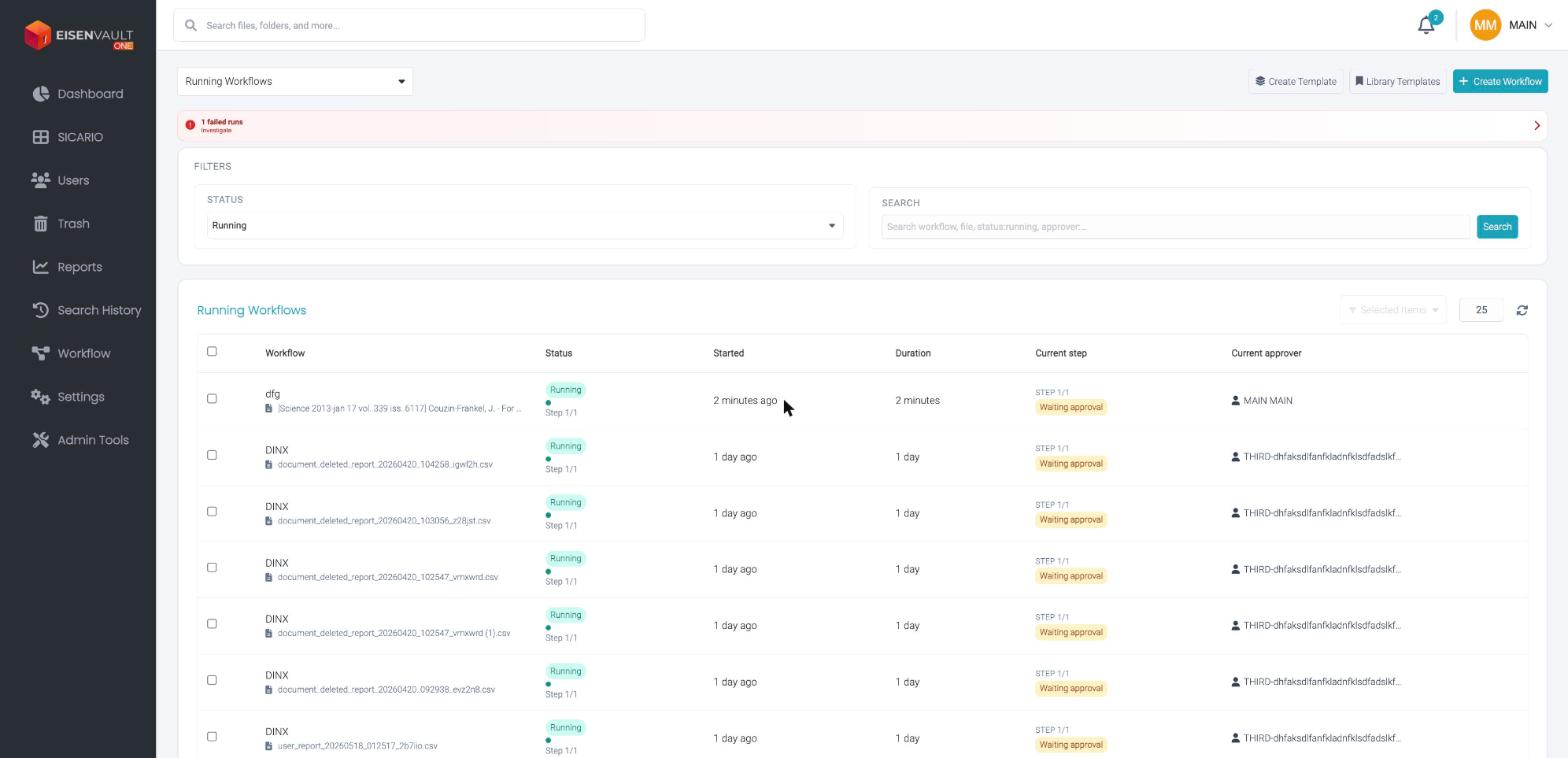
If any run has failed, a banner appears above the filters — for example 1 failed runs / Investigate. Click it to filter the list down to those runs.
Open Running Workflows
- Sign in to EisenVault One.
- Click Workflow in the left navigation.
- Open the dropdown at the top left and choose Running Workflows.
Search and Filter Runs
| Control | Purpose |
|---|---|
| Search | Search by instance ID, workflow name, or file name |
| Status | Filter by All status, Running, Completed, or Stopped |
Click the refresh icon to reload the list.
Runs List Columns
| Column | Description |
|---|---|
| Instance ID | Unique identifier for the workflow run (click to open details) |
| Workflow | Workflow name and the file under review |
| Status | Running, Completed, or Stopped |
| Started | When the workflow began |
| Current step | Active approval step, pending approver, or final state such as Completed |
Act on a Run
Running workflows can be stopped or restarted from the Running Workflows view.
| Action | What it does |
|---|---|
| Cancel | Stops a running workflow. Open approval tasks are closed and no further approvals are requested. |
| Retry | Restarts a run that stopped or failed. |
| Export | Exports the selected runs. |
To act on several runs together, tick the rows you want and use the bulk actions. Cancelling in bulk asks you to confirm first — for example Cancel 3 running workflow(s)?
Note: Cancelling a run cannot be undone. Approvers lose their pending tasks for that run, and the workflow has to be started again if it is still needed.
Open a Workflow Run
- On the Running Workflows view, locate the workflow instance.
- Click the Instance ID or workflow row.
- EisenVault One opens the Approval Details view for that run.
The detail view shows workflow name, document name, priority, due date, request note, workflow progress, approval steps, approval history, and task timeline.
Example Walkthrough
-
Open Workflow and select Running Workflows from the dropdown at the top left.
-
Filter by Running to see in-progress workflows.
- Click an Instance ID to open the full run detail view.
Expected Result
- Status summary cards reflect current workflow activity.
- Search and status filters narrow the runs list.
- Clicking a run opens the full approval detail and timeline view.
Troubleshooting
If the Running Workflows view shows Request failed with status code 421 or Failed to load workflows, the workflow list API did not return data. Summary cards may show zero and the table may read No workflow runs found even when runs exist in your tenant.
Try these steps:
- Click Refresh on the Running Workflows view.
- Confirm your account has the
view_approval_flowpermission. - Ask your administrator to verify the workflow service is healthy on the deployment.
- Sign out and sign back in, then open Workflow → Runs again.
If the error persists after deployment verification, contact EisenVault One support with the HTTP status code and the time the error occurred.