Globalization
Purpose
Set the tenant-wide defaults for language, timezone, and currency.
These defaults apply when a user has not set a personal preference in their profile. Individual users can still override language and timezone from their own preferences.
Note: This action may require administrator privileges.
Prerequisites
- You are signed in as an administrator.
- You can open Settings from the left navigation.
- You know the default language, timezone, and currency your organization should use.
Before You Begin
Changing globalization settings can affect how dates, times, labels, and currency values appear across the application. Pick defaults that match the primary location and operating language of the tenant.
Update Globalization Settings
- Open Settings from the left navigation.
- Select the Globalization tab.
- Choose the Default Language. The dropdowns show the values currently saved for your tenant.
- Choose the Default Timezone.
- Choose the Default Currency.
- Click Save Settings. The language you choose is applied only when you save.
Example Walkthrough
-
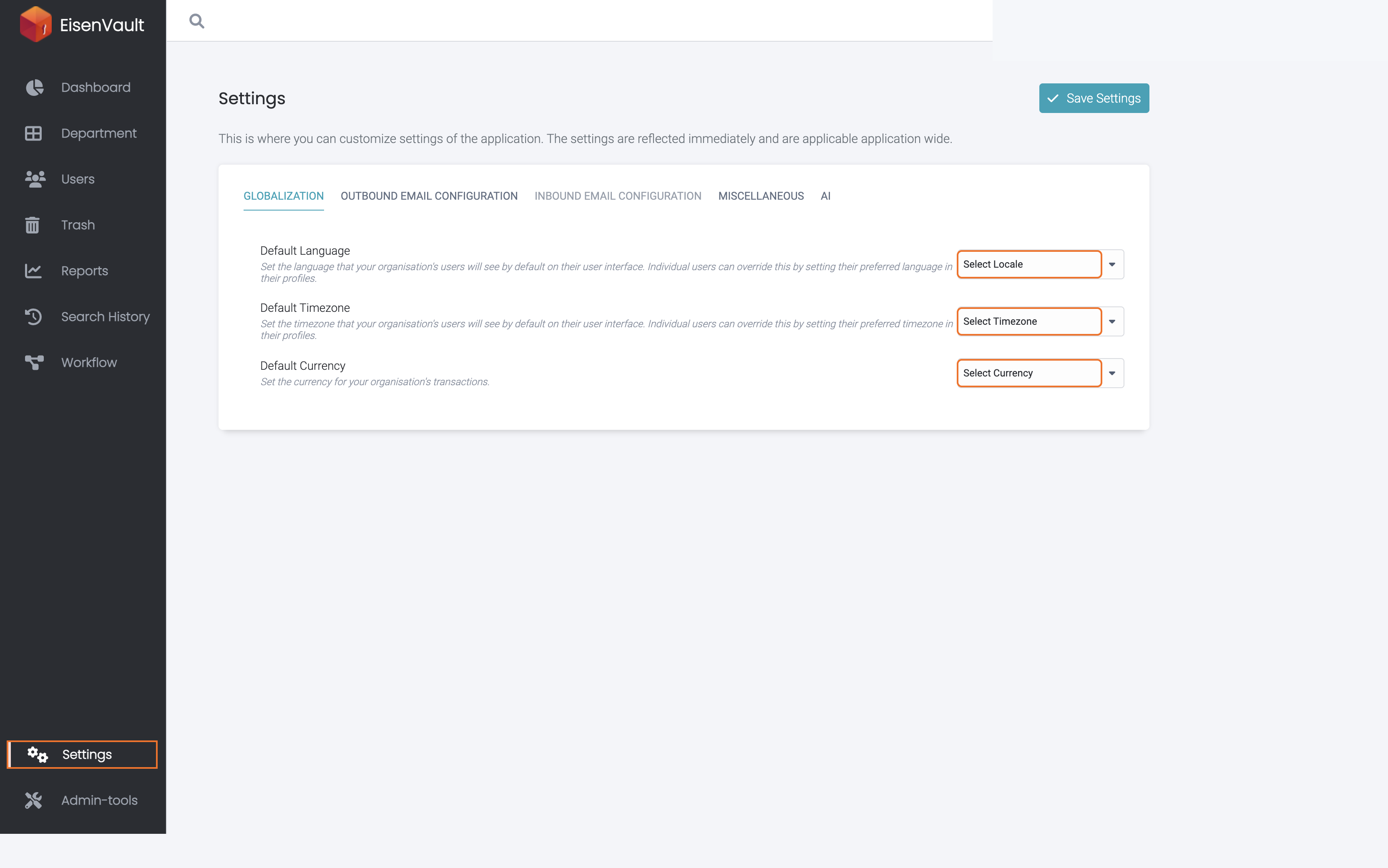
Open Settings and stay on the Globalization tab. Use the highlighted dropdowns to select the tenant defaults, then click Save Settings.
Expected Result
- The selected language, timezone, and currency become the tenant defaults.
- Users without personal preferences inherit these values.
- Users who already set their own profile preferences keep their personal choices.